
Introduction
You find a useful webpage, tell yourself you’ll come back to it later, and then completely forget where it was.
It happens all the time.
Maybe it’s a helpful tutorial, an online form, a recipe, a product page, a work resource, or an article you want to read properly later. Leaving the browser tab open isn’t a reliable way to keep it. The tab can get closed, the browser can restart, or dozens of other pages can make the original impossible to find.
Fortunately, browsers provide several simple ways to save useful pages. Bookmarks are best for pages you expect to revisit. Reading-list features are useful for temporary reading. You can also save certain webpages for offline use or download important documents when appropriate.
The key is choosing the right method and giving saved pages enough organization that you can actually find them later.
The Best Way to Save a Web Page Depends on Why You Need It
Before saving a page, think about how you’ll use it.
If you expect to visit it repeatedly, bookmark it.
If you only want to read it later, a reading list may be more suitable.
If the page contains a document you need to keep, download the document rather than relying on the webpage remaining available.
If you need a permanent copy of information, check whether the website provides a PDF or official downloadable version.
Saving everything as a bookmark can eventually create the same problem you’re trying to avoid: hundreds of saved pages that are difficult to search.
Method 1: Bookmark a Web Page
A bookmark stores the webpage address in your browser so you can return to it without searching for the page again.
This is the simplest option for websites you expect to use more than once.
How to Bookmark a Page in Chrome
Open the webpage you want to save.
Look at the right side of Chrome’s address bar.
Click the star icon.
Chrome will show a small bookmark dialog.
You can change the bookmark’s name and choose where it should be stored.
For example, instead of keeping a long page title, rename it to something useful such as:
Windows Storage Guide
Then choose an appropriate bookmark folder.
Click Done.
Chrome’s current help documentation confirms that bookmarks can be added through the address-bar star and organized into folders.
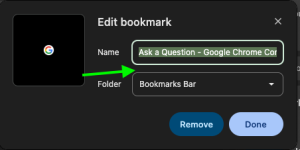
Screenshot purpose: Show beginners exactly where to click to save the current webpage and where they can change its name or folder.
Screenshot caption: Click the star next to Chrome’s address bar to bookmark the current webpage.
Keyboard Shortcut
On Windows and Linux, Chrome also supports:
Ctrl + D
On Mac, use:
Command + D
This can be faster when you’re already reading a page.
How to Bookmark a Page in Microsoft Edge
Open the webpage.
Select the star icon in the address bar.
Choose the folder where you want to store the bookmark, then save it.
Edge calls its saved webpages Favorites.
You can also press:
Ctrl + D
on Windows to add the current page to Favorites.
Microsoft provides bookmark and Favorites management options within Edge’s current interface.

Screenshot purpose: Show Edge users how to save a webpage and choose an appropriate Favorites folder.
Screenshot caption: Save useful webpages to Edge Favorites so you can return to them without searching again.
How to Bookmark a Page in Firefox
In Firefox, select the star button in the address bar.
The page will be added to your bookmarks, and you can choose its location and name.
Firefox also allows bookmarks to be organized into folders.
If you frequently save pages, creating a small number of useful folders is much easier to manage than putting everything into one huge bookmark list.
How to Save a Page in Safari
Safari on Mac lets you add webpages to bookmarks through its bookmark controls.
You can also organize bookmarks into folders.
If you’re using Safari across Apple devices with iCloud enabled, bookmark synchronization can make saved pages available on other compatible Apple devices signed into the same Apple Account, subject to your iCloud settings.
Create Folders Instead of One Giant Bookmark List
Saving your first ten pages is easy.
The problem usually begins at 100.
If every bookmark sits in one long list, finding an old page can become almost as difficult as searching Google again.
Create a small number of broad folders.
For example:
Work
Technology
Finance
Travel
Shopping
Learning
Reference
Don’t create a separate folder for every tiny subject.
If you have only three saved pages about photography, you probably don’t need a Photography folder yet.
A Simple Folder Rule
Ask:
“Would I expect to save several more pages like this?”
If the answer is yes, create a folder.
If the answer is no, keep the bookmark in a general folder.
This keeps your bookmark system useful without turning it into another project you have to maintain.
Rename Bookmarks So They Are Easy to Recognize
Webpage titles aren’t always useful.
A page might have a title such as:
Official Microsoft Support
That doesn’t tell you which particular information you saved.
If the page is about fixing a Windows storage problem, a better bookmark name might be:
Microsoft — Free Up Windows Storage
Keep the name short but meaningful.
You should be able to look at the bookmark months later and understand why you saved it.
Method 2: Use a Reading List for Pages You Want to Read Later
A bookmark isn’t always the best choice.
Suppose you find a long article while you’re busy. You don’t necessarily want to keep it permanently. You just want a convenient place to return to it.
That’s where reading-list features can be useful.
Chrome Reading List
Chrome includes a Reading list feature for keeping pages you want to read later.
Depending on the current Chrome interface, you can access saved reading-list items from the browser’s side panel.
This separates temporary reading material from your permanent bookmarks.

Screenshot purpose: Demonstrate where a user can view pages saved for later reading.
Screenshot caption: Keep articles you plan to read later in Chrome’s Reading list instead of mixing them with permanent bookmarks.
Edge Reading List and Collections
Microsoft Edge has changed how some of its reading and organization features work over different versions.
If your version provides a reading or collection feature, use it for temporary research and articles rather than treating every saved page as a permanent Favorite.
For current Edge features, check the browser’s own settings and Microsoft support documentation because the interface can change over time.
Method 3: Save a Web Page as a PDF
Sometimes you need more than a bookmark.
If you’re keeping a copy of information for your own records, you may be able to save the webpage as a PDF.
This can be useful for:
- Instructions
- Receipts
- Reference information
- Forms
- Travel details
- Work material
- Personal records
However, saving a webpage as a PDF doesn’t guarantee that it will look exactly like the original website.
Interactive elements may not work.
Videos may not be included.
Some pages may require an internet connection for certain content.
Save a Web Page as PDF in Chrome
Open the webpage.
Press:
Ctrl + P
on Windows or:
Command + P
on Mac.
In the print dialog, choose a PDF-saving option such as Save to PDF, depending on your operating system.
Choose the destination.
Give the file a meaningful name.
Then save it.
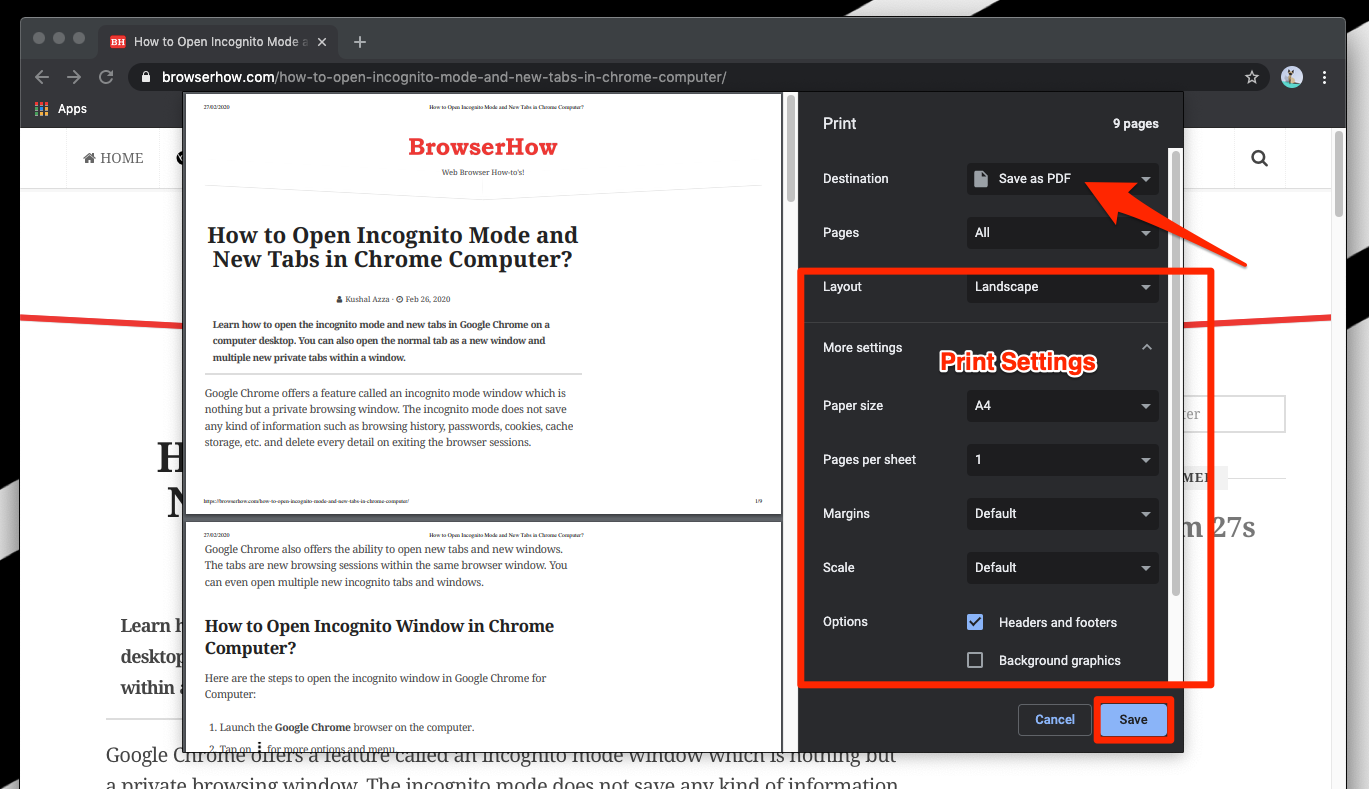
Screenshot purpose: Show users where the PDF destination is selected before saving a copy of a webpage.
Screenshot caption: Use the browser’s print dialog to save a webpage as a PDF when you need a local copy.
Before relying on the PDF, open it and make sure the important information actually appears.
Save the Original Document Instead of the Web Page When Possible
This is an important distinction.
Suppose a website gives you a downloadable PDF manual.
Don’t print the webpage to PDF simply because you can.
Download the original PDF if the website provides it.
The original document will often have better formatting and may contain links, searchable text, or other features that aren’t preserved when you save a webpage through the print function.
The same applies to invoices, application forms, reports, and other files.
If the website provides the actual file you need, save that file.
Method 4: Save Important Pages to the Browser’s Bookmark Bar
If you use certain websites every day, putting them in the bookmark or Favorites bar can make them much faster to access.
For example, you might keep frequently used pages such as:
Banking
Work Portal
Calendar
Cloud Storage
Avoid filling the bar with dozens of links.
The purpose of the bookmark bar is quick access to your most frequently used pages.
Everything else can remain in folders.
Screenshot purpose: Demonstrate a clean bookmark bar with only frequently used websites instead of dozens of cluttered links.
Screenshot caption: Keep only your most frequently visited pages on the bookmark bar.
How to Find a Bookmark Later
Saving a page is only useful if you know how to retrieve it.
Chrome
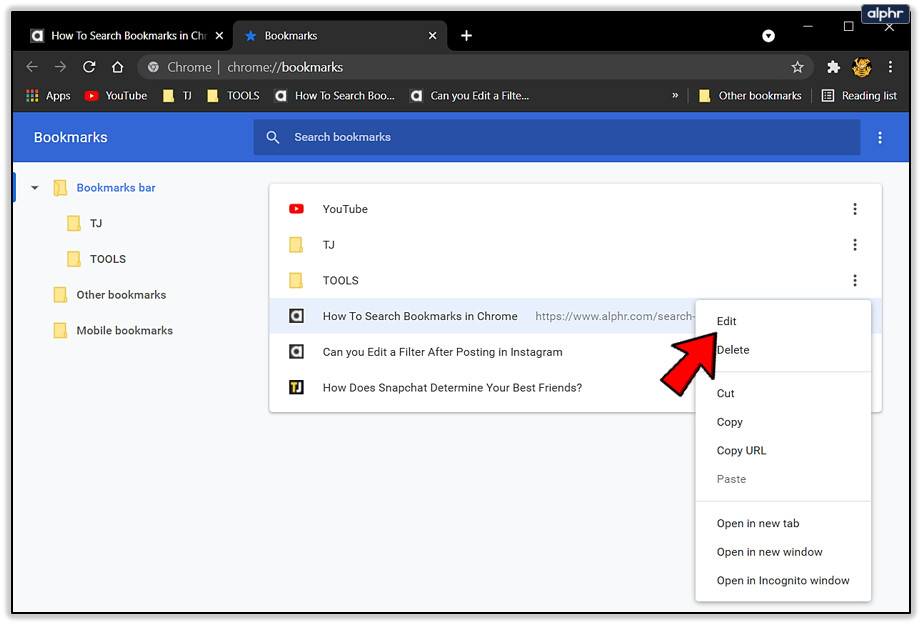
Open the Chrome menu and look for Bookmarks and lists or the current bookmarks-management option.
You can also use Chrome’s bookmark manager to browse and organize saved pages.
A quick keyboard shortcut on Windows is:
Ctrl + Shift + O
This opens Chrome’s bookmark manager.
From there, you can search through saved bookmarks, move them between folders, rename them, or delete old ones.
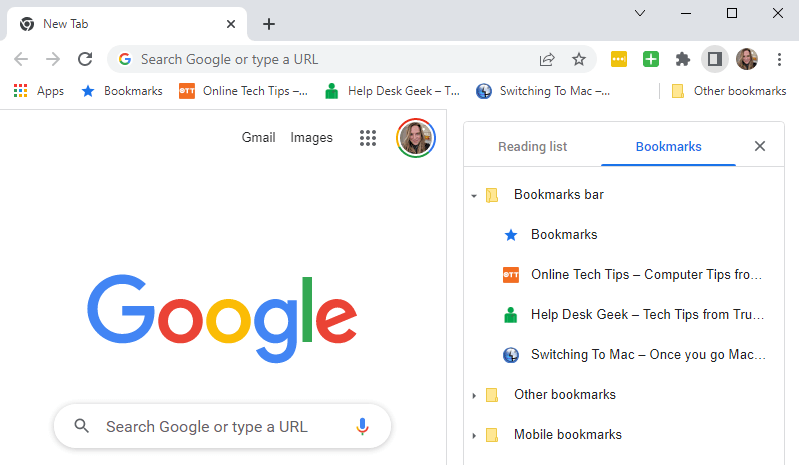
Screenshot purpose: Show users where saved bookmarks can be searched and organized.
Screenshot caption: Use Chrome’s bookmark manager when you need to find, rename, move, or remove saved pages.
Edge
Open Edge’s Favorites area.
You can browse folders and saved pages and search them where supported.
Firefox
Firefox provides a Library/bookmarks management area where you can search and organize bookmarks.
Safari
Safari provides bookmark controls for accessing and organizing saved pages.
The exact menus can differ depending on the browser version and operating system.
Use Browser History as a Backup, Not Your Main Saving Method
Sometimes you don’t save a page at all.
You simply remember visiting it.
That’s when browser history can help.
History records webpages you’ve visited, allowing you to find a page you opened earlier.
However, history isn’t a replacement for bookmarks.
You may clear your browsing history.
Private browsing sessions may not be retained in the same way.
A large browsing history can also make finding one specific page difficult.
If a page is genuinely important, bookmark it rather than assuming you’ll find it later through history.
What If You Can’t Remember the Page Title?
Don’t panic.
You may still be able to find it.
Think about what you remember.
Maybe you remember:
- Part of the website name
- A word from the page title
- The subject
- Approximately when you visited it
- Whether you bookmarked it
- Whether you downloaded something from it
Search your bookmarks using a meaningful word rather than trying to remember the entire title.
If you didn’t bookmark it, search browser history.
If you remember the website but not the exact page, use the website’s own search feature or a search engine with the site’s name.
For example, instead of searching the entire internet for:
How to fix computer storage
you might search:
site:example.com computer storage
This can narrow the results to a particular website.
What If the Saved Web Page No Longer Exists?
A bookmark doesn’t preserve the webpage itself.
It stores the address.
If the website removes the page, changes its URL, requires a login, or shuts down, the bookmark may no longer work.
That’s why important information sometimes needs a second form of preservation.
If you’re allowed to keep a local copy, save an official PDF or another appropriate document.
For critical records, don’t rely on a bookmark as your only copy.
How to Keep Bookmarks From Becoming Cluttered
A bookmark system works best when you occasionally clean it.
Every few months, open your bookmark folders.
Delete pages you no longer use.
Remove duplicate bookmarks.
Move useful pages into the right folders.
Update saved links that have moved.
Don’t feel that you need to keep every page you’ve ever found interesting.
A smaller collection of useful bookmarks is much easier to manage than a huge archive of forgotten links.
Sync Bookmarks Across Your Devices
If you use the same browser on multiple devices, browser synchronization can make saved pages available elsewhere.
For example, Chrome can sync bookmarks through your Google Account when synchronization is enabled. Firefox offers Firefox Sync, and Safari can synchronize supported Safari information through iCloud.
This can be convenient if you save a page on your phone and later want to open it on your computer.
Before enabling synchronization, understand what information will be synced and which account is being used.
Don’t enable account synchronization on a shared computer without considering who else can access the browser profile.
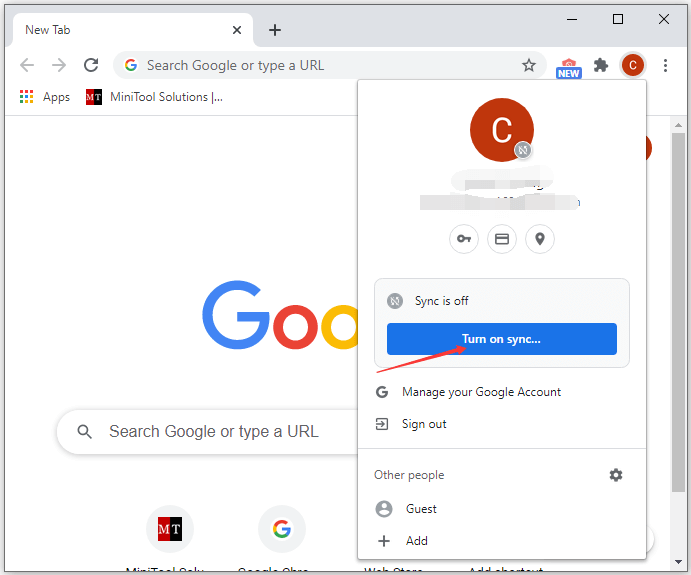
Screenshot purpose: Explain where users can review browser synchronization settings without displaying personal account information.
Screenshot caption: Check your browser’s sync settings if you want bookmarks available across your devices.
Be Careful When Saving Private or Sensitive Pages
Not every webpage should be saved casually.
If you’re viewing private banking information, account details, medical information, personal documents, or other sensitive material, think carefully before saving it as a bookmark, PDF, or screenshot.
A bookmark to a private page may not contain the information itself, but anyone using the same browser profile could potentially see the saved link.
A downloaded PDF may contain much more sensitive information.
Store sensitive files in an appropriate protected location and avoid saving confidential information on shared computers.
Common Problems and Quick Fixes
I bookmarked a page but can’t find it
Check your bookmark manager and look through your folders. You may have saved it in a different folder than expected.
I accidentally removed a bookmark
Some browsers provide ways to undo recent bookmark changes. If you notice the mistake immediately, look for an Undo option before making additional changes.
My bookmark opens a page that no longer works
The website may have moved or removed the page. Search the website for the current version of the information.
I have too many bookmarks
Don’t try to organize every bookmark perfectly. Start by deleting duplicates and pages you know you no longer need. Then create a few broad folders.
My bookmarks don’t appear on my other device
Check that you’re signed into the same browser account and that synchronization is enabled for bookmarks.
A saved PDF doesn’t look like the original webpage
Webpages can contain interactive elements, dynamic content, and layouts that don’t translate perfectly into a PDF. If the website provides an original PDF or downloadable document, use that instead.
I saved a webpage but it requires a login later
A bookmark only saves the web address. It doesn’t necessarily preserve your access to the account or the content. You may need to sign in again.
Practical Tips
Bookmark pages that you’ll genuinely revisit.
Use a reading list for temporary reading material when your browser provides one.
Create a small number of broad bookmark folders.
Rename confusing page titles.
Keep your bookmark bar limited to frequently used websites.
Save the original PDF when a website provides one.
Use browser history when you forgot to bookmark a page.
Don’t rely on a bookmark as a permanent copy of important information.
Review old bookmarks occasionally.
Turn on browser synchronization only when it makes sense for your devices and account.
Be particularly careful when saving pages or files containing sensitive information.
Frequently Asked Questions
What is the easiest way to save a webpage?
For most people, bookmarking is the easiest method. Click the browser’s star or bookmark button and save the page to an appropriate folder.
Is a bookmark the same as saving a webpage?
No. A bookmark normally saves the webpage’s address so you can return to it. It doesn’t necessarily save a permanent copy of the webpage’s contents.
Should I use bookmarks or a reading list?
Use bookmarks for pages you expect to revisit regularly. Use a reading list for articles and other pages you want to read later but don’t necessarily want to keep permanently.
Can I save a webpage as a PDF?
Yes. Many desktop browsers allow you to use the print dialog and choose a PDF destination. The exact options depend on your browser and operating system.
Why can’t I find a bookmark I saved?
It may have been saved inside a different folder or bookmark area. Open your browser’s bookmark manager and search for part of the website or page title.
Will my bookmarks appear on my phone?
They can if your browser supports synchronization and you’re signed into the same browser account with bookmark syncing enabled.
What should I do if an important bookmarked page disappears?
First, search the website for a newer version of the page. If you need a permanent record of important information, save an official document or another appropriate copy rather than relying solely on the bookmark.
Final Thoughts
Saving useful webpages is easy. Keeping those saved pages useful takes a little organization.
Use bookmarks for websites and pages you expect to revisit. Keep temporary reading material separate when your browser provides a reading list. When you need an actual copy of information, save the original downloadable document or create a PDF when appropriate.
Most importantly, don’t save everything.
A bookmark collection with a few well-named folders is far easier to use than hundreds of random links. Take a few seconds to give important pages a meaningful name and put them somewhere you’ll remember.
Then, when you need that page three months from now, you won’t have to start the search all over again.
Sources Used for Accuracy
- Google Chrome Help — Create, find and edit bookmarks: Used to verify Chrome’s current bookmark creation and organization features.
- Microsoft Support — Microsoft Edge Favorites: Used to verify Edge’s current terminology and Favorites-management features.
- Mozilla Support — Bookmarks in Firefox: Used to verify Firefox bookmark creation and organization.
- Apple Support — Organize bookmarks and favorites in Safari on Mac: Used to verify Safari bookmark management and organization.