
Seeing “Connected” next to your Wi-Fi network does not necessarily mean your device can reach the internet. Your computer or phone may have a working wireless connection to the router while the router itself has lost its connection to your internet provider.
That distinction is important.
If only one device has no internet, the problem may be on that device. If every phone, computer, and smart device connected to the same Wi-Fi network is offline, the router, modem, ISP connection, or an upstream service becomes more likely.
Before pressing the router’s reset button, use that distinction to narrow down the problem. A normal restart is very different from a factory reset, which can erase the router’s configuration.
What “connected to Wi-Fi but no internet” actually means
Wi-Fi and internet access are two different parts of the connection.
Your device first connects wirelessly to the router. The router then needs a working connection to the modem, fiber terminal, or internet service provider.
So this can happen:
Laptop → Wi-Fi → Router → X Internet
Your laptop can therefore show that it is connected to Wi-Fi even though websites, email, streaming services, and other internet-dependent applications cannot connect.
Microsoft describes the Windows No Internet status as a situation where the device is connected to the local network but does not have an internet connection.
That is why resetting the router should not automatically be the first step.
First check: Is the problem on one device or the whole network?
This is the fastest useful test.
Take another device that normally uses the same Wi-Fi network, such as a phone or another computer, and try opening a few unrelated websites.
If other devices work normally
The router and internet connection are probably working well enough for those devices.
Focus on the affected device.
Possible causes include:
- a temporary network problem
- incorrect network settings
- DNS problems
- a VPN or proxy
- a Wi-Fi driver problem
- a damaged saved Wi-Fi profile
- an operating-system networking problem
If every device has no internet
Do not spend a long time changing settings on one laptop.
Check the router and modem/ONT, the cables between them, their status lights, and whether your internet provider is experiencing an outage.
This one test can save you from troubleshooting the wrong device.
Check whether the problem is actually the website
Before changing network settings, try more than one website.
For example, if one website does not load but another works, the Wi-Fi connection itself may not be the problem.
Try:
- a familiar search engine
- another major website
- a service you regularly use
If only one website or online service fails, check that service separately instead of resetting your home network.
If nothing loads, continue.
Turn Wi-Fi off and reconnect
On Windows 11, select the network, sound, or battery area on the taskbar to open Quick Settings. Turn Wi-Fi off, wait briefly, and turn it back on.
Then reconnect to your normal network.
Microsoft includes turning Wi-Fi off and back on among its general troubleshooting steps.
What this test tells you
If internet access returns immediately, the wireless connection may simply have needed to reconnect.
If Windows still says No Internet, continue rather than repeatedly toggling Wi-Fi.
Check Airplane Mode
On Windows, open:
Start > Settings > Network & internet > Airplane mode
Make sure Airplane mode is off.
Also make sure Wi-Fi is enabled.
This sounds basic, but it is worth checking before changing network configuration because it takes only a few seconds and does not alter your saved network settings. Microsoft includes both Wi-Fi status and Airplane Mode in its recommended troubleshooting sequence.
Forget the Wi-Fi network and reconnect
If the problem affects only one Windows PC, the saved Wi-Fi profile may be worth testing.
On Windows 11, go to:
Settings > Network & internet > Wi-Fi > Manage known networks
Select your network and choose Forget.
Then reconnect to the network and enter the Wi-Fi password again. Microsoft documents this as a standard troubleshooting step for Windows Wi-Fi problems.
Important before forgetting the network
Make sure you know the Wi-Fi password.
Forgetting a network removes the saved connection information from that Windows device. It does not factory-reset your router or change the Wi-Fi password on the router.
Test the connection afterward
Open a browser and visit several different websites.
If they load normally, the saved network profile was likely involved.
If the connection still shows No Internet, move on.
Check whether your device received a valid IP address
An IP address is the network address assigned to your device. Your router normally provides one automatically using DHCP.
On Windows, open Command Prompt and run:
ipconfig
Find the Wi-Fi adapter and look for its IPv4 address and Default Gateway.
A normal home network will commonly use a private address range, but the exact address depends on your router.
One particularly useful warning sign is an address beginning with:
169.254.
Microsoft notes that a 169.254.x.x address can indicate that Windows was unable to obtain an IP address from the router when automatic addressing is being used.
What the result means
You have a normal local IP address and a Default Gateway:
Your device is communicating with the local network. The problem may be further upstream, such as DNS or the router’s internet connection.
You have a 169.254.x.x address:
The device may not be successfully receiving network configuration from the router. Focus on the Wi-Fi connection, router, DHCP, or adapter before changing DNS.
There is no Wi-Fi adapter listed:
Windows may not be detecting or enabling the wireless adapter. That is a different problem from simply having no internet.
Test the connection to your router
If Windows has a Default Gateway, you can test whether your PC can reach the router itself.
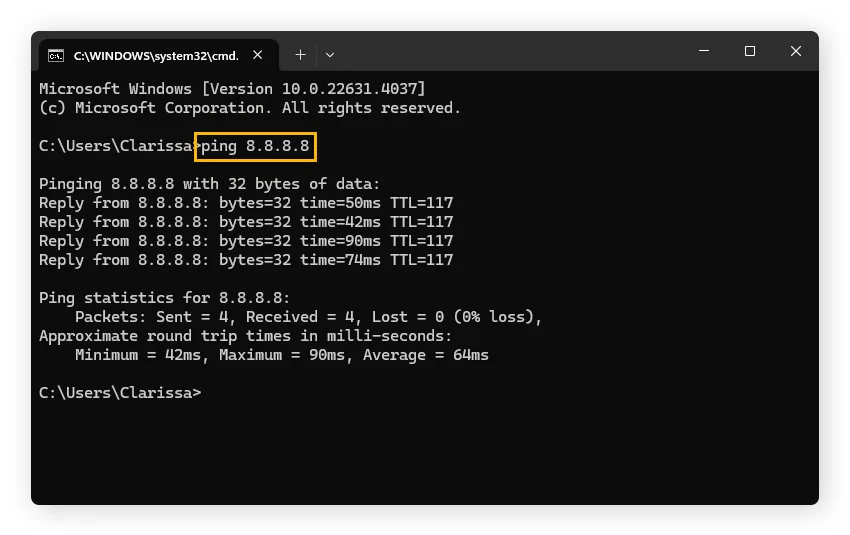
In Command Prompt, run:
ipconfig
Find the Default Gateway, such as:
192.168.1.1
Then run:
ping 192.168.1.1
Replace the example address with the actual Default Gateway shown on your computer.
Microsoft recommends this type of ping test to determine whether the PC can communicate with the Wi-Fi router.
If you receive replies
Your PC can communicate with the router.
That means the Wi-Fi connection itself is functioning at least at the local-network level. The problem may instead be between the router and your ISP, or with DNS or another internet configuration.
If the router does not reply
The problem is closer to the local Wi-Fi connection.
Check:
- Wi-Fi signal strength
- the saved Wi-Fi connection
- the wireless adapter
- the router
- whether another device can communicate normally through the same network
Do not jump straight to changing DNS. DNS cannot fix a device that cannot reliably communicate with its router.
Try another Wi-Fi frequency if your router provides one
Some routers provide separate 2.4 GHz and 5 GHz networks. Microsoft recommends trying another available frequency when troubleshooting Wi-Fi connectivity.
If you see two networks belonging to your router, try the other one.
This is particularly useful as a diagnostic test because it changes the wireless connection without changing the router’s entire configuration.
What the result tells you
If one band works while the other does not, the issue may be related to wireless signal conditions, compatibility, interference, or the adapter’s handling of that band.
If neither works and other devices are also offline, investigate the router or internet service.
Check for a VPN or manual proxy
A VPN changes how your internet traffic is routed. A proxy can also affect how applications connect to the internet.
If a VPN is active, temporarily disconnect it and test a normal website.
On Windows 11, you can review proxy settings under:
Settings > Network & internet > Proxy
Microsoft’s Windows networking guidance also identifies proxy configuration as something to check when a device is connected to Wi-Fi but cannot reach the internet.
Do not install a new VPN or proxy just to troubleshoot the existing connection. The goal is to simplify the connection temporarily, not add another variable.
Renew the Windows network connection
If your device appears to have a network configuration problem, Windows provides commands for renewing its IP configuration and clearing DNS information.
Open Command Prompt as administrator and run these commands in order:
ipconfig /release
ipconfig /renew
ipconfig /flushdns
Microsoft also recommends resetting the Windows networking components with these commands when appropriate:
netsh winsock reset
netsh int ip reset
Microsoft’s current Windows Wi-Fi troubleshooting guidance includes these commands for resetting the TCP/IP stack, renewing the IP address, and flushing the DNS resolver cache.
What these commands are doing
ipconfig /release tells Windows to release its current DHCP-assigned IP configuration.
ipconfig /renew asks the network for a new configuration.
ipconfig /flushdns clears locally cached DNS information.
The netsh commands address Windows networking components more broadly.
After using the reset commands, restart Windows and test the connection again.
Do not repeatedly run commands without observing the result. If the connection works after one of these steps, you have learned something useful about where the problem was occurring.
Check whether DNS is the problem
DNS translates domain names such as website addresses into IP addresses that computers can use.
A device can therefore have:
- a working Wi-Fi connection
- a valid local IP address
- communication with the router
and still have trouble reaching websites if DNS resolution is failing.
One useful diagnostic is to test whether you can reach an internet destination by IP address while ordinary domain names fail. However, interpreting these tests can become complicated because modern services use multiple addresses and security mechanisms.
For most everyday users, the safer first steps are to reconnect the network, renew the IP configuration, flush DNS, and check for proxy or VPN problems before manually changing DNS servers.
Do not change DNS simply because the word “DNS” appears in a troubleshooting article. If other devices on the same network also cannot access the internet, the issue may be the router or ISP instead.
Restart the modem and router — but use Restart, not Factory Reset
If multiple devices have lost internet access, restarting the network equipment becomes much more reasonable.
There is an important distinction:
Restarting the router means powering it off and back on.
Resetting the router can mean restoring factory settings.
Those are not the same thing.
How to restart the equipment safely
If you have separate modem and router devices:
- Save anything that needs an internet connection.
- Unplug the router’s power.
- Unplug the modem or internet gateway’s power.
- Wait at least about 30 seconds.
- Restore power to the modem or gateway first.
- Wait for it to finish starting up and establish its connection.
- Restore power to the router.
- Wait several minutes for the Wi-Fi network and internet connection to become available.
- Test the connection on more than one device.
Microsoft recommends restarting the modem and router as part of its Wi-Fi troubleshooting process and notes that the exact procedure can vary by equipment.
If you have a single modem/router combination unit, you generally only need to power-cycle that device.
Watch the modem or router status lights
The lights vary considerably between manufacturers, so do not assume that one color has the same meaning on every device.
Look for the manufacturer’s explanation of the relevant lights.
If the Wi-Fi indicator looks normal but the Internet, WAN, Broadband, or similar connection indicator shows a problem, the wireless network may be functioning while the incoming internet connection is not.
That distinction is useful when contacting your ISP.
Tell support what the equipment is showing rather than simply saying, “Wi-Fi doesn’t work.”
Check the cable or fiber connection
If you have a separate modem, ONT, or gateway, check the physical connection between the internet equipment and router.
Make sure the cable is firmly connected.
For Ethernet-based equipment, check both ends of the cable. If you have a spare compatible cable, testing it can help rule out a damaged cable.
For fiber connections, avoid bending or disconnecting optical cables unnecessarily. Follow the equipment manufacturer’s instructions instead.
A loose connection can produce symptoms that look like a Wi-Fi problem even though the wireless network itself is working.
Try Ethernet if your computer supports it
An Ethernet connection provides another useful diagnostic.
Connect the computer directly to the router with an Ethernet cable if your equipment and computer support it.
If Ethernet works but Wi-Fi does not
The internet connection entering the router is probably functioning. Focus on the wireless side:
- Wi-Fi settings
- wireless adapter
- Wi-Fi driver
- wireless interference
- saved network profile
- router wireless configuration
If Ethernet also has no internet
The problem is less likely to be limited to Wi-Fi.
Investigate the router’s internet connection, modem/ONT, or ISP service.
Microsoft recommends using an Ethernet connection as a way to narrow down whether the problem is with Wi-Fi or the broader internet connection.
Check whether your internet provider has an outage
If every device is offline even after restarting the modem/router, the ISP becomes an important suspect.
Use another internet connection, such as mobile data, to check your provider’s official service-status page or contact its support team.
This is another reason not to factory-reset the router.
If the ISP is experiencing an outage, changing your router configuration will not restore the provider’s service.
Do not confuse a router restart with a factory reset
This is the most important warning before reaching for the reset button.
A restart simply powers the equipment off and on.
A factory reset can return the router to its original configuration. Depending on the equipment, that may remove things such as:
- Wi-Fi network name
- Wi-Fi password
- ISP configuration
- custom DNS settings
- port forwarding
- parental controls
- device reservations
- custom firewall settings
- other network configuration
The exact consequences depend on the router and ISP.
If you do not know how the router was configured, do not factory-reset it just because your Wi-Fi says “Connected, No Internet.”
Check the manufacturer’s instructions or contact your ISP first.
Check the Windows network adapter if only one PC is affected
If phones and other computers work normally but one Windows PC does not, the wireless adapter becomes more relevant.
Open Device Manager and expand:
Network adapters
Find the wireless adapter.
Check whether Windows reports a warning symbol or whether the adapter is disabled.
Microsoft also recommends checking or reinstalling the network adapter driver when earlier troubleshooting steps have failed. Before uninstalling a driver, Microsoft recommends having an appropriate driver available from the PC manufacturer’s website in case Windows does not automatically reinstall it.
Do not uninstall a network driver as your first troubleshooting step when the problem may simply be an ISP outage.
When Windows Network Reset makes sense
Windows has its own Network reset feature. This is different from resetting your physical router.
Microsoft recommends Network reset as a last step for Windows connection problems because it removes installed network adapters and resets their settings to defaults. You may also need to configure networking software such as VPN clients or virtual switches again afterward.
On Windows 11, the option is under:
Settings > Network & internet > Advanced network settings > Network reset
Use it only after the simpler troubleshooting steps have failed.
Before doing so, make sure you know any special networking configuration you may need to restore.
A simple decision tree for “Connected, No Internet”
Use the following sequence rather than changing several settings at once.
Other devices have internet?
→ Yes: troubleshoot the affected device.
→ No: check the router, modem/ONT, cables, and ISP.
Can the affected Windows PC reach the router?
→ Yes: investigate the router’s internet connection, DNS, VPN/proxy, or ISP.
→ No: investigate Wi-Fi, the saved network profile, adapter, driver, or router wireless connection.
Does Ethernet work?
→ Yes: focus on Wi-Fi.
→ No: investigate the wider network/internet connection.
Did restarting the router restore internet access for every device?
→ Yes: monitor the connection. If the problem repeatedly returns, investigate the router, firmware, cabling, signal conditions, or ISP.
→ No: check the modem/ONT and ISP status before changing router configuration.
Does only one Windows device remain offline?
→ Continue with Windows-specific troubleshooting such as network commands, driver checks, or Network reset.
This order keeps the troubleshooting focused on the part of the connection that is actually failing.
What not to do yet
Do not factory-reset the router immediately
It can erase configuration without fixing an ISP outage or a problem limited to one device.
Do not change every network setting at once
If you change DNS, proxy settings, VPN configuration, drivers, and router settings simultaneously, you will not know which change helped or caused a new problem.
Do not install random “Wi-Fi repair” software
Windows already provides networking diagnostics and repair tools. Downloading an unknown utility adds another piece of software to a computer that is already having a connectivity problem.
Do not disable security software as a first step
A firewall or security product can sometimes affect network traffic, but disabling protection should not be the default solution. First determine whether the problem is actually related to security software.
Do not factory-reset networking equipment you do not manage
If the router belongs to an employer, school, landlord, or ISP and has a managed configuration, contact the responsible administrator before resetting it.
How to verify the connection after fixing it
Do more than check whether the Wi-Fi icon looks normal.
Open several unrelated websites.
Then test an application that previously failed because it could not reach the internet.
If possible, check another device on the same network as well.
A useful result looks like this:
Windows: connected to Wi-Fi
Router: reachable
Internet: websites load
Other device: also online
If only one website remains unavailable while other sites work, the problem may be specific to that service.
If everything works for a few seconds and then stops again, pay attention to what happens immediately before the connection fails. Recurring drops can point toward the router, ISP, wireless interference, adapter, or power-management behavior rather than a one-time network configuration problem.
How to reduce future Wi-Fi problems
Keep Windows and important network drivers updated through trusted sources.
Keep your router firmware current when the manufacturer or ISP provides a supported update process.
Avoid placing the router where its wireless signal is heavily obstructed, and remember that 2.4 GHz and 5 GHz connections behave differently in terms of range and interference.
If the same outage repeatedly occurs across every device, record the approximate time, router status lights, and whether a restart restores service. That information can be much more useful to an ISP technician than simply reporting that the internet is “slow.”
Most importantly, remember the diagnostic distinction:
Wi-Fi working does not automatically mean internet service is working.
Once you determine whether the failure is between the device and router or between the router and ISP, the next step becomes much clearer.
Frequently Asked Questions
Why does my computer say connected to Wi-Fi but have no internet?
Your computer can successfully connect to the router while the router has no working connection to the internet. It can also happen because of an IP-address problem, DNS issue, VPN or proxy configuration, adapter problem, or another Windows networking issue.
Should I restart or reset my router?
Try a restart first. A factory reset is much more disruptive because it can erase the router’s configuration. If multiple devices are offline, power-cycling the modem/router is a reasonable troubleshooting step before considering a factory reset.
Why does Wi-Fi work on my phone but not my Windows PC?
That pattern points more strongly toward the Windows PC than the internet connection itself. Check the saved Wi-Fi profile, IP configuration, VPN/proxy settings, and wireless adapter. If necessary, investigate the network adapter driver.
What does a 169.254 IP address mean?
A 169.254.x.x address can indicate that Windows did not obtain an IP address from the router through normal automatic configuration. Microsoft recommends checking the connection and router/DHCP configuration when this occurs.
Will Network Reset fix Wi-Fi problems in Windows?
It can resolve some Windows networking configuration problems, but Microsoft recommends it as a last step. Network reset removes installed network adapters and resets their settings, and networking software such as VPN clients may need to be configured again afterward.
How do I know if my ISP is the problem?
If multiple devices connected to the same router cannot access the internet, while the Wi-Fi network itself remains visible and usable, investigate the modem/router’s internet status and your ISP’s outage information. Testing Ethernet can also help separate a Wi-Fi problem from a broader internet connection problem.