
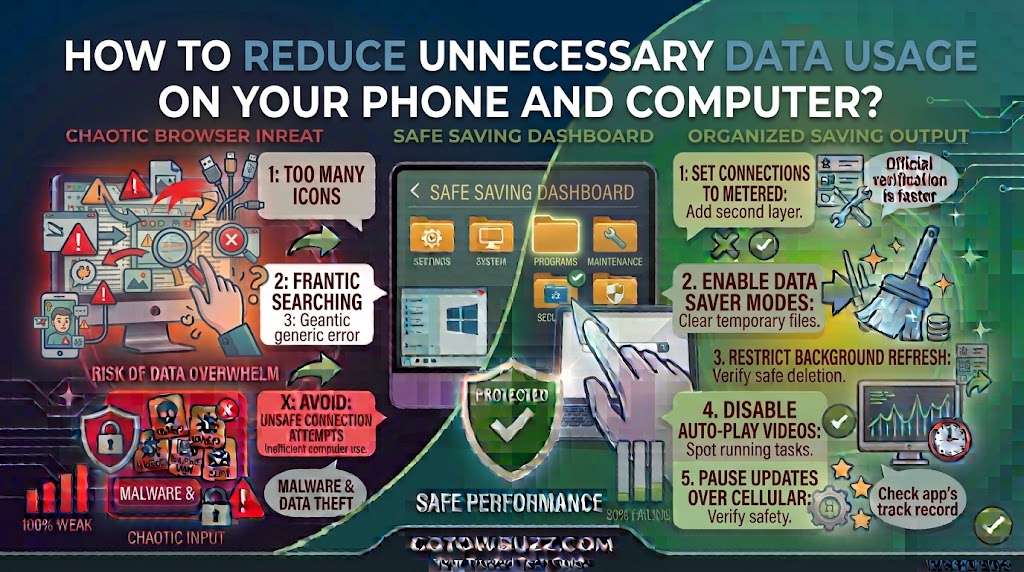
Introduction
If your mobile data disappears faster than expected, the problem may not be one huge download.
Small background activities can add up. Apps can refresh content, cloud services can synchronize files, videos can automatically play at high quality, and a computer connected through a phone hotspot can download updates or other large files without making it obvious.
The good news is that you don’t need to stop using the internet to control this.
The better approach is to find which apps and services are consuming the most data, then limit unnecessary background activity and large downloads. You can also tell your phone or computer when a connection has a data limit so the operating system can take that into account.
The exact settings vary between Android phones, iPhones, Windows versions, and computer manufacturers. Some menu names may also differ slightly from the examples below.
First Find Out What Is Using Your Data
Before changing settings, check where the data is actually going.
This matters because guessing can lead you to restrict an app that isn’t causing the problem.
If video streaming is responsible for most of your usage, changing email synchronization won’t make much difference. If cloud backups are consuming large amounts of data, reducing social-media usage may not solve the issue.
Start by checking your device’s data-usage information.
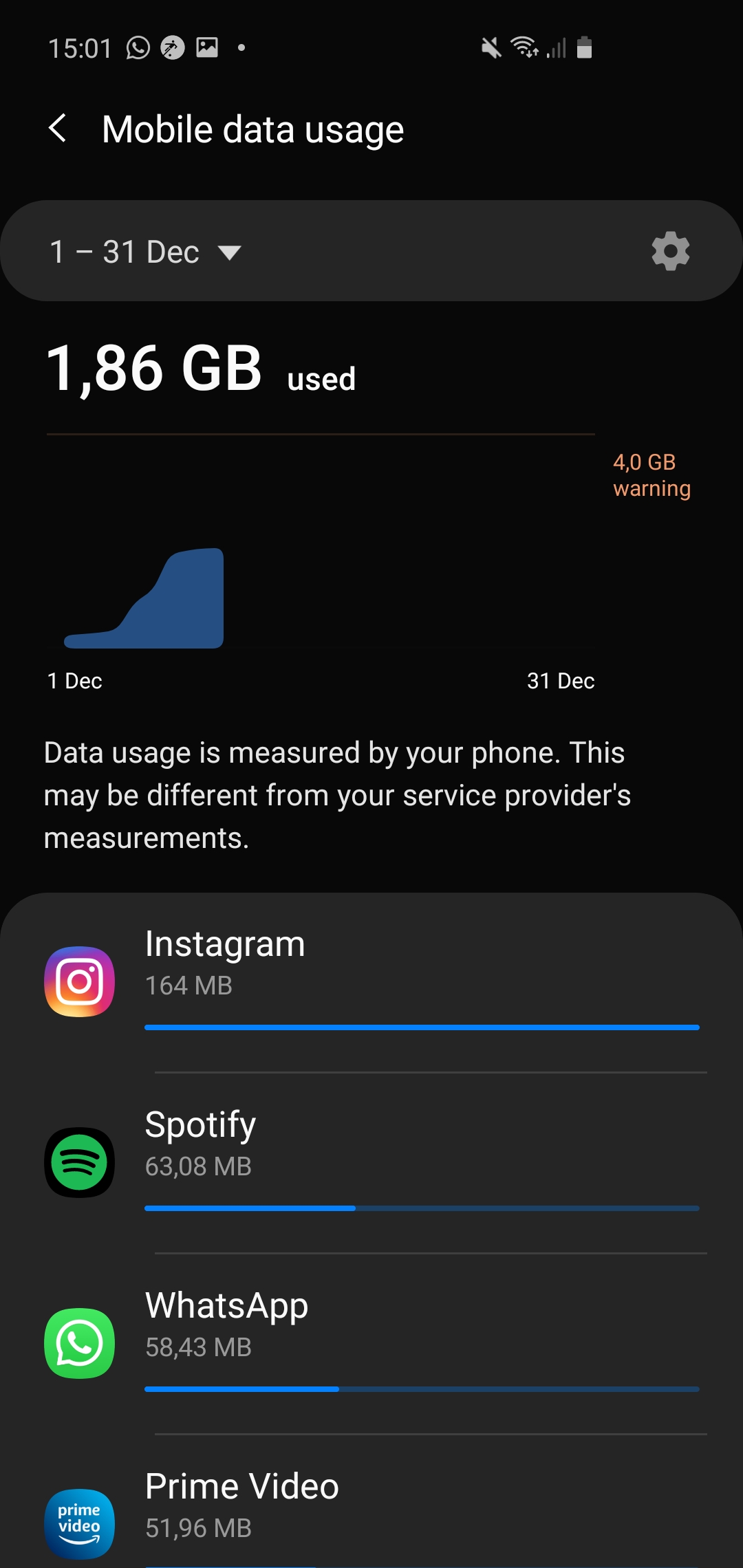
Check Mobile Data Usage on an Android Phone
Android phones can show which apps have used mobile data, although the exact menu can vary by manufacturer and Android version.
On many recent Android phones, try:
Settings → Network & internet → Internet → your mobile network
Look for a section such as App data usage, Mobile data usage, or a similar option.
Google notes that Android settings can differ between devices, so if you don’t see these exact labels, use the Settings search field and search for data usage.
Look for apps with unusually high usage.
For example, if a video app has consumed several gigabytes while an email app has used only a few megabytes, you already have a strong clue about where to focus.
Turn On Data Saver on Android
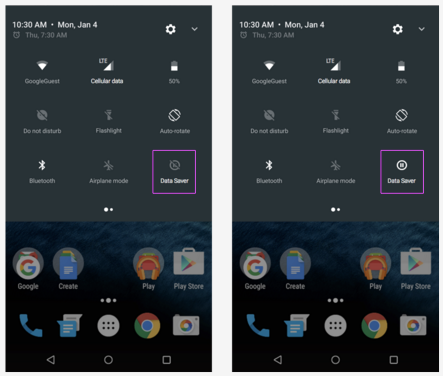
Android’s Data Saver feature can reduce background mobile-data usage.
On supported Android devices, open:
Settings → Network & internet → Data Saver
Then turn Data Saver on.
Google explains that when Data Saver is enabled, most apps and services can receive background data only through Wi-Fi, while apps you’re actively using can still use mobile data.
This is useful when your data allowance is limited.
However, there is a trade-off. Some apps may not refresh content or deliver certain notifications as quickly while background data is restricted.
If Data Saver Causes a Problem
Some apps may need unrestricted data access for a specific function.
Android provides an Unrestricted data access area on supported devices where you can allow selected apps to continue using data while Data Saver is active.
Don’t give unrestricted access to every app.
Only make an exception when an app genuinely needs background connectivity.
Restrict Mobile Data for Individual Android Apps
If one particular app is consuming too much data, you may be able to restrict its background mobile-data usage.
The exact controls depend on your phone manufacturer.
Look under the app’s information page or mobile-data settings for options related to Background data, Mobile data, or Allow background data usage.
Be careful when restricting essential services.
For example, an app that needs background connectivity for important alerts may stop updating until you open it.
The goal isn’t to block everything. It’s to stop unnecessary activity.
Check Cellular Data Usage on an iPhone
iPhone provides a useful built-in list showing how much cellular data individual apps have used.
Open:
Settings → Cellular
or, depending on your region:
Settings → Mobile Data
Scroll down to the list of apps.
You can see the amount of cellular data used by each app. Apple also allows you to switch cellular data off for individual apps, meaning those apps will use Wi-Fi instead when cellular data is disabled for them.

Reset the Usage Statistics at the Right Time
iPhone’s usage statistics aren’t necessarily aligned automatically with your carrier’s billing cycle.
Apple allows you to reset the statistics manually at the bottom of the Cellular settings screen.
If you want a clearer picture of your usage, reset the statistics at the beginning of your monthly data period.
Then check again near the end.
Your carrier’s own usage information is still the better reference for billing because carrier measurement periods and device statistics can differ.
Turn On Low Data Mode on iPhone
iPhone includes Low Data Mode, which is specifically designed to reduce network usage.
For cellular data, go to:
Settings → Cellular → Cellular Data Options → Low Data Mode
On some newer iPhones using 5G, the path can instead include:
Settings → Cellular → Cellular Data Options → Data Mode → Low Data Mode
Apple explains that Low Data Mode restricts background network use and pauses some automatic updates and background tasks when the iPhone isn’t connected to Wi-Fi.
You can also enable Low Data Mode for a particular Wi-Fi network.
That’s useful if your home internet connection itself has a data cap.
Don’t Forget Wi-Fi Can Have a Data Limit
Many people assume that Wi-Fi always means unlimited data.
That’s not necessarily true.
Some home internet plans have monthly limits. Mobile hotspots can have limits too. Shared apartment or workplace connections may also have restrictions.
If your Wi-Fi connection has a data cap, your phone and computer should know that.
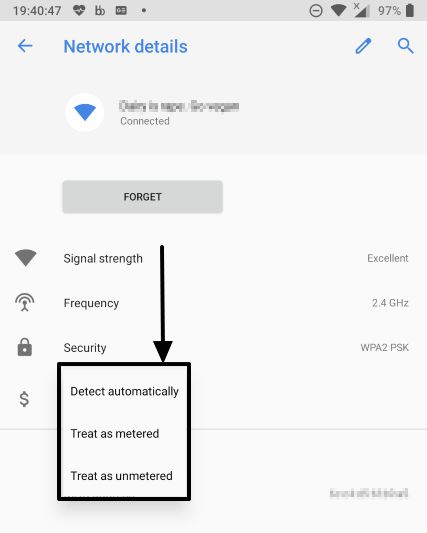
Mark a Limited Wi-Fi Connection as Metered on Android
On supported Android versions, connect to the Wi-Fi network and open:
Settings → Network & internet → Internet
Tap the Wi-Fi network you’re connected to.
Look for Network usage and choose Treat as metered when available.
Google explains that a metered Wi-Fi connection gives Android more control over downloads and other activities that can consume data.
Set a Wi-Fi Connection as Metered in Windows
Windows can also treat a Wi-Fi connection as metered.
On Windows 11, go to:
Start → Settings → Network & internet → Wi-Fi
Select the Wi-Fi network you’re connected to.
Turn on Metered connection.
Microsoft explains that a metered connection can cause some apps to behave differently and can prevent some Windows updates from installing automatically.
This is particularly useful when your computer is connected to your phone’s hotspot.

Use Metered Mode Carefully
Don’t permanently mark your normal unlimited home Wi-Fi as metered just because you’re trying to save data.
The setting is most useful for connections where data usage really matters.
Remember that metered mode can change how Windows and some apps handle downloads and updates.
Set a Data Limit in Windows
Windows can also help you monitor a data-limited connection.
Microsoft’s current Windows guidance provides a data-limit option under:
Start → Settings → Network & internet → Wi-Fi → your connected Wi-Fi network
Look for Set a data limit.
You can enter the type of limit and other information about your plan. Windows can then notify you when you’re approaching the limit.
This doesn’t magically prevent every application from using data.
It gives you a better way to monitor a connection that has a defined allowance.
Be Careful When Using a Phone Hotspot With a Computer
This is one of the easiest ways to burn through mobile data.
A computer may assume it has a normal internet connection.
While connected to your phone’s hotspot, Windows could download updates, cloud files could synchronize, and applications could fetch large files.
Before doing anything data-heavy, connect the PC to the hotspot and immediately check its network settings.
Mark the hotspot connection as Metered.
Microsoft specifically recommends setting a hotspot connection as metered when using it to connect a Windows device and trying to reduce data usage.
Reduce Automatic Video Quality
Video is often one of the biggest sources of data usage.
A video can consume far more data than ordinary text pages, especially when the service automatically chooses a high resolution.
If you’re on a limited connection, look for the service’s video-quality or data-saving settings.
For example, you might choose a lower playback quality when using mobile data and keep higher quality for Wi-Fi.
You don’t necessarily have to use the lowest possible quality.
If 1080p uses more data than you need on a small phone screen, a lower setting may provide a good viewing experience while consuming less data.
The same principle applies to video calls.
Stop Apps From Automatically Downloading Large Media
Messaging and social apps can automatically download photos, videos, documents, and other files.
This can quietly consume data when you’re using cellular connectivity.
Open the relevant app’s settings and look for options such as:
Media auto-download
Automatic downloads
Download over mobile data
Data saver
Use less mobile data
The exact names vary between apps.
If you receive many large videos in group chats, disabling automatic downloads over mobile data can make a noticeable difference.
You can still download files manually when you actually want them.
Turn Off Automatic App Updates Over Mobile Data When Appropriate
App updates are useful because they can contain bug fixes and security improvements.
The goal isn’t to stop updates permanently.
Instead, check whether your app store allows large updates to be downloaded only over Wi-Fi.
This can be particularly useful if your mobile plan is limited.
On Android, Google Play’s background-data behavior can also be affected by Data Saver.
Don’t disable important security updates simply to save a small amount of data.
If an update is necessary for security, installing it over a trusted Wi-Fi connection is usually a better approach than skipping it indefinitely.
Watch Cloud Storage Synchronization
Cloud storage can consume substantial data when large files are uploaded or downloaded.
This can happen when you:
- Add a large batch of photos
- Move videos into a synchronized folder
- Restore files to a new computer
- Edit large files
- Enable synchronization on a new device
If you’re using a phone hotspot, be particularly careful.
A folder containing several gigabytes of photos can use most of a limited mobile-data allowance.
If your cloud service offers a setting to limit synchronization over metered connections, use it when appropriate.
Reduce Background Activity Instead of Blocking Everything
Background activity isn’t automatically bad.
Apps use background connections to synchronize information, deliver messages, refresh content, and perform other useful tasks.
The better question is:
“Does this app need to do this when I’m not using it?”
A weather app may benefit from background updates.
A game you haven’t opened in months probably doesn’t need constant network activity.
Review your highest-data apps first.
That gives you the biggest opportunity to reduce unnecessary usage without making your phone difficult to use.
Check Your Browser Habits
Normal web browsing usually uses much less data than high-resolution video, but large webpages can still add up.
A few habits can help.
Avoid keeping dozens of video-heavy tabs open.
Don’t repeatedly reload pages when you don’t need to.
Be cautious about websites that automatically play video.
Download large files over an unlimited or trusted Wi-Fi connection when practical.
If you’re using Chrome on a computer, Google’s current performance settings include controls for features such as page preloading. Google’s documentation notes that preloading can involve network activity.
If your data allowance is very tight, reviewing browser performance and preload behavior can be worthwhile.
Be Careful With Automatic Cloud Backups
Automatic backups are valuable.
You shouldn’t turn off backups simply to save a little data.
Instead, check whether your backup service allows uploads over Wi-Fi only.
Photos and videos are especially important because they can be large.
If you’ve recently recorded several hours of video, don’t be surprised if a cloud service uses substantial bandwidth while synchronizing it.
The safer approach is to keep backups enabled while controlling when large uploads occur.
Common Problems and Quick Fixes
My mobile data disappears even though I don’t stream videos
Check your phone’s per-app data usage.
Look for cloud storage, social media, photo backups, app updates, messaging apps, and other services that may work in the background.
My phone uses data while connected to Wi-Fi
Check whether the Wi-Fi connection is stable.
On iPhone, Wi-Fi Assist can use cellular data when Wi-Fi connectivity is poor. Apple says Wi-Fi Assist is enabled by default and can result in additional cellular-data usage when Wi-Fi is weak.
You can review Wi-Fi Assist under the Cellular settings if available on your device.
My computer uses too much data when connected to my phone
Set the hotspot connection as Metered in Windows.
Then check for large downloads, cloud synchronization, application updates, and streaming.
Data Saver stopped an app from updating
This can happen because Data Saver limits background mobile-data activity.
If the app genuinely needs background access, check whether your Android device provides an unrestricted-data exception for that app.
Windows keeps downloading things on my hotspot
Confirm that the hotspot is marked as a metered connection.
Also check Windows Update, cloud-storage applications, game launchers, and other software that may be downloading large files.
My data usage doesn’t match my phone’s statistics
Your carrier may calculate usage using a different billing period or measurement method.
Apple specifically recommends contacting the carrier for the most accurate current-period cellular-data usage.
Use the device statistics to identify patterns, but use your carrier’s records when checking your actual plan allowance.
Practical Tips
Check your data usage before changing settings.
Identify the top two or three data-consuming apps first.
Use Android Data Saver when you need stronger control over background mobile-data usage.
Use Low Data Mode on iPhone when your cellular or Wi-Fi plan is limited.
Mark limited Wi-Fi and phone-hotspot connections as metered where appropriate.
Avoid automatically downloading large videos and media over mobile data.
Keep backups enabled, but configure large uploads to use Wi-Fi when possible.
Monitor cloud synchronization after moving large folders or photo libraries.
Use lower video quality when high resolution isn’t necessary.
Don’t disable important security updates just to save a small amount of data.
Recheck your usage after making changes instead of assuming they worked.
Frequently Asked Questions
What uses the most mobile data on a phone?
Video streaming, video calls, large downloads, cloud backups, automatic media downloads, and some social-media apps can consume significant amounts of data. Your phone’s data-usage screen is the best place to identify the biggest users on your particular device.
Does Data Saver completely stop mobile data?
No. On supported Android devices, Data Saver mainly restricts background mobile-data use. Apps and services you’re actively using can still use mobile data.
What does Low Data Mode do on an iPhone?
Low Data Mode restricts background network activity and reduces some automatic tasks and updates. Apple allows it to be enabled separately for cellular and Wi-Fi connections.
Should I set my home Wi-Fi as metered?
Only if the connection actually has a data limit or you have another reason to control data usage. Metered settings can change how some operating-system and app activities work.
Why does my laptop use so much data through a phone hotspot?
A computer can perform tasks that aren’t obvious while you’re using it, including updates, cloud synchronization, application downloads, and large file transfers. Marking the hotspot as a metered connection can help Windows treat it as a limited connection.
Does watching YouTube or other video services use a lot of data?
It can. Video generally requires much more data than ordinary text-based browsing, and higher-quality video typically requires more data than lower-quality playback. If your plan is limited, use the service’s available data-saving or quality controls.
Should I turn off background data for every app?
No. Some apps need background connectivity for useful functions such as notifications and synchronization. Start with apps that use unusually large amounts of data and restrict only the activity you don’t need.
Final Thoughts
Reducing data usage isn’t about cutting yourself off from the internet.
It’s about stopping your devices from using data for things you don’t actually need.
Start by checking which apps and services consume the most. Then turn on the appropriate data-saving features, restrict unnecessary background activity, and treat phone hotspots and limited Wi-Fi connections as metered connections.
Pay particular attention to video, cloud synchronization, automatic media downloads, and computer updates. Those activities can become expensive quickly when you’re working with a small data allowance.
Make a few changes, monitor your usage for several days, and adjust again if necessary. That way, you can save data without making your phone or computer unnecessarily difficult to use.
Sources Used for Accuracy
- Google Android Help — Use less mobile data with Data Saver: Used to verify Android Data Saver behavior and current navigation on supported Android devices.
- Google Android Help — Manage advanced network settings: Used to verify Android’s metered Wi-Fi controls and device/version differences.
- Apple Support — View or change cellular data settings on iPhone: Used to verify per-app cellular usage, cellular-data controls, Wi-Fi Assist, and Low Data Mode navigation.
- Apple Support — Use Low Data Mode on your iPhone and iPad: Used to verify current Low Data Mode behavior for cellular and Wi-Fi connections.
- Microsoft Support — Essential network settings and tasks in Windows: Used to verify Windows data-limit controls.
- Microsoft Support — Windows Update Delivery Optimization and privacy: Used to verify Windows metered-connection behavior.
- Microsoft Support — Get connected when setting up your Windows device: Used to verify Microsoft’s guidance for marking phone-hotspot connections as metered.
- Google Chrome Help — Speed up Google Chrome: Used to verify browser preloading and its potential network activity.