
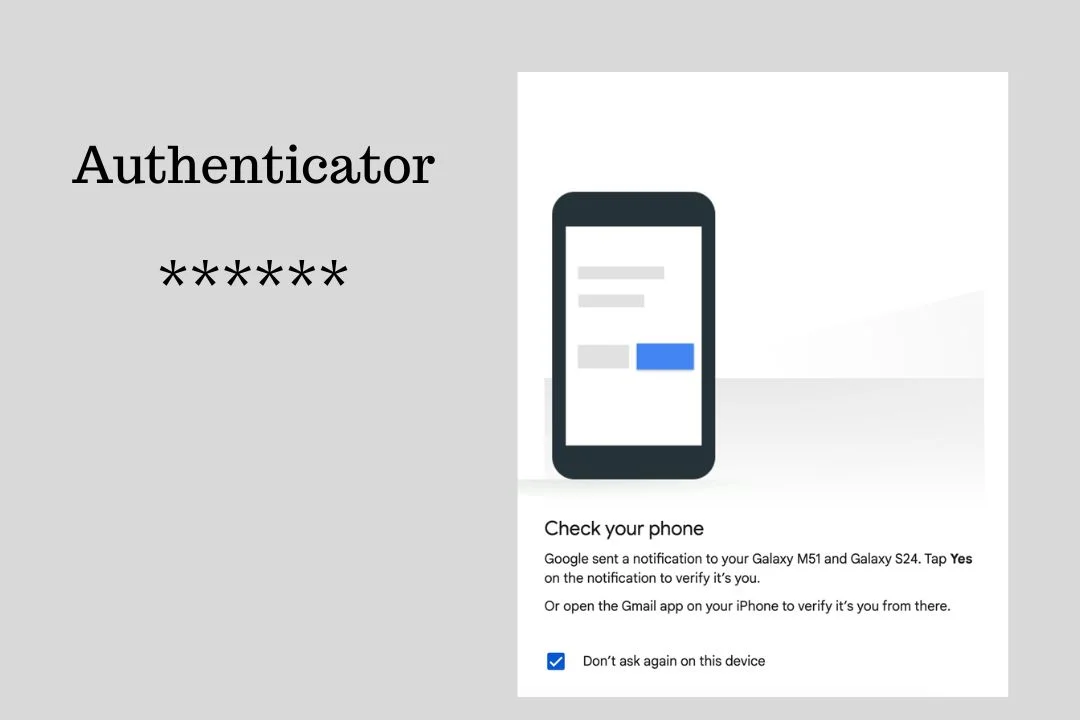
A login alert you do not recognize deserves attention, but the alert alone does not prove that someone successfully accessed your account.
A notification may be triggered by a new device, a different browser, travel, a mobile network that reports an unexpected location, or an application signing in on your behalf. At the same time, an unfamiliar successful sign-in can indicate that someone obtained your credentials.
The safest approach is to verify the event using the account provider’s own security page rather than trusting the email or notification itself.
This guide explains how to investigate an unfamiliar login, distinguish an unusual but legitimate sign-in from a potentially unauthorized one, and secure the account without accidentally handing your password to a phishing site.
Start with the alert itself, but do not click its links
Read the notification for clues such as:
- date and time
- approximate location
- device type
- operating system
- browser or application
- whether the event was a successful sign-in or an attempted sign-in
- whether the provider says the activity was blocked
These details are useful, but they are not definitive on their own.
For example, Microsoft explains that mobile networks can make a sign-in appear to come from a location different from where the user actually is. Google likewise notes that a displayed location may not exactly match the user’s physical location.
More importantly, do not use the link inside an unexpected security email to investigate the account.
Instead, open the provider’s official website or account settings yourself and sign in there.
This removes one major phishing risk: a fake “security alert” that sends you to a convincing copy of the real login page.
First determine whether the alert was a successful sign-in
This is one of the most important distinctions.
An alert can describe:
A failed or blocked attempt: Someone may have tried to sign in but did not successfully access the account.
A successful sign-in: The provider recorded a login that passed its authentication requirements.
For example, Microsoft says its Recent activity page can show events such as unsuccessful attempts, successful sign-ins, unusual activity, password changes, and security-setting changes. Microsoft defines a successful sign-in as someone signing in using the correct password.
Google’s security alerts similarly distinguish between unusual sign-ins and activity that was blocked or otherwise flagged.
A failed attempt still deserves attention, especially if you see repeated attempts, but it does not establish that someone got into the account.
Check the account’s official security activity
Do not rely solely on the notification.
Sign in directly to your account and open its security activity or recent sign-in page.
Google Account
Google provides a Recent security events section.
Go to your Google Account, open Security & sign-in, and select Review security events.
Google recommends checking unfamiliar activity there and using the account’s security tools if an event was not yours.
Google also provides a device-management area:
Google Account > Security & sign-in > Your devices > Manage all devices
This lets you review devices and sessions that have recently used the account.
Microsoft personal account
Microsoft provides a Recent activity page showing account activity from the previous 30 days.
It can include the date, approximate location, device or operating system, browser or app, and IP address for certain events.
If Microsoft marks something as unusual, you can expand the activity and indicate whether it was you. Microsoft recommends securing the account if you see activity you did not recognize.
Microsoft work or school account
For a work or school Microsoft account, the My Sign-ins area provides recent sign-in information.
Microsoft says this can help identify unsuccessful attempts, successful sign-ins, locations, operating systems, applications, and other details.
If you find an unauthorized successful sign-in, Microsoft recommends changing the password and reviewing security information.
Apple Account
For Apple accounts, review the devices associated with your Apple Account and your account’s sign-in/security information.
Apple’s current security guidance also recommends two-factor authentication and explains that signing in on a new device can require an additional verification code.
Because account interfaces change, use Apple’s current Account and Sign-In & Security settings rather than following an old screenshot or third-party guide.
Do not judge the alert by location alone
An unfamiliar city is a clue, not proof.
IP-based location is approximate. Mobile carriers can route traffic through infrastructure that makes the apparent location look different from the user’s actual location.
Microsoft specifically warns that mobile networks can produce locations that do not correspond closely to the user’s physical location. Google also explains that an unfamiliar location can sometimes result from travel, a nearby location being displayed, or how Google determines device location.
Instead, compare several details.
Ask:
Was the device mine?
Was the operating system familiar?
Was the browser or application one I use?
Was I traveling at that time?
Did I recently sign in on a new phone, computer, browser, or app?
Does the event say successful or unsuccessful?
A location that looks unusual but matches your device and activity may have a reasonable explanation.
A successful sign-in from an unfamiliar device combined with an unfamiliar time and browser deserves much more attention.
Check your devices and active sessions
Security activity tells you about events. The device list can tell you which devices or sessions currently have account access.
For Google, open:
Google Account > Security & sign-in > Your devices > Manage all devices
Review each listed device or session. Google explains that the list can include devices where you are currently signed in or were signed in recently.
If you find a device you do not own or no longer use, follow Google’s sign-out or account-security instructions.
Do not assume that two entries with the same device name necessarily mean two different physical devices. Google notes that multiple sessions can sometimes represent the same device or different sessions from it.
The same principle applies to other providers: understand what their “device” or “session” records represent before concluding that multiple entries mean multiple attackers.
Look for changes an intruder would need
A successful login is not the only thing to investigate.
Check whether important account settings changed without your permission.
Depending on the service, review:
- password
- recovery email address
- recovery phone number
- two-factor authentication methods
- trusted devices
- forwarding rules
- connected applications
- third-party account access
- security keys
- account profile information
Google specifically advises checking unfamiliar changes to critical security settings when investigating suspicious activity.
Microsoft’s Recent activity can also show events such as password changes, password resets, profile changes, permission given to an application, and changes to two-step verification.
An unfamiliar security-setting change can be more significant than an unfamiliar location by itself.
Check whether a third-party app has account access
Sometimes an account is accessed through an application or service rather than through a browser you recognize.
Review the account’s connected apps and services.
Look for anything you do not recognize or no longer need.
Google’s account controls allow users to review linked apps and remove third-party access.
Microsoft also records events involving permissions given to applications in its Recent activity information.
Do not remove an application simply because you do not recognize its name. Some legitimate apps use technical names or service names that are different from the product you remember installing.
If uncertain, investigate the application through the provider’s official documentation before removing its access.
Check the account for activity you did not create
If you suspect the account was actually accessed, look beyond the login history.
For an email account, check for:
- sent messages you did not write
- deleted messages you did not delete
- forwarding rules you did not create
- unfamiliar filters
- unexpected recovery or security changes
For cloud storage, check for:
- unfamiliar files
- deleted files
- unexpected sharing
- unfamiliar devices
For social accounts, check for:
- posts you did not publish
- messages you did not send
- profile changes
- unfamiliar connected applications
For shopping or financial-related accounts, look for:
- changed contact information
- unfamiliar orders
- changed payment details
- unexpected account activity
The exact checks depend on the service, but the principle is the same: look for actions that require account access, not just an unusual login location.
If the activity was not yours, change the password
If the provider’s records show a successful sign-in you did not make, treat the account as potentially compromised.
Change the password using the account’s official security settings.
Do not use a password that you already use on another important account.
Google specifically recommends changing the Google Account password and passwords for other accounts that reused the same password when unauthorized access is suspected.
Microsoft likewise recommends changing the password if you believe someone else accessed the account.
Why password reuse matters
Suppose your email password was:
ExamplePassword123
and you used the same password for:
- shopping
- social media
- cloud storage
Changing it only on the email account leaves the other accounts exposed if the same credentials are known elsewhere.
Use a different password for each important account.
A password manager can make unique passwords easier to maintain without requiring you to memorize every one.
Turn on two-factor authentication
Two-factor authentication adds another verification step beyond the password.
That matters because a stolen password alone may otherwise be enough to sign in.
Google recommends 2-Step Verification as part of securing a compromised account, and Microsoft provides two-step verification for Microsoft accounts.
Apple also recommends two-factor authentication for Apple Accounts.
When available, use the strongest practical authentication method supported by the service rather than relying only on a password.
The exact options vary between providers and accounts.
Be careful with unexpected security emails
A real account-security event and a phishing message can look remarkably similar.
A fake message might say:
“Someone just logged into your account. Click here immediately to secure it.”
The goal may be to make you panic and enter your password into a fraudulent website.
Instead of following the email’s button:
- Open your browser yourself.
- Enter the provider’s official website or use its official app.
- Sign in normally.
- Open the security or recent-activity section.
- Check whether the same event appears there.
Microsoft specifically recommends signing in to the Microsoft account directly rather than clicking an email link when you are unsure whether an unusual-activity message is legitimate.
Google also provides instructions for reviewing suspicious security messages and recommends using the account’s own security controls.
What if the alert says the login was blocked?
A blocked attempt is different from a successful account takeover.
If the provider says the sign-in was blocked, the immediate question is:
Does the account show evidence that the person actually got in?
Review recent security activity and active devices.
If the attempt was not yours, changing the password is still sensible, especially if the attempt involved correct credentials or if you have reused that password elsewhere.
For Microsoft work or school accounts, Microsoft explains that an unsuccessful sign-in can sometimes represent an attacker guessing credentials, while a failed additional verification step can indicate that the primary credentials were correct but the second factor stopped the attempt.
That is a useful distinction: a blocked login can still be evidence that someone knows or may have obtained your password.
What if you recognize the device but not the location?
Do not immediately assume the account was compromised.
First compare:
- device
- operating system
- browser or app
- date and time
- whether you recently traveled
- whether the account was accessed through a mobile connection
Both Microsoft and Google document cases where the displayed location can differ from the user’s actual location.
If all the other details line up with something you did, the location alone may not establish unauthorized access.
What if you recognize the location but not the device?
That deserves closer inspection.
A familiar city does not prove that the device was yours.
For example, an attacker could potentially connect through a network in the same general area, while your account provider may only show approximate location information.
Look at the device type, browser, operating system, session details, and whether the sign-in was successful.
If those details do not match anything you use, follow the provider’s account-security procedure.
What if you cannot sign in anymore?
If an attacker changed the password, recovery information, or other account details, stop trying random passwords.
Use the provider’s official account-recovery process.
Google directs users to account recovery when someone has changed account information or the user can no longer sign in.
Microsoft also directs users who cannot sign in to its official sign-in recovery tools.
Do not give your password or recovery codes to someone claiming they can “recover” the account for you.
A practical way to decide what the alert means
Use the evidence in this order:
1. Was the activity successful?
If no, investigate the attempt but distinguish it from confirmed account access.
2. Do the official security records show the same event?
If not, investigate whether the notification itself may be fraudulent.
3. Does the device match something you use?
Check operating system, browser, device type, and session information.
4. Does the timing make sense?
Consider travel, a new device, a new browser, or an app you recently connected.
5. Are there unfamiliar account changes?
Check password, recovery details, security methods, connected apps, and other important settings.
6. Do you find evidence of unauthorized access?
Change the password, secure the account, remove unfamiliar sessions or devices, and strengthen authentication.
This is more reliable than deciding based on one unfamiliar city or one notification.
What not to do after receiving an unfamiliar login alert
Do not panic and click the alert immediately
The message itself may be fraudulent.
Do not enter your password from an email link
Open the provider’s official website yourself.
Do not assume an unfamiliar location proves hacking
IP-based locations can be approximate.
Do not ignore a successful unfamiliar sign-in
A strange location alone may have an innocent explanation, but a successful sign-in that does not match your devices or activity deserves investigation.
Do not reuse your old password after changing it
If the old password was exposed, changing it to a variation of the same password does not solve the underlying problem.
Do not forget other accounts using the same password
If you reused the exposed password elsewhere, those accounts need attention too. Google specifically recommends changing reused passwords when unauthorized access is suspected.
How to verify that the account is secure afterward
After changing the password and security settings, return to the provider’s security dashboard.
Check that:
- the new password works
- unfamiliar sessions or devices have been removed or signed out
- recovery information is correct
- two-factor authentication is enabled
- unfamiliar third-party access has been removed
- there are no new suspicious security events
Then monitor the account for additional alerts.
If suspicious activity continues after the password change, investigate connected applications, recovery methods, active sessions, and other accounts that may share credentials.
If the account is used for important work, financial services, business systems, or sensitive information, use the provider’s official security or account-recovery support when the normal self-service process is not enough.
How to reduce the chance of future account compromise
Use a unique password for every important account.
Enable multi-factor authentication wherever it is available.
Keep your phone, computer, browser, and account-recovery methods up to date.
Review connected applications periodically and remove access you no longer need.
Be suspicious of urgent messages asking you to “verify” a password, security code, or payment detail.
Most importantly, develop the habit of checking account activity directly through the provider rather than trusting the buttons inside unexpected security messages.
A login alert is a warning to investigate, not automatically proof that someone has taken over the account. The combination of successful/failed status, device information, timing, security events, active sessions, and account changes provides a much clearer picture.
Frequently Asked Questions
Does an unfamiliar login alert mean someone hacked my account?
Not necessarily. A security alert can be triggered by a new device, travel, an unfamiliar network, or other activity that the provider considers unusual. Check the account’s official security activity before deciding what happened. Microsoft and Google both document situations where legitimate activity can appear unfamiliar.
What is the first thing I should do after receiving a suspicious login alert?
Do not click the alert’s links. Open the account provider’s official website or app yourself and review recent security activity. Determine whether the event was successful or blocked and compare its device, time, location, and application details with your own activity.
Should I change my password if the login attempt was unsuccessful?
If the attempt was not yours, changing the password is a sensible precaution, particularly if the attempt involved correct credentials or if the password is reused elsewhere. For Microsoft work or school accounts, Microsoft specifically recommends changing the password when unauthorized activity is identified.
Can the location in a login alert be wrong?
Yes. Login locations are often based on network or IP information and may be approximate. Mobile networks can make the apparent location particularly misleading. Check the device, operating system, browser, time, and other details instead of relying on location alone.
What should I do if I find an unfamiliar device on my account?
Use the provider’s official account-security controls to review and sign out of the unfamiliar device or session. Then change the account password and review security settings if you believe the device represents unauthorized access. Google specifically provides a device-management area for reviewing and signing out unfamiliar sessions.
What if the attacker changed my password?
Use the provider’s official account-recovery process rather than repeatedly guessing passwords or using third-party “recovery” services. Google and Microsoft both provide recovery procedures for accounts whose passwords or security information have been changed.