
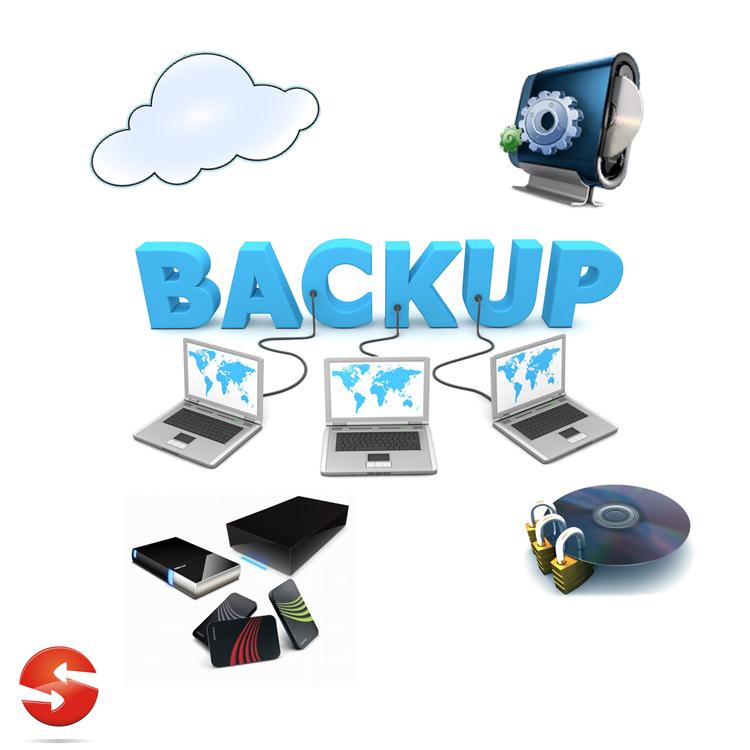
If your important files exist in only one location, they are vulnerable to more than a broken computer.
A failed SSD, stolen laptop, accidental deletion, malware infection, damaged external drive, or synchronization mistake can make important documents, photos, projects, and other personal files difficult or impossible to recover.
The good news is that a reliable backup system does not have to be complicated. For most people, the goal is not to build an enterprise backup environment. It is to create multiple usable copies of important data, keep at least one copy separate from the main device, and regularly confirm that those copies can actually be recovered.
This guide explains how to build that system without making your daily routine unnecessarily complicated.
Start by Identifying What You Cannot Afford to Lose
Before buying a drive or choosing a cloud service, identify the files that would cause a serious problem if they disappeared.
These might include:
- Personal photographs and videos
- Tax and financial documents
- Identity documents and scans
- Work files
- School or university projects
- Business records
- Important PDFs and contracts
- Creative projects
- Password or recovery information stored securely
- Configuration files or other data that would be difficult to recreate
You do not necessarily need to back up every temporary download, installer, cached file, or operating-system file.
The first goal is to separate important data from data that can easily be downloaded or recreated.
Create a simple list of your important folders.
For example, a Windows computer might contain:
Documents
Pictures
Videos
Desktop
Work Projects
Tax Documents
Important Downloads
A Mac might have similar folders, while important data on a phone may be concentrated in photos, videos, documents, messages, or application-specific storage.
This inventory gives you something much more useful than simply saying, “My computer is backed up.”
Understand the Difference Between Sync and Backup
One of the most common backup mistakes is assuming that synchronization automatically means you have a separate backup.
Cloud synchronization can be extremely useful, but it does not always provide the same protection as an independent backup.
For example, if a folder is synchronized between your computer and a cloud service, changes made on one side may be synchronized to the other. Microsoft documents this behavior for OneDrive: changes to files in a synchronized OneDrive folder can propagate between the computer and the cloud.
That is convenient for keeping files available across devices, but it means you should understand exactly what happens when a file is deleted, overwritten, or damaged.
A proper backup system should give you a way to recover an earlier or separate copy when something goes wrong.
This distinction becomes particularly important with ransomware or accidental bulk deletion.
Use the 3-2-1 Idea as a Simple Starting Point
A useful way to design a backup system is the 3-2-1 rule:
- Keep at least three copies of important data.
- Keep the copies on at least two different types of storage or media.
- Keep at least one copy somewhere physically separate from the original.
CISA has published guidance describing this approach for protecting critical data.
You do not have to interpret this as a requirement to purchase several expensive devices.
For a home user, a practical arrangement could look like this:
Copy 1: Your computer’s working files.
Copy 2: An external backup drive.
Copy 3: A cloud copy or another backup stored away from the computer.
The important idea is that one problem should not destroy every copy at the same time.
Choose a Backup Method That Fits Your Files
There is no single backup method that is perfect for everyone.
The right setup depends on how much data you have, how often it changes, how quickly you need to recover it, and whether you need access from multiple devices.
External Drive Backup
An external hard drive or SSD is useful for maintaining a separate physical copy of important files.
It can be especially practical when you have a large photo, video, or document collection that would take a long time to upload.
The major advantage is independence from your internet connection.
The main weakness is physical risk.
If the backup drive remains permanently connected to the same computer, a hardware failure, theft, malware incident, power event, or accidental deletion could potentially affect both locations.
For that reason, consider disconnecting a backup drive when a continuous connection is not required.
Cloud Backup or Cloud Storage
Cloud storage can provide an off-device copy and make files accessible from another computer or phone.
For example, Microsoft’s Windows Backup can back up selected folders such as Desktop, Documents, Pictures, Videos, and Music to OneDrive when configured with a personal Microsoft account.
Cloud storage is convenient, but you should check:
- Which folders are actually included
- How much storage is available
- Whether deleted files can be recovered
- Whether previous versions are available
- Which account owns the data
- Whether multi-factor authentication is enabled
- Whether your files are synchronized or independently backed up
Do not assume that installing a cloud-storage application means every important folder is automatically protected.
Built-In Computer Backup Tools
Your operating system may already provide useful backup features.
On Windows, File History can create copies of files and allow previous versions to be restored from an external drive or network location.
On Mac, Time Machine can automatically back up files to an external storage location and can help recover previous versions of files. Apple specifically recommends keeping the backup somewhere other than the internal disk.
These tools can be useful because they reduce the amount of manual work required.
Build a Simple Windows Backup System
If you use Windows, you can combine cloud protection with a separate local backup.
Step 1: Find Your Important Folders
Open File Explorer and identify where your important files actually live.
Do not assume everything important is inside Documents.
Check locations such as:
Desktop
Documents
Pictures
Videos
Downloads
OneDrive
Custom project folders
External drives
Also check application-specific folders if you use software that stores important projects outside the normal Windows folders.
Step 2: Configure Windows Backup or OneDrive Folder Backup
Windows Backup can be accessed through:
Start → Settings → Accounts → Windows backup
Microsoft also allows selected folders to be backed up to OneDrive through Windows Backup.
Check which folders are enabled rather than assuming everything is protected.
If you use OneDrive directly, verify that the files you care about actually appear in your OneDrive account.
Step 3: Add a Separate Local Copy
Use an external drive for a second copy of important files.
You can use Windows File History if its folder coverage and recovery behavior fit your needs. Microsoft documents File History as a way to automatically maintain previous versions of personal files on an external drive or network location.
If you manually copy files instead, establish a schedule so the process does not depend on remembering to do it.
Step 4: Test the Backup
Do not stop when the backup program says it has completed.
Open the backup location and locate several real files.
Choose files from different categories, such as:
- One document
- One photograph
- One spreadsheet
- One project folder
Copy a test file back to another location and open it.
A backup that cannot be restored when needed is not a backup system you have successfully verified.
Build a Simple Mac Backup System
Mac users can use Time Machine as the foundation of a local backup system.
Connect an appropriate external storage device and configure it through macOS’s Time Machine settings.
Time Machine automatically creates backups of files and can help recover previous versions. Apple recommends backing up to a location other than the Mac’s internal disk.
For especially important files, you can add a second protection layer using cloud storage or another backup location.
The important part is to avoid treating local snapshots or the internal disk as your only copy.
Protect Photos on Your Phone
Photos often represent some of the most difficult data to replace, particularly when they document family events, travel, work, or personal history.
If you use Google Photos, open the app and check:
Profile picture → Photos settings → Backup
Google recommends checking that backup is enabled, that the correct Google Account is selected, and that relevant device folders are included if you want photos from other applications or folders protected.
Google also notes that photo backup can take time depending on the amount of data and your connection.
Do not immediately delete local photos just because you see them in a cloud application.
First confirm that the backup has completed and that you can access the files from the cloud account.
Keep Your Backup Accounts Secure
A backup can become another security problem if the account protecting it is poorly secured.
If someone gains access to your cloud-storage account, they may be able to access or delete your backed-up files.
For important cloud accounts:
- Use a unique password.
- Enable multi-factor authentication where available.
- Keep recovery information current.
- Review signed-in devices periodically.
- Do not share account credentials.
- Be careful with unexpected login messages.
- Keep recovery codes somewhere safe.
Your backup system should protect against both data loss and unauthorized access.
Protect Against Accidental Deletion
A useful backup system should help you recover more than a completely destroyed computer.
It should also help when you accidentally delete a file or overwrite an important version.
Version history can be particularly valuable here.
For example, Microsoft documents version recovery and deleted-file recovery for OneDrive. Personal OneDrive accounts can generally recover deleted files or folders from the recycle bin within the available retention period, while Microsoft 365 subscribers have additional OneDrive restoration capabilities.
The exact recovery options depend on the service and account type, so check the service you actually use.
Do not build your entire strategy around a recycle bin, however.
A recycle bin is a recovery feature, not a replacement for independent backups.
Protect Against Ransomware and Mass File Changes
Ransomware creates a different backup problem.
If malware encrypts your files and that change is synchronized immediately to another location, simply having a cloud copy does not automatically guarantee that an untouched version exists.
This is one reason multiple backup layers and historical versions matter.
A separate backup that is not continuously exposed to the computer can provide another recovery option.
If you suspect ransomware, avoid continuing to synchronize affected files blindly. Disconnecting an affected device from networks may be appropriate while you investigate the incident and follow trusted security guidance.
For cloud services that provide version history or whole-account restoration, learn how those features work before an emergency occurs.
For example, Microsoft documents a OneDrive restoration feature that can roll back file and folder activity within the supported restoration window for eligible Microsoft 365 subscribers.
Decide How Often Your Backups Should Run
Backup frequency should match how quickly your data changes.
If you edit important work files every day, a monthly backup may leave too much data at risk.
If you rarely change a folder, a less frequent backup may be reasonable.
A simple schedule could be:
Frequently changing files: automatic or daily protection.
Photos and personal documents: automatic cloud backup plus periodic local backup.
Large archives: periodic external-drive backup.
Critical project files: frequent backups with version history.
The question to ask is:
“If my computer disappeared tonight, how much recent work could I afford to lose?”
That answer helps determine your backup frequency.
Give Your External Backup Drive a Job
Avoid turning your backup drive into another general-purpose storage dump.
If the drive contains your backup and you constantly use it for downloads, games, temporary files, and unrelated storage, it becomes harder to understand what is protected and what is not.
Give it a clear purpose.
For example:
External Backup
├── Documents
├── Pictures
├── Projects
└── Important Archives
If you use dedicated backup software, let that software manage the backup rather than manually changing backup folders without understanding the consequences.
Keep One Copy Physically Separate
Imagine a laptop and an external backup drive sitting next to each other on the same desk.
That protects against some failures, but not all of them.
A theft, fire, flood, or other physical event could affect both.
This is why an off-site or cloud copy matters.
The physically separate copy does not have to be complicated. A reputable cloud service may provide that separation, or a properly maintained backup device can be stored somewhere else when appropriate.
The key is that the second location should not depend on the same physical event being avoided.
Check Your Backup Instead of Trusting the Notification
A successful backup notification is useful, but it is not the final test.
At regular intervals, verify:
Is the expected folder included?
Is the latest backup recent?
Can I find a real file in the backup?
Can I open that file?
Can I restore it to another location without overwriting the original?
Do I know which account or drive contains the backup?
Do I know how to recover if the original computer fails?
These checks turn a backup from a setting you enabled into a recovery system you understand.
Perform a Small Recovery Test
You do not need to simulate a complete disaster every week.
Instead, periodically perform a controlled test.
Choose one non-critical file.
Restore it from your backup to a different folder.
Open it.
Compare it with the original.
If you use version history, try recovering an earlier version of a test document.
If you use cloud storage, sign in through the provider’s website and confirm that the expected files are accessible.
If you use an external drive, disconnect and reconnect it and confirm that your backup software still recognizes it.
These small tests can reveal problems before you need the backup during an actual emergency.
Do Not Confuse Windows Recovery With File Backup
Windows includes several recovery mechanisms, but they do different jobs.
Microsoft distinguishes backup from restore and recovery. A system-recovery feature is not automatically equivalent to having independent copies of personal files.
For example, System Restore is intended to address certain system changes. It should not be treated as your only method for protecting personal photographs, documents, or other important data.
Similarly, reinstalling or resetting Windows is not a substitute for maintaining backups.
Before performing a major recovery operation, make sure important personal files exist somewhere separate from the computer.
What You Should Not Do
Do not keep your only backup permanently connected without considering the risk
A permanently connected drive can be convenient, but it may remain exposed to the same problems affecting the computer.
Do not assume cloud synchronization equals independent backup
Understand how deletion, overwriting, version history, and restoration work for your service.
Do not back up only the files you remember
Use a folder inventory so important locations are not forgotten.
Do not delete the original immediately after creating a backup
First confirm that the backup completed and that the files can actually be opened.
Do not wait until your computer fails to learn how recovery works
A five-minute recovery test is much easier when the original files are still available.
Do not ignore account security
A poorly protected cloud account can expose your backup to unauthorized access.
A Simple Backup System for Most Home Users
If you want something straightforward, start with three layers.
Layer 1: Working copy
Your normal computer or phone where you create and edit files.
Layer 2: Automatic or scheduled backup
Use a cloud backup, operating-system backup tool, or external-drive backup to create another copy.
Layer 3: Separate recovery copy
Maintain another copy on a different device, medium, or location so one incident does not remove everything.
You can make this more sophisticated later if your needs grow.
For many people, the most important improvement is simply moving from one copy to multiple independently useful copies.
A Practical Backup Checklist
Before considering your system finished, check each item:
- I know which files are genuinely important.
- My important files exist in more than one location.
- At least one copy is separate from my main computer.
- I know whether my cloud service synchronizes or independently backs up files.
- I know how to restore deleted files.
- I know how to recover an earlier file version if available.
- My backup account uses strong authentication.
- My external backup is protected from unnecessary exposure.
- I have tested restoring at least one real file.
- I periodically check that backups are still running.
- I know what I would do if my computer suddenly stopped working.
If several boxes are unchecked, you do not need to solve everything at once. Start by creating one additional usable copy of your most important files.
Then build from there.
Frequently Asked Questions
Is storing files in Google Drive or OneDrive enough?
It can provide valuable protection, but you should understand whether you are using synchronization, backup, or both. Check what happens when files are deleted, changed, or corrupted and what recovery options your account provides.
Is an external hard drive enough for backup?
It is better than having only one copy, but one external drive is still a single point of failure. A separate cloud or off-site copy provides another layer of protection.
How often should I back up my computer?
The answer depends on how often your important data changes. Frequently changing files should receive more frequent protection than rarely changed archives.
Should I leave my backup drive connected all the time?
That depends on the backup system. Continuous connection can make automatic backups convenient, but a backup drive that remains exposed to the same computer can also share some risks. Consider the type of threats you are trying to protect against.
Does OneDrive automatically protect every file on my PC?
No. Microsoft documents specific folders and settings that can be selected for Windows Backup and OneDrive folder backup. Check your configuration instead of assuming every folder is included.
Is File History still available on Windows?
Microsoft currently documents File History for Windows 11 and Windows 10. It can maintain previous versions of files on an external drive or network location.
What is the easiest way to know if my backup really works?
Restore a real, non-critical file to a different location and open it. Repeat this periodically and check that your most important folders are still being backed up.
Final Takeaway
A backup system does not have to be expensive or complicated.
The important change is moving away from the assumption that one copy is enough.
Start by identifying the files that would be difficult or impossible to replace. Keep an additional copy on a separate storage location, add an off-device or off-site layer where practical, protect your backup accounts, and periodically test recovery.
The strongest backup system is not the one with the most features. It is the one you understand, maintain, and can actually use when something goes wrong.