
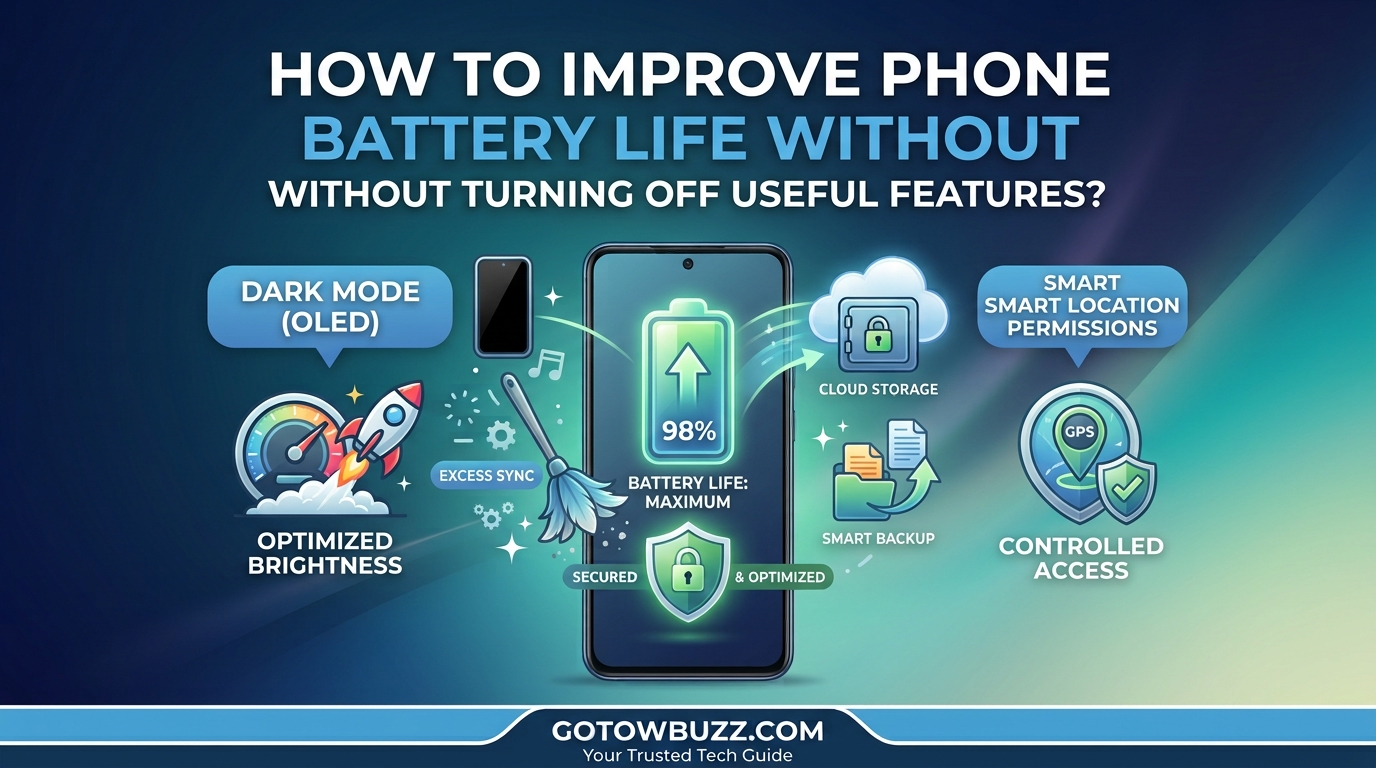
It’s easy to find battery-saving advice that tells you to turn off Bluetooth, disable Location Services, lower screen brightness until the display is barely readable, and turn off push notifications. While those drastic steps will keep your phone alive longer, they also turn a modern smartphone into a basic feature phone.
You shouldn’t have to disable the features that make your phone useful—like instant messaging notifications, location mapping, smartwatch syncing, or location-based reminders—just to make it through a normal day.
Modern smartphones running Android or iOS have smart background management systems built directly into their operating systems. By making a few targeted adjustments to how your phone handles background updates, display refresh rates, and wireless scanning, you can significantly improve your battery life without disabling your favorite features.
1. Optimize Display Refresh Rate (120Hz vs 60Hz)
High refresh rate screens (90Hz or 120Hz) make scrolling through apps, reading web pages, and navigating your interface look incredibly smooth. However, rendering 120 frames per second continuously uses up to 20% to 30% more display power than running at standard speeds.
Instead of turning high refresh rates completely off and locking your screen to a choppy 60Hz, configure your display to adjust dynamically based on what you are doing.
How to Adjust Screen Refresh Settings
-
On Android: Open Settings > Display > Smooth Display (or Motion smoothness on Samsung) and select Adaptive (or Standard if you prefer maximum power savings during long travel days).
-
On iPhone (Pro models): Open Settings > Accessibility > Motion and toggle on Limit Frame Rate if you need extra juice. Otherwise, modern iPhones enable ProMotion dynamically by default.
+-------------------------------------------------------+
|  < Motion smoothness                                  |
+-------------------------------------------------------+
|  Choose your refresh rate                             |
|                                                       |
|  (•) Adaptive              <-- [RECOMMENDED]          |
|      Get smoother animations and natural scrolling   |
|      by automatically adjusting up to 120Hz.          |
|                                                       |
|  ( ) Standard                                         |
|      Get longer battery life with a standard 60Hz     |
|      refresh rate.                                    |
+-------------------------------------------------------+
[Visual Guide 1: Display refresh rate selection menu showing Adaptive mode]
Visual purpose: Highlight the “Adaptive” setting in display settings to allow dynamic frequency scaling.
Caption: Choosing Adaptive refresh rate lets your display drop down to lower refresh rates automatically when viewing static content like text or photos.
2. Restrict “Always” Location Access to “While Using the App”
You don’t need to turn off Location Services (GPS) completely. Turning off GPS breaks mapping apps, weather widgets, and rideshare services. Instead, change app-level location permissions so apps only query your position when you actively open them.
When apps access your GPS sensor in the background every few minutes, they prevent your phone’s processor from entering a low-power sleep state.
How to Configure Smart Location Permissions
-
Open Settings and tap Privacy & Security > Location Services (iPhone) or Settings > Location > App permissions (Android).
-
Review the list of apps set to Always or Allow all the time.
-
Change non-essential apps (like shopping platforms, food delivery, or social media) to While Using the App (or Ask Next Time).
+-------------------------------------------------------+
|  < Location permission                                |
+-------------------------------------------------------+
|  Maps App                                             |
|                                                       |
|  Location access for this app                         |
|                                                       |
|  ( ) Allow all the time   <-- [DRAINS BATTERY]        |
|                                                       |
|  (•) Allow only while using the app  <-- [BEST]       |
|                                                       |
|  ( ) Ask every time                                   |
|                                                       |
|  ( ) Don't allow                                      |
+-------------------------------------------------------+
[Visual Guide 2: App Location permission setting screen]
Visual purpose: Display the location permission settings panel highlighting “Allow only while using the app.”
Caption: Restricting location access to active app usage prevents hidden background tracking from draining power.
3. Manage Background App Refresh Wisely
Background App Refresh allows apps to download new content, sync feeds, and fetch information even when you aren’t using them. While this ensures apps load instantly when opened, having 50+ apps refreshing simultaneously drains battery quickly.
Instead of turning off Background App Refresh entirely, keep it enabled only for apps where immediate background updates matter to you—such as email, messaging, or calendar apps—and turn it off for games, shopping apps, and streaming platforms.
Step-by-Step Settings
-
On iPhone: Open Settings > General > Background App Refresh. Leave the main switch ON, but scroll through the list and toggle OFF apps that don’t require instant background updates.
-
On Android: Open Settings > Apps > See all apps > select an app > App battery usage > set to Optimized or Restricted.
+-------------------------------------------------------+
|  < Background App Refresh                             |
+-------------------------------------------------------+
|  Background App Refresh                         [ON]  |
|                                                       |
|  Individual App Settings                              |
|  🟢 Email & Work Sync                           [ON]  |
|  🟢 Chat & Messaging                            [ON]  |
|  🔴 Casual Mobile Game                          [OFF] <--|
|  🔴 Online Retail Store                         [OFF] <--|
|  🔴 Video Streaming App                         [OFF] <--|
+-------------------------------------------------------+
[Visual Guide 3: Background App Refresh toggle list]
Visual purpose: Show individual app toggles for background refresh with non-essential apps toggled off.
Caption: Turn off background refresh for games and retail apps while keeping messaging and mail active.
4. Enable Dark Mode on OLED / AMOLED Displays
If your phone features an OLED or AMOLED screen (standard on most modern smartphones), every pixel on the display generates its own light. When a pixel displays pure black, it turns off completely and consumes zero power.
Switching your system theme to Dark Mode saves significant power over a full day of screen-on time without disabling a single feature or lowering brightness.
How to Turn It On
-
Open Settings and tap Display.
-
Select Dark theme (Android) or Dark (iPhone).
-
Set it to Always On or schedule it to turn on automatically from Sunset to Sunrise.
+-------------------------------------------------------+
|  < Display                                            |
+-------------------------------------------------------+
|  Appearance                                           |
|                                                       |
|      +---------------+       +---------------+        |
|      |   ☀️ Light    |       |   🌙 Dark     |        |
|      |               |       |   [SELECTED]  |        |
|      +---------------+       +---------------+        |
|                                                       |
|  Dark theme settings                                  |
|  • Schedule: Turn on from sunset to sunrise           |
|  • Pure black backgrounds enabled for OLED save power |
+-------------------------------------------------------+
[Visual Guide 4: Display theme selection highlighting Dark Mode]
Visual purpose: Show the appearance setting card comparing Light and Dark themes.
Caption: Dark mode turns off individual pixels on OLED displays, cutting screen power consumption significantly.
5. Turn Off Network & Wi-Fi Scanning Features
By default, modern phones constantly scan for nearby Wi-Fi networks and Bluetooth devices in the background, even when your Wi-Fi and Bluetooth toggles are turned on and connected. This ensures rapid connection to public networks or accessories, but continuous scanning consumes steady power.
Turning off background scanning does not turn off your Bluetooth or Wi-Fi connections; it simply stops your phone from constantly searching for new connections when you’re already connected.
Disabling Background Scanning on Android
-
Open Settings and tap Location.
-
Tap Location services (or Scanning).
-
Turn off Wi-Fi scanning and Bluetooth scanning.
+-------------------------------------------------------+
|  < Location services                                  |
+-------------------------------------------------------+
|  Scanning Options                                     |
|                                                       |
|  Wi-Fi scanning                                [OFF]  |
|  Let apps use Wi-Fi for location detection even       |
|  when Wi-Fi is turned off.                            |
|                                                       |
|  Bluetooth scanning                            [OFF]  |
|  Let apps use Bluetooth for device detection even     |
|  when Bluetooth is turned off.                        |
+-------------------------------------------------------+
[Visual Guide 5: Location scanning settings screen]
Visual purpose: Display the Location services menu showing Wi-Fi and Bluetooth scanning toggled off.
Caption: Disabling background connection scanning saves battery without turning off your actual Wi-Fi or Bluetooth connections.
6. Adjust 5G Settings (Use Auto / Adaptive Mode)
5G mobile networks deliver high speeds, but searching for and maintaining a 5G data connection in areas with weak signal coverage drains battery much faster than standard 4G LTE.
You don’t need to disable 5G entirely. Instead, set your mobile network to switch between 5G and 4G automatically, using 5G only when high bandwidth is actually required (such as streaming video or downloading large files).
How to Set Auto 5G
-
On iPhone: Open Settings > Cellular > Cellular Data Options > Voice & Data > select 5G Auto. (Avoid selecting 5G On, which forces 5G constantly even when inefficient).
-
On Android: Open Settings > Network & internet > SIMs > Preferred network type > select 5G (recommended).
Troubleshooting / Common Problems
Phone Battery Still Draining Fast After Optimization
If your phone continues to discharge rapidly after adjusting these settings, check for rogue background apps:
-
Diagnosis: Open Settings > Battery > Battery usage. Review the percentage list for the last 24 hours.
-
Fix: If an app you rarely opened shows 25% or more battery usage, it may have a stuck background process. Force stop the app or reinstall it from the app store.
Battery Health Degradation
All smartphone batteries wear out over time. If your device is 2 to 3 years old, physical capacity degradation may be the root cause.
-
Check battery health via Settings > Battery > Battery Health & Charging (iPhone). If maximum capacity is below 80%, replacing the internal battery will restore full performance.
Practical Tips for Daily Battery Health
-
Avoid Extreme Heat: High temperatures degrade lithium-ion batteries faster than almost anything else. Avoid leaving your phone on a hot car dashboard or charging it under a pillow.
-
Use Built-in Adaptive Charging: Enable Adaptive Charging (Android) or Optimized Battery Charging (iPhone). This feature learns your daily charging routine and delays charging past 80% until right before you wake up, preventing overnight battery stress.
-
Charge Before Your Battery Hits 0%: Modern lithium-ion batteries perform best when kept between 20% and 80% charge rather than draining down to zero completely.
Frequently Asked Questions
Does leaving Bluetooth on all day drain a lot of battery?
No. Modern Bluetooth 5.0+ uses Bluetooth Low Energy (LE), which consumes negligible power when connected to wearables like smartwatches or earbuds during idle states. Continuous network scanning drains far more power than maintaining an active Bluetooth link.
Should I force close apps by swiping them away?
No. Swiping apps away from your recent apps screen forces the phone to remove them completely from RAM. When you reopen those apps later, the processor has to load everything from scratch, which actually consumes more battery power than letting the system suspend them in memory.
Does Power Saving mode turn off my notifications?
Standard Battery Saver / Low Power Mode restricts background sync slightly, but critical push notifications (like text messages, phone calls, and direct emails) will still arrive normally. Advanced modes (like Ultra Battery Saver) will limit app access.
Is fast charging harmful to battery life?
Fast charging generates slightly more heat than slow charging, but modern phones have built-in thermal management systems that regulate charging speeds to prevent damage.
Will turning off auto-brightness save battery?
Not necessarily. Auto-brightness uses the ambient light sensor to adjust screen brightness automatically. Manually keeping your screen brighter than necessary actually uses more battery than letting auto-brightness lower it in dim environments.
Final Thoughts
Maximizing your smartphone’s battery life doesn’t require turning off essential features or crippling your device’s capabilities. By configuring display refresh rates adaptively, restricting location tracking to active app usage, auditing background refresh settings, and turning off passive network scanning, you can enjoy a full day of battery life while keeping your phone fast and connected.
Start by switching your display theme to Dark Mode and checking your location permissions—these two quick changes will deliver immediate results today.