
Introduction
Your home Wi-Fi network connects much more than your phone and laptop. A typical router may also connect smart TVs, printers, cameras, game consoles, tablets, speakers, thermostats, and other devices.
That makes the router an important part of your home’s digital security.
If someone gains unauthorized access to your Wi-Fi network, they may be able to use your internet connection and potentially interact with devices connected to the same network. Weak router passwords, outdated firmware, old wireless encryption standards, and unnecessary remote-access features can all increase the risk.
The good news is that securing a home Wi-Fi network doesn’t usually require expensive equipment.
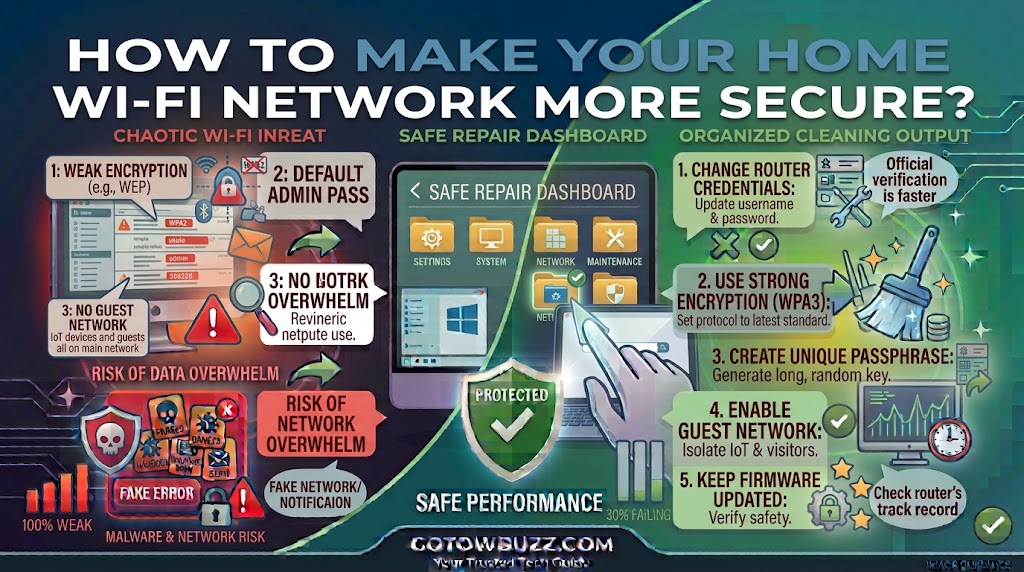
You can make a significant improvement by changing default passwords, using WPA2 or WPA3 encryption, updating the router’s firmware, disabling unnecessary features, creating a guest network, and checking which devices are connected.
The exact menu names vary between router brands and internet providers, so this guide focuses on what to look for rather than pretending every router has the same interface.
Why Your Home Wi-Fi Security Matters
Your router acts as a connection point between your home devices and the internet.
Phones, computers, smart TVs, cameras, printers, and other connected equipment may all communicate through it.
The Federal Trade Commission recommends securing the home router because connected devices can contain personal information and may become easier targets when the network itself is poorly protected.
An unsecured or poorly configured network can also allow unauthorized people nearby to connect to your internet connection.
That doesn’t mean someone automatically gets access to every file on your computer just because they know your Wi-Fi password. Modern devices and applications have additional security layers. However, keeping unauthorized devices off your network reduces unnecessary exposure.
Check Your Router Before Changing Anything
Before changing settings, find out which router you actually have.
It may have been supplied by your internet service provider, or you may have purchased it separately.
Look for the manufacturer’s name and model number on the router.
You may find information on:
- A label underneath the router
- The back of the router
- The original packaging
- Your ISP’s customer account
- The router’s mobile app
- The router’s administration page
You’ll need this information because the location of security settings differs considerably between manufacturers.
[Screenshot 1: Router label showing a fictional manufacturer and model number, with serial number, Wi-Fi password, MAC address, and other identifying information covered]
Screenshot purpose: Show readers where to find their router’s manufacturer and model without exposing real network credentials or device identifiers.
Screenshot caption: Find your router’s manufacturer and model before looking for security instructions.
Change the Router’s Administrator Password
There are two different passwords that people often confuse.
The Wi-Fi password is used by phones, computers, TVs, and other devices to join the wireless network.
The router administrator password is used to access the router’s control panel.
These should be treated as separate credentials.
The FTC specifically recommends changing the default administrator username and password because factory credentials may be known or easily discoverable.
Step 1: Open your router’s administration page
Connect your computer or phone to your home network.
Open your router’s official app or administration interface.
Depending on the router, you may access the controls through a local address shown in the router’s documentation or through an official app.
Sign in using the administrator credentials.
Don’t guess an address if you don’t know it. Check the router’s manual, label, official support documentation, or ISP instructions.
Step 2: Find the administrator account settings
Look for a menu such as:
Administration
System
Advanced Settings
Management
Administrator
Account
The wording varies by manufacturer.
Find the option for changing the administrator password.
Create a strong, unique password that you don’t use for another account.
Save it in a reputable password manager if you use one.
[Screenshot 2: Fictional router administration page showing the Administrator or System Account section with the password field highlighted]
Screenshot purpose: Demonstrate where the administrator-password setting may appear without pretending the interface belongs to a particular router brand.
Screenshot caption: Change the router administrator password from the management or administration settings.
Don’t use your home address, family name, router model, or another easily guessed detail.
Change Your Wi-Fi Password
Next, check the password people use to connect to your wireless network.
If the router still uses its original Wi-Fi password, replace it.
The FTC recommends using a unique and secure Wi-Fi password rather than relying on the factory setting.
Step 3: Open wireless settings
Look for a section named something like:
Wi-Fi
Wireless
Wireless Settings
Wi-Fi Security
WLAN
Find the password or security-key field.
Create a strong password that isn’t reused elsewhere.
Remember that changing the Wi-Fi password will disconnect devices currently using the old password.
You’ll need to reconnect them using the new one.
[Screenshot 3: Fictional router Wi-Fi settings page showing Network Name, Security Mode, and Wi-Fi Password fields]
Screenshot purpose: Show readers the typical location of the wireless security settings and distinguish the Wi-Fi password from the administrator password.
Screenshot caption: Update the Wi-Fi password from the router’s wireless security settings.
Use WPA3 or WPA2 Encryption
Your wireless security mode is one of the most important settings to check.
If your router supports WPA3 Personal, that’s generally the preferred option for a compatible home network.
If WPA3 isn’t available, WPA2 Personal is the established alternative.
The FTC recommends WPA3 Personal or WPA2 Personal and warns that older options such as WEP are outdated and not secure.
CISA likewise recommends WPA2 or WPA3 and advises disabling legacy protocols such as WEP and older WPA configurations.
Step 4: Check wireless security mode
Open your router’s wireless or Wi-Fi security settings.
Look for Security Mode, Encryption, or a similar option.
Choose:
WPA3-Personal if your router and devices support it.
If that isn’t available, choose:
WPA2-Personal.
Avoid selecting:
WEP
or outdated unsecured options.
Some routers provide a mixed WPA2/WPA3 mode to maintain compatibility with older devices.
If your router offers a mixed mode, check its current documentation to understand what it does before selecting it.
[Screenshot 4: Fictional router security-mode menu showing WPA3-Personal and WPA2-Personal as available options, with WEP shown as an outdated option]
Screenshot purpose: Show readers which wireless security standards they should look for and which older options should be avoided.
Screenshot caption: Choose WPA3-Personal when supported, or WPA2-Personal when WPA3 isn’t available.
If your old router only offers WEP or similarly outdated security options, first check whether a firmware update adds newer security. If it doesn’t, replacing the router may be appropriate.
Update Your Router’s Firmware
Routers contain software called firmware that controls how the device operates.
Manufacturers release firmware updates to fix bugs, improve functionality, and address security problems.
The FTC recommends keeping router software up to date and checking with the manufacturer or ISP for updates.
Step 5: Check for firmware updates
Open your router’s official administration app or web interface.
Look for:
Firmware Update
Software Update
Router Update
System Update
Administration
or a similar option.
Some modern routers install updates automatically.
If your router is supplied by your ISP, updates may also be handled by the provider.
Don’t download firmware from an unfamiliar third-party website.
Use the manufacturer’s official support page or your ISP’s official instructions.
[Screenshot 5: Fictional router administration page showing a Firmware Update section with the current firmware version and a Check for Updates button]
Screenshot purpose: Show readers where firmware-update controls commonly appear and what information they should expect to see.
Screenshot caption: Check your router’s firmware version and install updates through the manufacturer’s or ISP’s official process.
Don’t interrupt an update
If your router is installing firmware, don’t unplug it unless the manufacturer’s instructions specifically tell you to do so.
Interrupting a firmware installation can cause problems.
If possible, perform updates when you don’t need the internet for an important task.
Disable Remote Management If You Don’t Need It
Some routers allow administrators to manage the device from outside the home network.
This feature can be convenient, particularly for advanced users.
But if you don’t need remote management, leaving it enabled can increase the number of ways the router’s administration interface can be reached.
The FTC recommends turning off remote management when it isn’t needed.
Step 6: Check remote-management settings
Open the router’s advanced or administration settings.
Look for:
Remote Management
Remote Administration
Web Access from WAN
Remote Access
If you don’t need the feature, disable it.
Save the setting.
If you legitimately manage your router remotely, don’t disable a feature blindly. Instead, follow the manufacturer’s security guidance and use the strongest available authentication and access controls.
[Screenshot 6: Fictional router advanced settings page showing Remote Management switched off]
Screenshot purpose: Show readers where a remote-management setting may appear and make clear that the example is illustrative rather than a universal router interface.
Screenshot caption: Turn off remote router administration if you don’t need to manage the router from outside your home.
Consider Disabling WPS
Wi-Fi Protected Setup (WPS) can make connecting certain devices easier.
Depending on the router, WPS may allow a device to connect without manually entering the normal Wi-Fi password.
The FTC recommends turning off WPS as part of improving home Wi-Fi security.
Step 7: Look for WPS
Open your router’s wireless or advanced settings.
Find WPS or Wi-Fi Protected Setup.
If you don’t need it, disable it.
Some routers may not offer a way to disable WPS. If the option isn’t present, don’t assume something is wrong.
The exact controls depend on the router.
Turn Off UPnP If You Don’t Need It
Universal Plug and Play (UPnP) allows devices on your network to automatically discover and communicate with other devices.
It can make some home-network tasks easier.
However, if you don’t need it, disabling unnecessary network features can reduce exposure.
The FTC includes UPnP among router features users should consider turning off when they aren’t needed.
Don’t disable UPnP automatically if you rely on it for a particular device or application.
If you turn it off and something stops working, check the device or application documentation before making further changes.
Create a Separate Guest Wi-Fi Network
A guest network is useful when visitors need internet access.
Instead of giving guests your primary Wi-Fi password, give them access to a separate network.
The FTC recommends using a guest network because it limits how many people know the primary network password and can help separate guests’ devices from devices on your main network.
Step 8: Set up guest Wi-Fi
Open your router’s Wi-Fi settings.
Look for:
Guest Network
Guest Wi-Fi
Guest Access
Enable the guest network.
Give it a separate name and password.
If your router offers an option such as Allow guests to access local network, consider leaving that disabled unless you specifically need guests to communicate with devices on your home network.
The exact wording varies.
[Screenshot 7: Fictional router Guest Network settings showing a separate Wi-Fi name and password, with local-network access disabled]
Screenshot purpose: Show how a guest network can have its own credentials and how local-network access may be separated from internet access.
Screenshot caption: Give visitors a separate Wi-Fi network instead of sharing your primary network password.
Review Which Devices Are Connected
After securing your router, check which devices are currently connected.
You may find a menu named:
Connected Devices
Client List
Device List
Wireless Clients
DHCP Clients
The FTC recommends reviewing connected devices so you know what is using your network.
Step 9: Review connected devices
Open your router’s device list.
Look through the names and information shown.
You may recognize:
- Your phone
- Laptop
- Smart TV
- Printer
- Tablet
- Game console
- Smart speaker
- Security camera
- Streaming device
Don’t panic if a device name isn’t immediately familiar.
Some devices use generic names, manufacturer names, or technical identifiers.
If you find something you genuinely don’t recognize, investigate it before assuming it’s an intruder.
Check your household devices one by one.
If necessary, disconnect known devices temporarily and refresh the list.
[Screenshot 8: Fictional router connected-device list showing several recognizable device names and one device highlighted for investigation]
Screenshot purpose: Teach readers where connected-device information appears and encourage them to identify unfamiliar devices carefully rather than immediately assuming they’re malicious.
Screenshot caption: Review connected devices regularly so you know what is using your home network.
Turn On the Router Firewall
Many consumer routers include a built-in firewall.
A firewall helps control certain incoming and outgoing network traffic and provides an additional security layer.
The FTC recommends checking that the router’s firewall is turned on.
Step 10: Check firewall settings
Open your router’s advanced settings.
Look for:
Firewall
Security
Network Protection
SPI Firewall
The exact terminology varies.
If the router provides a standard built-in firewall setting and it is disabled, review the manufacturer’s documentation before enabling or changing advanced firewall modes.
Don’t randomly change advanced firewall rules without understanding what they do.
[Screenshot 9: Fictional router security page showing a built-in firewall enabled]
Screenshot purpose: Show readers where a router firewall setting may appear while avoiding claims about a particular manufacturer’s interface.
Screenshot caption: Check that your router’s built-in firewall is enabled.
Choose a Neutral Wi-Fi Network Name
Your Wi-Fi network name, or SSID, doesn’t need to identify you.
Avoid using your:
- Full name
- Home address
- Apartment number
- Phone number
- Router model
- Other information that identifies your household
CISA guidance recommends using a generic network name that doesn’t reveal who owns the network or identify the router manufacturer or model.
A neutral name doesn’t make the network invisible to attackers.
It simply avoids unnecessarily advertising personal information.
Don’t Hide Your SSID as Your Main Security Measure
Some routers offer an option to stop broadcasting the network name.
This may sound like a strong security feature because the network becomes less visible in ordinary Wi-Fi lists.
However, hiding the SSID shouldn’t be treated as your main defense.
Strong encryption, secure passwords, current firmware, and sensible router settings are much more important.
If you decide to hide the network name for another reason, make sure you don’t neglect the core security settings.
Separate Smart Devices When Your Router Supports It
Homes increasingly contain internet-connected devices such as:
- Smart TVs
- Cameras
- Doorbells
- Smart speakers
- Smart plugs
- Thermostats
- Appliances
Some routers offer additional network-segmentation features, such as an IoT network.
If your router supports a separate network for smart devices, consider using it for equipment that doesn’t need direct access to your computers or other sensitive devices.
CISA recommends network segmentation as one way to improve security for home environments, while the FTC also discusses separating connected devices and using guest networks.
Don’t create complicated network rules unless you understand what your devices require.
A simple guest or IoT network can be useful, but incorrect isolation can prevent devices from communicating when they need to.
Remove Devices You No Longer Use
Old devices can become forgotten security problems.
Maybe an old tablet is still connected.
Perhaps you replaced a smart camera but left the previous device connected.
Maybe a guest’s device still remembers your network.
Review the connected-device list periodically.
For devices you no longer use, remove them from the network or disconnect them.
The FTC recommends disabling or disconnecting older devices that aren’t being used because their security may be outdated.
Log Out of the Router Administrator Account
Once you’ve finished changing settings, don’t leave the administration interface open.
Log out.
This is especially important if you’re configuring the router from a shared computer.
The FTC specifically recommends logging out as administrator after completing router setup or configuration changes.
If your router uses an app rather than a traditional web interface, follow the manufacturer’s guidance for protecting administrative access.
What If Your Router Doesn’t Have WPA3?
Don’t assume you need to replace the router immediately.
First, check whether the router supports a firmware update.
Then check the manufacturer’s documentation for supported wireless security modes.
If WPA3 isn’t available but the router supports WPA2-Personal, use WPA2-Personal.
If the router only offers obsolete security options such as WEP or older unsecured modes, replacing the router may be the safer long-term choice. The FTC specifically recommends considering a new router when older equipment cannot provide WPA2 or WPA3.
What If Changing the Wi-Fi Password Disconnects Everything?
That’s normal.
Changing the Wi-Fi password means devices using the old password can no longer authenticate to the network.
Reconnect each device using the new password.
Start with important equipment such as:
Your phone.
Your main computer.
Your printer.
Your smart TV.
Your security devices.
Your streaming devices.
If a device doesn’t reconnect, remove the saved Wi-Fi network from that device and connect again using the new credentials.
Don’t immediately reset the router just because one device refuses to reconnect.
What If You Don’t Know the Router Administrator Password?
Don’t repeatedly guess.
Check the router documentation or your ISP’s official support information.
If the router was supplied by your internet provider, the provider may manage certain settings for you.
If you own the router and cannot recover the administrator credentials, a factory reset may be an option, but it should be treated as a last resort because it can erase customized settings.
Before resetting, make sure you know the information required to configure your internet connection again.
What If an Unfamiliar Device Appears?
Don’t immediately assume that someone has hacked your network.
First, identify all devices in your home.
Check:
- Phones
- Tablets
- TVs
- Printers
- Consoles
- Cameras
- Smart speakers
- Streaming devices
- Smart appliances
Some routers display technical device names that don’t resemble the product you own.
If you’re still unsure, change the Wi-Fi password.
This disconnects devices using the old credentials and gives you an opportunity to reconnect only the devices you recognize.
Then review the connected-device list again.
If suspicious activity continues, check the router’s security logs if available and contact the router manufacturer or ISP for assistance.
A Simple Home Wi-Fi Security Checklist
If you don’t want to change everything at once, start here:
1. Change the router administrator password.
2. Change the Wi-Fi password.
3. Use WPA3-Personal or WPA2-Personal.
4. Update the router firmware.
5. Disable remote management if you don’t need it.
6. Consider disabling WPS if you don’t use it.
7. Create a guest network for visitors.
8. Check the connected-device list.
9. Make sure the router firewall is enabled.
10. Remove or disconnect devices you no longer use.
These steps cover many of the basic protections recommended by the FTC and CISA for home wireless networks.
How Often Should You Check Your Router?
You don’t need to log into your router every day.
A practical routine is to check for firmware updates when your router or ISP notifies you, review connected devices occasionally, and revisit security settings whenever you replace equipment or change your home network.
Also check the router when:
- You move to a new home
- You replace your internet provider
- You buy a new router
- You add many smart devices
- You notice unfamiliar devices
- You suspect someone knows your Wi-Fi password
- Your router reaches the end of its supported life
The goal isn’t to constantly change settings.
It’s to avoid leaving important security controls untouched for years.
Common Home Wi-Fi Security Mistakes
Keeping the factory Wi-Fi password
Default credentials may be known or predictable.
Change them.
Using the same password everywhere
Your Wi-Fi password should not be reused for unrelated accounts.
Forgetting the administrator password
The router’s admin password protects the settings that control the network.
Protect it separately.
Using WEP because an old device requires it
WEP is outdated.
If an old device can’t work with modern security, consider whether it should remain connected to your main network.
Leaving remote management enabled unnecessarily
If you don’t need remote administration, turn it off.
Giving every visitor your main Wi-Fi password
Use a guest network when your router supports one.
Ignoring firmware updates
Router software needs updates just like computers and phones do.
Assuming a hidden network is secure
Hiding the network name doesn’t replace proper encryption and strong credentials.
Never checking connected devices
You should know what equipment is using your network.
Practical Tips for a Safer Home Network
Use a long, unique Wi-Fi password.
Keep the router administrator password separate from the Wi-Fi password.
Prefer WPA3-Personal when compatible with your equipment.
Use WPA2-Personal when WPA3 isn’t available.
Keep router firmware current.
Give guests access through a guest network rather than your primary network.
Don’t install router firmware from unofficial websites.
Replace outdated routers that no longer receive security updates or cannot support modern encryption.
Keep phones, computers, smart devices, and other connected equipment updated too. The FTC recommends maintaining current software and firmware across connected devices because vulnerabilities can affect the broader home environment.
Frequently Asked Questions
What is the safest Wi-Fi security setting for a home network?
When supported by your router and devices, WPA3-Personal is generally the preferred option. WPA2-Personal is an appropriate alternative when WPA3 isn’t available. Avoid outdated standards such as WEP.
Should my Wi-Fi password be different from my router admin password?
Yes. They protect different parts of the router. The Wi-Fi password controls network access, while the administrator password controls router settings. Using separate credentials limits the damage if one password is exposed.
Should I turn off WPS?
If you don’t need WPS, disabling it is a reasonable security step. The FTC recommends turning off WPS as part of securing a home Wi-Fi network.
Should I use a guest Wi-Fi network?
Yes, if your router supports one. A guest network lets visitors connect without giving them the password for your primary network and can provide separation from your main devices.
Does changing my Wi-Fi password kick other devices off?
Yes. Devices using the previous password will lose access and need to reconnect using the new password. This can also be useful if you suspect someone knows your old Wi-Fi password.
How do I know if someone is using my Wi-Fi?
Check your router’s connected-device or client list. Identify the devices in your home and investigate anything you genuinely don’t recognize. Remember that technical device names can make familiar equipment look unfamiliar.
Do I need to buy a new router to secure my Wi-Fi?
Not necessarily. Many existing routers can be made significantly safer by changing default credentials, enabling WPA2 or WPA3, updating firmware, and disabling unnecessary features. However, if an old router no longer receives security updates or only supports obsolete encryption, replacing it may be appropriate.
Final Thoughts
You don’t need advanced networking knowledge to improve your home Wi-Fi security.
Start with the basics: replace the default administrator and Wi-Fi passwords, use WPA3 or WPA2 encryption, install available firmware updates, and check which devices are connected.
Then take a few extra steps. Disable remote management and WPS if you don’t need them, create a guest network for visitors, make sure the router firewall is enabled, and disconnect devices you no longer use.
The exact menus will vary depending on your router, so don’t worry if your settings page looks different from an example online. What matters is finding the equivalent security controls and understanding what each one does before changing it.
A secure home network isn’t about making every setting as restrictive as possible. It’s about using modern protection, removing unnecessary access, and keeping the equipment that connects your home to the internet properly maintained.
Sources Used for Accuracy
- Federal Trade Commission — How To Secure Your Home Wi-Fi Network: Used for guidance on WPA3/WPA2, default passwords, firmware updates, remote management, WPS, UPnP, guest networks, firewalls, and administrator access.
- Federal Trade Commission — Securing Your Internet-Connected Devices at Home: Used for guidance on connected-device reviews, firmware updates, default credentials, device security, and removing unused equipment.
- CISA — Guidance for Securing Video Conferencing / Home Networks: Used for WPA2/WPA3 recommendations, changing default passwords, choosing a neutral SSID, and disabling legacy wireless protocols.
- CISA — Federal Mobile Workplace Security Guidance: Used for current guidance on updating routers, securing home wireless networks, using strong credentials, and network segmentation.
- Federal Trade Commission — Protect Your Personal Information From Hackers and Scammers: Used for the broader connection between router security, device updates, account security, and protecting personal information.