
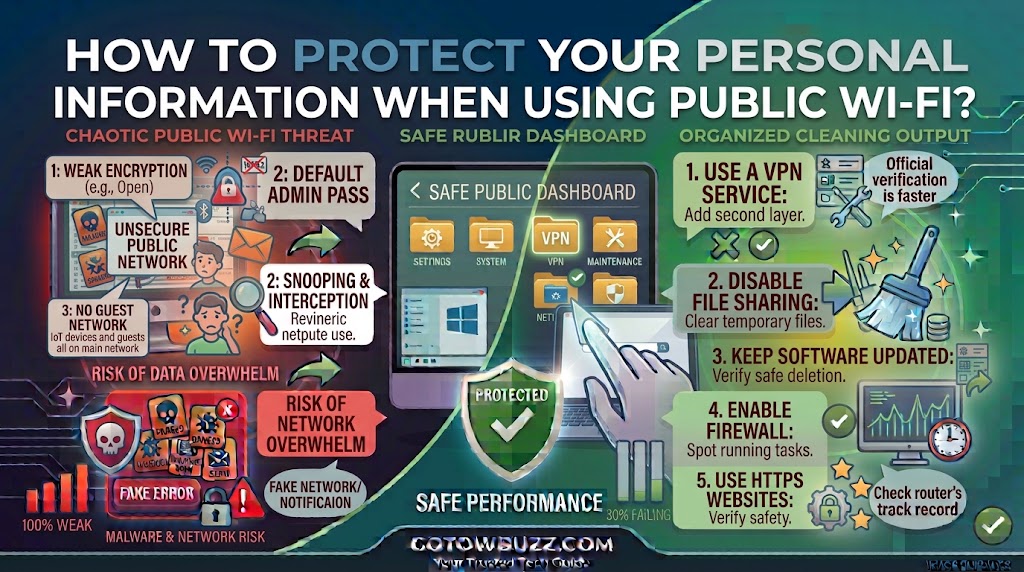
Introduction
Public Wi-Fi is convenient, but connecting to the internet at a café, hotel, airport, library, shopping center, or other public place deserves a little extra caution.
The biggest mistake is assuming that a network is safe simply because it has a familiar name. A Wi-Fi network called “Airport Free WiFi” or “CoffeeShop Guest” may be legitimate, but someone else could potentially create a similar-looking network to trick people into connecting.
Even when the network itself is legitimate, your device is still being used in an environment you don’t control.
That doesn’t mean you should stop using public Wi-Fi altogether. Instead, use a few sensible precautions. Connect to the correct network, keep your device updated, avoid sensitive activities when possible, use secure websites, turn off unnecessary sharing, and protect your accounts with strong authentication.
This guide explains what to check before connecting, what settings to change, which activities deserve extra caution, and what to do if you think your information may have been exposed.
Why Public Wi-Fi Requires Extra Care
When you’re at home, you generally know which router you’re connecting to and who controls it.
Public networks are different.
You may not know who operates the network, which other devices are connected, or how the network has been configured.
Modern websites and apps commonly use encryption to protect information while it travels between your device and their servers. HTTPS helps protect data exchanged with a website, even when you’re using an unfamiliar network.
However, encryption doesn’t make every public Wi-Fi network trustworthy.
There are still risks from fake networks, malicious websites, outdated devices, stolen passwords, accidental file sharing, and people trying to trick you into revealing information.
The goal is therefore not to panic about public Wi-Fi. It’s to reduce the opportunities for someone to access information they shouldn’t have.
Confirm the Wi-Fi Network Before Connecting
The first step is surprisingly simple: make sure you’re connecting to the right network.
A public location may have several Wi-Fi networks with similar names.
For example, a café might have an official network called:
ExampleCafe_Guest
Someone nearby could create another network with a similar name.
Step 1: Ask for the official network name
If you’re in a café, hotel, airport, library, or similar location, ask staff for the exact Wi-Fi name.
Don’t rely solely on the name that appears first in your device’s Wi-Fi list.
Also ask whether a password is required.
If the location displays Wi-Fi information on a sign or receipt, compare the details before connecting.
[Screenshot 1: Fictional smartphone Wi-Fi settings showing several similarly named networks, with the legitimate network clearly identified]
Screenshot purpose: Demonstrate why users should verify the exact network name instead of automatically choosing the strongest or first available signal.
Screenshot caption: Confirm the official Wi-Fi name before connecting to a public network.
If you’re asked to accept terms or enter an email address on a connection page, read what you’re being asked to provide before continuing.
Don’t Automatically Join Open Networks
Your phone or laptop may remember Wi-Fi networks you’ve used before and automatically reconnect when they’re nearby.
That can be convenient at home, but automatic connections can be less desirable in unfamiliar places.
Step 2: Turn off automatic Wi-Fi connections when appropriate
On many phones and computers, Wi-Fi settings include an option for automatically joining known networks.
The exact wording varies by operating system and device.
On an iPhone, for example, you can open:
Settings → Wi-Fi
and select a network to review its connection settings.
On Windows, open:
Settings → Network & internet → Wi-Fi
and review the available network and Wi-Fi settings.
The menu layout can change between versions, so use the equivalent Wi-Fi or network settings if your device looks different.
For public locations you don’t regularly use, avoid saving networks unnecessarily.
[Screenshot 2: Fictional phone Wi-Fi settings showing an unfamiliar public network and its automatic-join setting]
Screenshot purpose: Show where a user may find automatic connection controls and emphasize that unfamiliar networks don’t need to be remembered permanently.
Screenshot caption: Avoid automatically reconnecting to unfamiliar public Wi-Fi networks.
Keep Your Device Updated
Your operating system and applications receive security updates for a reason.
Updates can fix vulnerabilities that attackers may otherwise exploit.
Before regularly using public networks, make sure your phone, tablet, or computer is reasonably up to date.
Step 3: Check for system updates
On Windows:
Settings → Windows Update
Check whether updates are available.
On iPhone:
Settings → General → Software Update
On Android, the exact path varies by manufacturer, but you can usually find system updates under Settings and a section related to System, Software Update, or About phone.
Install updates through the device’s normal update mechanism.
Don’t download a supposed security update from a pop-up appearing on an unfamiliar website.
[Screenshot 3: Windows Update page showing the system’s update status]
Screenshot purpose: Show readers where to check for Windows updates before using public networks.
Screenshot caption: Keep your operating system updated to receive important security fixes.
Use HTTPS When Browsing
Look at the address bar when visiting a website.
A secure website normally uses an address beginning with:
https://
HTTPS encrypts information exchanged between your browser and the website.
This is especially important when entering passwords or other private information.
However, don’t treat HTTPS as proof that a website itself is trustworthy.
A fraudulent website can also use HTTPS.
For example, a fake shopping website may have a secure connection while still being designed to steal your information.
Before entering anything sensitive, check both the website address and the connection.
[Screenshot 4: Browser address bar showing a fictional HTTPS website with the domain highlighted]
Screenshot purpose: Show readers where to check the website address and HTTPS connection before entering information.
Screenshot caption: Check the website address and HTTPS connection before entering sensitive information.
Avoid Sensitive Activities on Untrusted Networks
Public Wi-Fi isn’t automatically dangerous, but you don’t have to perform every online activity while connected to it.
If you’re using an unfamiliar network, consider postponing particularly sensitive tasks until you’re on a trusted connection.
Examples include:
- Changing important account settings
- Accessing highly sensitive financial information
- Sending particularly confidential documents
- Managing important business systems
- Entering sensitive identification information
This doesn’t mean online banking or other secure services can never be used on public Wi-Fi. Modern banking websites and apps use encryption and additional security controls.
The practical point is simple: if you don’t need to perform a sensitive task right now, waiting until you’re on a trusted network removes one unnecessary risk.
Use Your Mobile Data for Sensitive Tasks When Practical
Your cellular connection can be a useful alternative when you don’t trust the available Wi-Fi.
If you have sufficient mobile data, you can disconnect from public Wi-Fi and use your phone’s cellular connection instead.
Step 4: Disconnect from public Wi-Fi
Open your phone’s Wi-Fi settings and disconnect from the public network.
Then make sure mobile data is enabled.
On an iPhone, this can generally be checked under:
Settings → Cellular
On Android, the location varies, but look under:
Settings → Network & internet
or a similar network section.
[Screenshot 5: Fictional smartphone showing Wi-Fi disconnected while cellular/mobile data is enabled]
Screenshot purpose: Demonstrate the simple alternative of using cellular data instead of an unfamiliar public Wi-Fi network.
Screenshot caption: When practical, use cellular data instead of an unfamiliar public Wi-Fi network.
This can be particularly useful if you’re about to enter sensitive information and don’t need the public connection.
Consider Using a Trusted VPN
A VPN, or virtual private network, creates an encrypted connection between your device and a VPN service.
This can provide an additional layer of protection when you’re using networks you don’t control.
However, a VPN isn’t a magic safety switch.
It doesn’t stop phishing websites, malicious downloads, weak passwords, account theft, or scams.
It also means you’re placing trust in the VPN provider.
If you decide to use one, choose a reputable service, understand its privacy policy, and install its application from the provider’s official website or your device’s official app store.
Step 5: Connect to your VPN before sensitive browsing
Install the VPN application before you need it.
Open the application and connect according to the provider’s instructions.
Wait until the application confirms the VPN connection.
Then continue browsing.
[Screenshot 6: Fictional VPN application showing a connected status without using a real provider’s branding]
Screenshot purpose: Show what a successful VPN connection indicator might look like without endorsing a specific provider.
Screenshot caption: Confirm that the VPN connection is active before relying on it for additional protection.
If your VPN disconnects unexpectedly, don’t assume you’re still protected by it. Check the application’s connection status.
Turn Off File and Printer Sharing
Computers can offer sharing features that are useful on a trusted home network.
You generally don’t need those features exposed while connected to a public network.
Windows, for example, distinguishes between network profiles such as Public and Private. A public network profile is intended for networks you don’t trust, such as airports and cafés.
Step 6: Set Windows to a Public network profile
On current versions of Windows 11, open:
Settings → Network & internet → Wi-Fi
Select the connected network.
Find the Network profile type setting.
Choose:
Public
Windows uses the Public profile to apply more restrictive network-discovery behavior than a Private profile.
The exact location and wording can vary between Windows versions.
[Screenshot 7: Windows Wi-Fi properties showing Network Profile set to Public]
Screenshot purpose: Show Windows users where to check the network profile after joining an unfamiliar Wi-Fi network.
Screenshot caption: Use the Public network profile when connecting to Wi-Fi in places you don’t control.
Microsoft recommends using a Public network profile for networks you don’t trust, such as public Wi-Fi. (support.microsoft.com)
Turn Off Unnecessary Device Discovery
Network discovery allows a device to find other devices on a network.
That’s useful at home when you intentionally want your computer to communicate with trusted equipment.
It’s generally unnecessary on a café or airport network.
If you’re using Windows, keeping the network profile set to Public helps prevent your PC from being discoverable in the same way it might be on a trusted private network.
Don’t change network-sharing settings randomly. If you’re unsure about a particular option, leave it at the safer public-network configuration.
Be Careful With File Sharing
Never accept unexpected file-sharing requests from unknown devices.
If you’re using a laptop in a public place and someone nearby appears to be requesting access to your files, don’t approve the request simply because the device name looks familiar.
Similarly, don’t make your computer’s folders broadly accessible while using public Wi-Fi.
Keep sensitive documents in locations that aren’t shared across the network.
Turn Off Wi-Fi and Bluetooth When You Don’t Need Them
You don’t need to keep every wireless connection active all the time.
If you’ve finished using public Wi-Fi, disconnect from it.
If you don’t need Bluetooth, you can turn it off as well.
This doesn’t make your device invisible, and Bluetooth itself isn’t inherently unsafe. The idea is simply to reduce unnecessary wireless connections when you’re finished with them.
For example, if you’re sitting in an airport and only needed Wi-Fi for ten minutes to download a boarding pass, there’s little reason to remain connected after you’re done.
Don’t Ignore Browser Security Warnings
If your browser warns that a website is dangerous, deceptive, or using an invalid security certificate, don’t simply click through because you need the page.
Stop and investigate.
A security warning can indicate a problem with the website, its certificate, or the connection.
Never enter a password or payment information into a page your browser has explicitly warned you about unless you understand why the warning appeared and have independently confirmed the site is safe.
[Screenshot 8: Fictional browser security warning page with the warning message and option to return to safety highlighted]
Screenshot purpose: Teach readers not to bypass browser security warnings simply because a page appears urgent or important.
Screenshot caption: Stop when your browser displays a security warning and verify the website before continuing.
Watch Out for Fake Wi-Fi Login Pages
Some public networks require you to sign in through a captive portal.
A captive portal is a web page that appears after connecting to Wi-Fi and may ask you to accept terms or enter information before internet access is provided.
These pages can be legitimate.
But don’t assume every login page is safe just because it appeared after connecting to Wi-Fi.
If a public Wi-Fi login page suddenly asks for your email password, banking credentials, payment-card details, or other information unrelated to providing Wi-Fi access, stop.
Ask staff what information the official network requires.
If you’re asked to sign in to another service, open that service separately rather than entering its password into an unfamiliar Wi-Fi page.
Never Give Your Account Password to a Wi-Fi Portal
A hotel may legitimately ask for information needed to provide internet access.
A café may ask you to accept terms.
An airport may provide a portal requiring an email address.
But your regular email, social-media, banking, or cloud-service password should not be entered into a random Wi-Fi access page simply because it says “Sign in.”
Your Wi-Fi connection and your online accounts are separate things.
If a page appears to be asking for credentials to another service, stop and verify the request.
Use Two-Factor Authentication on Important Accounts
A strong password is important, but adding another authentication method provides additional protection.
Two-factor authentication, often called 2FA, requires another verification step after your password.
Depending on the service, this might involve:
- An authenticator app
- A security key
- A verification code
- Another approved authentication method
If someone obtains your password, two-factor authentication can make account access more difficult.
Set it up before you travel or regularly use public networks.
[Screenshot 9: Fictional account security page showing two-factor authentication enabled]
Screenshot purpose: Show readers what an account’s security settings may look like when two-factor authentication is enabled.
Screenshot caption: Add two-factor authentication to important accounts for an additional layer of protection.
Don’t give a verification code to someone who unexpectedly asks for it.
Use a Password Manager
A password manager can make it easier to use unique passwords for different websites.
This matters on public networks because you don’t want a compromised password to unlock several unrelated accounts.
A password manager can also make it easier to recognize when you’re on the wrong website.
Many password managers will only offer to fill credentials when the website matches the saved login information.
That can provide a useful warning when you’ve accidentally opened a fake domain.
Still, don’t treat password-manager behavior as a guarantee that a website is safe. Check the domain yourself.
Be Careful With Public Computers
Public Wi-Fi and public computers aren’t the same thing.
A computer in a hotel lobby, library, business center, or other shared location may be used by many people.
Avoid entering highly sensitive information on a public computer when possible.
You don’t know what software is installed on it or whether another user has changed its configuration.
If you must use one, avoid saving passwords and personal files.
Sign out completely when you’re finished.
Don’t select options that save your login information for future users.
Don’t Install Software Because a Public Network Says You Need It
Be suspicious of messages such as:
“Install this update to access Wi-Fi.”
“Download this security certificate.”
“Install this browser extension to continue.”
A legitimate captive portal may have specific technical requirements in some environments, but an unexpected download request should make you stop and verify.
Never install software simply because an unfamiliar website claims your device is infected or outdated.
Use your operating system’s normal update system instead.
Don’t Share Sensitive Information Over Unencrypted Connections
If a website begins with http:// instead of https://, don’t enter passwords, payment information, or other sensitive information unless you understand the specific reason and have verified the connection.
For normal websites handling accounts or personal information, HTTPS should be expected.
If a site unexpectedly falls back to an insecure connection, leave it and investigate.
Modern browsers may also display warnings when connections aren’t secure.
What If the Public Wi-Fi Keeps Disconnecting?
Repeated disconnections aren’t automatically evidence that someone is attacking you.
Public networks can simply be overloaded, poorly configured, or out of range.
Try these basic checks:
- Disconnect and reconnect to the verified network.
- Move closer to the access point if appropriate.
- Forget the network and reconnect if your device is having trouble authenticating.
- Check whether the location requires you to accept a captive-portal agreement.
- Try cellular data if the network remains unreliable.
Don’t disable security features just to make a problematic network work.
What If You Connected to the Wrong Wi-Fi Network?
Don’t panic.
First, disconnect.
Then forget the network if you don’t intend to use it again.
If you entered a password or other sensitive information on a suspicious website after connecting, take action based on what you entered.
For example, if you typed an account password into a suspicious login page, change that password from a trusted connection and enable two-factor authentication if available.
If you entered payment information, contact the relevant financial institution through an official channel and follow its instructions.
What If You Think Someone Saw Your Information?
The response depends on what information may have been exposed.
If you entered a password
Change it through the legitimate website.
If you reused it elsewhere, change it on those accounts too.
If you entered financial information
Contact your bank or card provider using its official contact information.
Review recent transactions.
If you entered an authentication code
Secure the associated account immediately.
Review active sessions and recent security activity if the service provides those features.
If you downloaded a suspicious program
Stop using the program.
Run the security tools already provided by your operating system and seek appropriate technical assistance if you suspect the device has been compromised.
Don’t install another unknown program simply because a pop-up recommends it.
A Simple Public Wi-Fi Safety Routine
You don’t need to remember dozens of rules.
Before connecting, ask:
Is this the correct network?
Is my device updated?
Do I really need this connection?
After connecting, check:
Am I using HTTPS?
Is Windows using the Public network profile?
Are unnecessary sharing features disabled?
Do I need a VPN for this situation?
Before entering sensitive information, ask:
Can I wait until I’m on a trusted network?
Can I use cellular data instead?
Am I definitely on the correct website?
These questions can become a simple habit.
Public Wi-Fi Mistakes to Avoid
Connecting to the strongest network automatically
Signal strength doesn’t tell you whether a network is legitimate.
Trusting a familiar Wi-Fi name
A network name can be copied.
Verify it with the business or organization.
Entering your email password into a Wi-Fi portal
A Wi-Fi access page shouldn’t automatically be trusted with credentials for unrelated services.
Ignoring browser warnings
Security warnings are there for a reason.
Stop and investigate.
Leaving Windows on a Private network profile
For an unfamiliar public network, Windows’ Public profile is generally the appropriate choice. (support.microsoft.com)
Keeping old public networks saved forever
Remove networks you no longer need, especially unfamiliar ones.
Using the same password everywhere
One compromised password can become a much larger problem when it’s reused.
Assuming a VPN makes everything safe
A VPN can protect the connection between your device and the VPN service, but it doesn’t protect you from every online threat.
Practical Tips for Safer Public Wi-Fi
Keep your operating system and applications updated.
Use strong, unique passwords for important accounts.
Enable two-factor authentication.
Verify public Wi-Fi names with staff when possible.
Use a Public network profile on Windows when connected to an untrusted network.
Avoid unnecessary file and printer sharing.
Check website addresses before entering sensitive information.
Prefer cellular data when you don’t need public Wi-Fi.
Use a reputable VPN if it fits your needs.
Disconnect from public Wi-Fi when you’re finished.
Don’t install unexpected software or certificates simply to gain internet access.
If a website, Wi-Fi portal, or message makes you feel rushed, stop and verify it before continuing.
Frequently Asked Questions
Is public Wi-Fi safe to use?
Public Wi-Fi can be used safely with sensible precautions, but you shouldn’t treat an unfamiliar network as fully trusted. Verify the network, keep your device updated, use secure websites, avoid unnecessary sharing, and consider cellular data or a reputable VPN for situations where additional protection is useful.
Can someone see my passwords on public Wi-Fi?
HTTPS and modern application encryption protect much of the information exchanged with properly secured services. However, you should still avoid suspicious websites and unsecured connections. A fake login page can steal your password even if the Wi-Fi connection itself isn’t intercepting it.
Should I use a VPN on public Wi-Fi?
A reputable VPN can add another layer of protection by encrypting traffic between your device and the VPN service. It isn’t a replacement for HTTPS, strong passwords, two-factor authentication, software updates, and good browsing habits.
Is it safe to use online banking on public Wi-Fi?
Modern banking websites and apps use encryption and additional security measures, so using them isn’t automatically unsafe on public Wi-Fi. However, if you’re on an unfamiliar network and can easily wait or use cellular data, doing so reduces your exposure to risks associated with the public network.
Should I turn off Wi-Fi after using public internet?
Disconnecting when you’re finished is a sensible habit. It prevents your device from remaining connected to a network you no longer need and reduces the chance of automatically reconnecting later.
What should I do if I accidentally connect to a fake Wi-Fi network?
Disconnect immediately and forget the network if you don’t need it. If you entered a password or sensitive information afterward, change the affected password through the legitimate service and take any additional steps appropriate to the information you shared.
Does HTTPS protect me on public Wi-Fi?
HTTPS encrypts information exchanged between your browser and the website, which helps protect data while it travels across the network. However, HTTPS doesn’t prove that a website is legitimate, so always check the domain before entering sensitive information.
Final Thoughts
Public Wi-Fi doesn’t have to be something you avoid completely.
The key is to treat unfamiliar networks as places where you should be a little more careful. Verify the network before connecting, keep your device updated, use Windows’ Public network profile when appropriate, avoid unnecessary sharing, and check website addresses before entering private information.
For particularly sensitive tasks, consider using cellular data or waiting until you’re connected to a trusted network.
And remember that online safety isn’t based on one setting. A VPN, HTTPS, a strong password, or two-factor authentication can each help, but they work best as separate layers of protection.
A few seconds of caution before connecting can save you from a much more frustrating security problem later.
Sources Used for Accuracy
- Microsoft Support — Network settings and network profiles in Windows: Used for Windows Public and Private network profile guidance and related network settings. (support.microsoft.com)
- CISA — Securing Wireless Devices and Networks: Used for general wireless-network security practices, secure configurations, and the importance of protecting devices on wireless networks. (cisa.gov)
- Federal Trade Commission — Public Wi-Fi Networks: Used for guidance concerning public Wi-Fi risks and safer practices when connecting on public networks. (consumer.ftc.gov)
- Google Chrome Help — Manage warnings about unsafe sites: Used for guidance concerning browser security warnings and avoiding potentially dangerous websites. (support.google.com)
- Apple Support — Use private Wi-Fi addresses: Used for current Apple Wi-Fi privacy behavior and network connection considerations. (support.apple.com)