
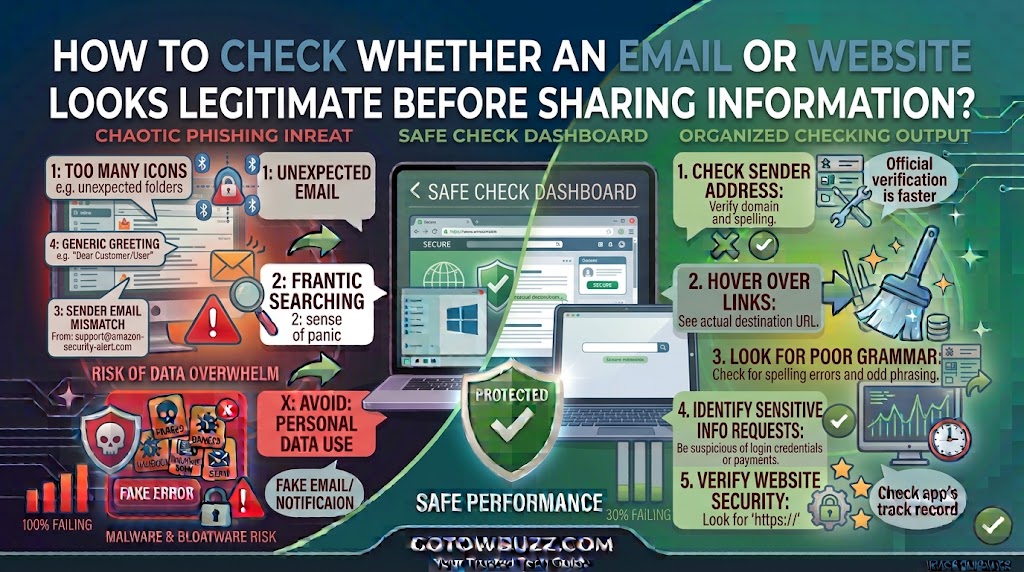
Introduction
A professional-looking email or website isn’t necessarily trustworthy.
Scammers can copy familiar logos, use realistic layouts, create convincing messages, and even build websites that look almost identical to legitimate services. If you enter your password, card details, verification code, or other personal information on the wrong page, you could hand sensitive information directly to a scammer.
The safest approach is to pause before sharing anything.
You can check the sender, inspect the website address, look for unusual requests, verify the organization independently, and avoid using links from unexpected messages. These checks only take a few minutes, but they can prevent a much bigger problem.
This guide explains how to evaluate an email and its website safely, what warning signs deserve attention, and what to do if you’re still unsure.
Why a Professional-Looking Message Isn’t Enough
Many people associate scams with obvious spelling mistakes, strange formatting, or poor-quality websites.
Those signs can still be useful, but they’re no longer enough.
A fraudulent message can contain the company’s logo, familiar colors, professional language, and a realistic-looking signature. A fake website can also copy the appearance of a genuine login page.
That’s why you shouldn’t decide whether something is legitimate based only on how it looks.
Instead, check several independent clues.
Ask:
Who sent this?
Why did they contact me?
Where does the link go?
What information are they asking for?
Can I verify the request somewhere else?
The more warning signs you find, the more cautious you should become.
Start With the Email Sender
If you’re checking an email, don’t rely only on the name displayed beside the message.
For example, an email might show:
Your Bank
But the actual address could belong to an unrelated domain.
Step 1: Check the complete sender address
Open the message without clicking any links or attachments.
Look at the sender information.
On many email services, selecting the sender name reveals the complete email address.
Check the domain after the @ symbol.
If the message claims to come from a company but the sender uses a completely unrelated domain, that’s a strong warning sign.
[Screenshot 1: Example email showing a familiar-looking sender name with the full fictional sender address expanded]
Screenshot purpose: Demonstrate why readers should inspect the complete email address instead of trusting the display name.
Screenshot caption: Expand the sender information and check the complete email address before trusting the message.
Watch for lookalike domains
Scammers may create addresses that resemble legitimate domains.
They might:
- Change one character
- Add an extra word
- Insert a hyphen
- Use a different domain ending
- Replace a letter with a similar-looking character
For example, a fictional legitimate address might use:
support@examplebank.com
while an attacker could create something like:
support@example-bank.example
The difference may be easy to miss when you’re reading quickly.
Don’t judge the address by the first word alone. Pay attention to the actual domain.
Don’t Trust the Display Name
A display name is simply the name your email application shows you.
It isn’t proof of identity.
A scammer can make an email appear to come from:
Microsoft Support
Your Bank
Delivery Service
Your Manager
A Friend
The real sender address matters much more.
This is particularly important when the message asks you to transfer money, provide sensitive information, reset an account, or open an attachment.
Microsoft recommends checking the sender address and being cautious when the displayed sender information doesn’t match the organization or person supposedly sending the message. (support.microsoft.com)
Check Why You Received the Email
Context matters.
Suppose you receive an email saying:
“Your order has shipped.”
Did you actually order something?
If you didn’t, there’s no reason to click the tracking link.
Or perhaps you receive:
“Your account needs verification.”
Ask yourself whether you recently requested a change or received any notification from that service.
An unexpected message isn’t automatically fake. Sometimes companies legitimately contact customers.
But unexpected requests deserve an independent check before you provide information.
Look Carefully at What the Message Wants
The requested action can reveal a lot.
Be especially cautious when an unexpected email asks you to:
- Enter your password
- Confirm your identity
- Provide bank details
- Update payment information
- Send money
- Share a verification code
- Download software
- Open an attachment
- Click a login link
- Provide a copy of identification
A legitimate organization may sometimes ask for information, but you shouldn’t assume a request is genuine just because it uses the organization’s branding.
If the request involves sensitive information, verify it through an independent route.
Check the Link Without Clicking It
Links deserve special attention.
The text displayed in an email doesn’t necessarily tell you where the link leads.
For example, a message could display:
Verify Your Account
but the underlying destination might be completely different.
Step 2: Inspect a link before opening it
On a computer, move your mouse over the link without clicking.
Your email application or browser may show the destination URL.
Read the address carefully.
Look for a domain that matches the organization you expect.
If the message claims to be from a particular company but the link points somewhere unrelated, don’t open it.
Google recommends checking where links lead before clicking and advises users to navigate directly to a website when a message seems suspicious. (support.google.com)
[Screenshot 2: Desktop email showing a mouse pointer hovering over a link with the fictional destination URL visible at the bottom of the browser window]
Screenshot purpose: Show readers how to inspect a link destination without opening the website.
Screenshot caption: Hover over an email link to see its destination before you click.
On a phone, the process varies between apps. You can often press and hold a link to preview its destination, but avoid selecting options that open the page if you’re unsure.
Be Careful With Shortened URLs
A shortened URL may hide the full destination.
Short links aren’t inherently dangerous. Businesses and individuals use URL-shortening services for legitimate reasons.
The problem is that you can’t immediately see which website is behind the shortened address.
If you receive an unexpected shortened link in an email or message, don’t assume it’s safe.
Instead, open the organization’s website directly.
CISA identifies untrusted shortened URLs as one warning sign associated with phishing attempts. (cisa.gov)
If You Open a Website, Check the Address Bar
Suppose you already opened a website.
Don’t immediately start typing your information.
Look at the browser’s address bar first.
Step 3: Examine the website domain
Identify the actual domain.
Don’t be distracted by a page that contains a company’s logo or familiar design.
For example, a fictional bank might legitimately use:
https://www.examplebank.com/
A suspicious site might use:
https://examplebank.security-check.example/
The important question is which organization controls the actual domain.
A domain can contain familiar words without belonging to the company you’re expecting.
[Screenshot 3: Browser address bar highlighting the actual domain of a fictional website]
Screenshot purpose: Teach readers to identify the main domain instead of trusting the page’s logo, title, or visual design.
Screenshot caption: Check the actual website domain before entering personal or financial information.
If you’re unsure about the domain, close the page and access the organization through a known route.
Don’t Assume HTTPS Means the Website Is Legitimate
A website using https:// provides an encrypted connection between your browser and the site.
That’s useful.
But HTTPS does not prove that the website belongs to a trustworthy company.
Scammers can also use HTTPS on fraudulent websites.
So the padlock or secure connection indicator shouldn’t be your only check.
The question isn’t simply:
“Does this website have HTTPS?”
Ask:
“Is this the correct website for the organization I’m trying to reach?”
Check the Domain From the Right Side
Website addresses can be confusing.
When checking a domain, focus on the actual registered domain rather than the words appearing before it.
Consider this fictional example:
login.examplebank.com
Here, examplebank.com is the important domain.
Now consider:
examplebank.com.fake-site.example
The words “examplebank.com” appear in the address, but the actual domain is associated with fake-site.example.
This is why simply seeing a familiar company name somewhere in the URL doesn’t prove that the site is genuine.
If you aren’t comfortable identifying domains, the safest option is to avoid the link and visit the company’s website independently.
Look for Unexpected Login Pages
A login page deserves extra caution.
If you arrived at a login page because you clicked an unexpected email link, stop before entering your password.
Instead:
- Close the page.
- Open a new browser tab.
- Type the organization’s known website address yourself.
- Navigate to the login page from there.
- Sign in normally.
This removes the suspicious link from the process.
[Screenshot 4: Browser showing an independently opened fictional official website with its normal login button]
Screenshot purpose: Demonstrate the safer alternative to signing in through an unexpected email link.
Screenshot caption: Open the official website yourself instead of signing in through an unexpected message.
This habit is especially useful for banking, email, cloud storage, social media, and other accounts containing sensitive information.
Check the Website’s Contact Information
A legitimate organization usually provides ways to contact it.
Look for:
Contact
Help
Support
Customer Service
About
The presence of these pages doesn’t prove that a website is genuine. A scam site can create them too.
However, they can provide another clue.
More importantly, don’t use a phone number or email address supplied only by a suspicious message.
If you need to contact an organization, find its official website independently and use the contact information published there.
Don’t Trust a Website Just Because It Has a Privacy Policy
Scammers can copy privacy-policy pages.
The same applies to:
- Terms and conditions
- Copyright notices
- Security badges
- Company logos
- Trust badges
- Customer testimonials
These details can make a website look professional without proving that it’s legitimate.
Use them as supporting information rather than your main evidence.
Be Suspicious of Requests for Sensitive Information
Think carefully before entering:
- Passwords
- One-time verification codes
- Bank account information
- Credit or debit card details
- National identification information
- Passport information
- Security questions
- Recovery codes
The more sensitive the information, the more important independent verification becomes.
For example, if an unexpected message asks you to confirm your card number, don’t use the supplied link.
Open your bank’s official app or website directly.
If the bank really needs something from you, check for a notification there or contact the bank through an official channel.
Be Careful With Verification Codes
One-time codes are especially sensitive.
You may receive a code by text message, authenticator app, email, or another authentication method.
If you didn’t initiate a login or transaction, don’t give the code to anyone.
A scammer may already know your password and be trying to complete the login.
If someone contacts you and says:
“Please tell me the code you just received so I can verify your account.”
don’t provide it.
Open the service independently and investigate.
This rule also applies if the person claims to be technical support.
Watch for Urgent or Threatening Language
Scammers often want you to act before you have time to verify the request.
Common examples include:
“Your account will be closed today.”
“Your payment failed.”
“You have 30 minutes to respond.”
“Your account has been compromised. Click here immediately.”
“Legal action may be taken if you don’t respond.”
Urgency doesn’t automatically make a message fraudulent.
Real organizations sometimes send time-sensitive notices.
But urgency is a good reason to slow down rather than speed up.
CISA and Microsoft both identify urgent requests and pressure to act quickly as common phishing indicators. (cisa.gov) (support.microsoft.com)
Check for Unusual Payment Requests
Payment-related messages deserve extra scrutiny.
Be cautious if an email suddenly asks you to:
- Change bank details
- Pay an invoice through a new account
- Purchase gift cards
- Send cryptocurrency
- Make an urgent transfer
- Pay a fee through an unfamiliar website
If the request involves money, verify it separately.
For business payments, contact the supplier using an existing phone number or established communication channel.
Don’t use the phone number or payment instructions contained only in the suspicious message.
Don’t Call the Number in a Suspicious Message
A fraudulent message may provide a convincing customer-support number.
If you call it, you may reach the scammer directly.
Instead, find the organization’s contact details independently.
Type the organization’s known website address into your browser.
Use the official support page or phone number listed there.
This simple step can prevent a fake “support agent” from gaining access to your information.
Search for the Company Independently
If you don’t know the official website address, search for the organization yourself.
Don’t search for the exact wording of the suspicious message and automatically trust the first result.
Look for the organization’s established website.
Pay attention to the domain.
You can also use an official app you already have installed.
For important accounts, keeping a bookmark to the genuine website can make future verification easier.
Check the Message in Another App or Device
If you receive a suspicious email on your phone, you don’t have to investigate it by clicking around on the same device.
You can open the organization’s known website separately on your computer.
Or open its official app.
The goal is to separate the message from the verification process.
For example:
Suspicious message: “Your bank account needs verification.”
Safer response: Open your bank’s official app yourself and check for notifications.
That approach is much safer than using the message’s link.
What If the Website Looks Real but You’re Still Unsure?
Trust your hesitation.
You don’t have to prove that a website is fraudulent before deciding not to use it.
If you’re unsure:
- Close the website.
- Don’t enter any information.
- Open the organization’s official website independently.
- Check your account there.
- Contact the organization through an official channel if necessary.
There’s little benefit in taking a risk simply because a website looks convincing.
What to Do If You Already Shared Information
The right response depends on what you shared.
If you shared a password
Go directly to the legitimate website and change the password.
If you reused that password on other accounts, change those passwords too.
Enable two-factor authentication where available.
Review recent account activity and active sessions.
If you shared banking information
Contact your bank through its official contact information.
Explain what happened and follow its instructions.
Monitor your account for suspicious transactions.
If you shared a verification code
Secure the affected account immediately.
Change the password if necessary, review recent activity, and revoke unfamiliar sessions or devices.
If you downloaded a suspicious file
Don’t open it again.
If you already opened it and notice unusual behavior, disconnecting the computer from the internet can help limit certain risks while you seek appropriate technical or security assistance.
Don’t install random “cleanup” software suggested by another suspicious message.
How to Check a Website Before Entering Information
A quick inspection can become a routine.
Step 4: Use the five-point website check
Before entering sensitive information, check:
1. The domain
Does it belong to the organization you’re trying to reach?
2. The reason you’re there
Did you intentionally navigate to this site, or did an unexpected message send you here?
3. The request
Does the site suddenly ask for unusually sensitive information?
4. The connection
Is the site using HTTPS? Remember that this alone doesn’t prove legitimacy.
5. The source
Can you reach the same service through its official app, bookmark, or known website?
If several things don’t make sense, stop.
[Screenshot 5: Safe website-check demonstration showing the browser address bar, page identity, and login area highlighted separately]
Screenshot purpose: Give readers a visual checklist of the areas to inspect before entering sensitive information.
Screenshot caption: Check the domain, page context, and login destination before sharing sensitive information.
How to Check an Email Before Responding
Use a similar process for emails.
Step 5: Review the message from the outside in
Start with the sender.
Then consider why you received it.
Next, inspect any links without opening them.
Check attachments.
Read the request carefully.
Finally, decide whether you can verify the message through another channel.
Don’t let the message itself tell you how to verify it.
If it says, “Call this number to confirm,” find the organization’s number independently.
If it says, “Click here to secure your account,” open the account’s official website yourself.
Common Mistakes to Avoid
Trusting the company logo
Logos can be copied easily.
Trusting the padlock
HTTPS doesn’t prove that a site belongs to the company it claims to represent.
Looking only at spelling
A well-written scam can still be a scam.
Checking only the first part of a URL
The important domain can be farther to the right.
Replying to suspicious emails
The sender may not be who it appears to be.
Calling a number supplied by a suspicious message
You could end up speaking directly with the scammer.
Entering a verification code
Never give a login code to someone who unexpectedly asks for it.
Acting because the message sounds urgent
Urgency is a reason to verify, not a reason to skip verification.
Practical Habits for Safer Browsing
You can make these checks easier by changing how you normally access important services.
Bookmark websites you use for banking, email, cloud storage, and other sensitive accounts.
Use official mobile apps when appropriate.
Use a password manager to reduce the need to follow login links.
Enable two-factor authentication on important accounts.
Keep your browser and operating system updated.
Don’t install software simply because an unexpected website tells you that your computer or phone is infected.
Most importantly, separate receiving a message from taking action.
An email can tell you that something needs attention.
It doesn’t have to be the place where you solve the problem.
Frequently Asked Questions
How can I tell if an email is legitimate?
Check the complete sender address, examine the request, inspect links without clicking them, look for unexpected urgency, and verify important requests through an independent channel. Don’t rely on logos or the display name alone.
Is a website safe if it has HTTPS?
Not necessarily. HTTPS encrypts the connection, but fraudulent websites can also use HTTPS. Check the actual domain and how you reached the site before entering sensitive information.
How do I check a link without opening it?
On a computer, hover your mouse over the link without clicking. Your browser or email application may show the destination URL. On mobile devices, you may be able to press and hold the link to preview it, depending on the app.
Should I click a bank link in an email?
If the email is unexpected or you’re unsure about it, don’t use the link. Open your bank’s official app or type the bank’s known website address yourself and check your account there.
Can scammers copy a real company’s website?
Yes. A fraudulent website can imitate a legitimate company’s branding, layout, logos, and login page. That’s why checking the domain and accessing important services independently is safer than judging a website by appearance.
What should I do if I’m not sure whether an email is real?
Don’t click its links or attachments and don’t reply with sensitive information. Visit the organization’s official website independently or contact it using information you already know to be genuine.
What should I do if I entered my password on a fake website?
Go directly to the legitimate website and change the password immediately. Change it anywhere else you reused it, enable two-factor authentication if available, and review recent account activity for anything unusual.
Final Thoughts
A legitimate-looking email or website isn’t enough reason to trust it.
Before sharing information, take a moment to check who sent the message, why you received it, where its links lead, and which domain you’re actually visiting. If the request involves passwords, payment information, verification codes, or other sensitive details, verify it through a separate and trusted route.
When in doubt, don’t use the message to solve the problem.
Open the official app. Type the known website address yourself. Use a trusted bookmark. Contact the organization through independently obtained contact information.
That extra step may take less than a minute, and it’s often far easier than recovering an account after sensitive information has been stolen.
Sources Used for Accuracy
- CISA — Secure Our World: Phishing Tip Sheet: Used for phishing warning signs including urgent requests, suspicious links, shortened URLs, unexpected attachments, and requests for personal or financial information. (cisa.gov)
- Microsoft Support — Protect Yourself From Phishing: Used for guidance on checking sender addresses, suspicious links, urgent requests, attachments, independent verification, and phishing reporting. (support.microsoft.com)
- Google Account Help — Avoid Suspicious Messages and Links: Used for guidance on checking links, avoiding suspicious sign-in pages, and navigating directly to legitimate services. (support.google.com)
- Google Gmail Help — Avoid and Report Phishing Emails: Used for guidance on suspicious messages, sender verification, phishing warnings, and reporting. (support.google.com)