
Introduction
When an Android app becomes slow, freezes, displays old content, or suddenly starts behaving strangely, clearing its cache is often one of the simplest things you can try.
The important part is choosing the right option.
Android normally gives you separate controls for Clear cache and Clear storage or Clear data. They are not the same thing. Google explains that clearing an app’s cache removes temporary data, while clearing its storage permanently removes the app’s stored data.
That difference matters.
If you’re trying to fix a problem without losing your account information, settings, saved information, or other app data, you generally want Clear cache, not Clear storage.
This guide shows where to find the setting, what happens after you use it, how to confirm that the cache was cleared, and what to do if your phone uses different menus.
Main Article
What Is an App Cache?
An app cache is temporary information that an application keeps on your phone.
An app may save certain temporary files so that it doesn’t have to download or recreate them every time you use it. Cached information can include things such as images, web content, thumbnails, and other temporary resources.
The cache isn’t the same as your personal information.
For example, if you clear the cache for a social media app, you aren’t normally deleting your account itself. You’re removing temporary files that the app can create again when necessary.
Google describes clearing cache as deleting temporary data. It also warns that some apps may take slightly longer to open the next time because the temporary information has to be rebuilt.
Why would you clear it?
Clearing an app’s cache can be useful when:
- An app is behaving strangely.
- Images or other content aren’t loading correctly.
- An app has become unusually slow.
- Temporary files have grown larger than necessary.
- An app keeps displaying outdated temporary content.
- You’re troubleshooting an app without wanting to reset it completely.
It isn’t something you need to do routinely for every app.
If an app is working perfectly, there’s usually no reason to keep clearing its cache just because the cache number looks large.
Cache vs. App Data: Know the Difference Before You Tap Anything
This is the most important part of the whole process.
Clear cache
Clear cache removes temporary data.
Your app remains installed, and the app’s main stored information isn’t intentionally erased by this action. Google describes cached data as temporary data, while Samsung says clearing an app’s cache removes temporary files without affecting the app’s personal data or settings.
Clear storage or Clear data
Clear storage/data is much more destructive.
Google says Clear storage permanently deletes all app data. Samsung similarly warns that clearing app data resets the application and removes personal settings and data saved within it.
That can mean you need to sign in again, recreate settings, or restore information from the app’s backup.
So when you’re following this guide, stop when you reach Clear cache.
Don’t tap Clear storage, Clear data, or a similarly named option unless you specifically intend to reset the app.
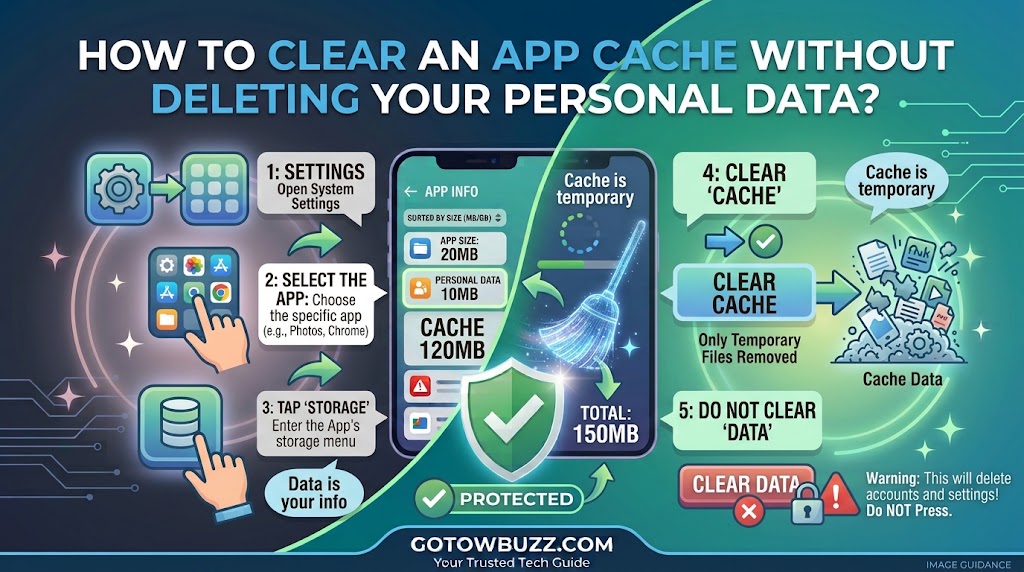
The Android Cache-Clearing Process at a Glance
On many current Android phones, the general path looks like this:
Settings → Apps → See all apps → Select the app → Storage & cache → Clear cache
The wording and exact location can vary between Android versions and manufacturers. Google specifically notes that Settings can vary by phone.
Samsung Galaxy devices generally use:
Settings → Apps → Select app → Storage → Clear cache
Samsung confirms this current route in its support documentation.
Step-by-Step: Clear an App Cache on Android
Step 1: Open Settings
Start by opening the Settings app on your phone.
You can normally find it in your app drawer or by pulling down the notification panel and tapping the Settings gear.
You don’t need to install a separate cache-cleaning application.
Android already provides the controls you need.
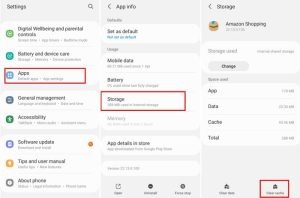
Screenshot caption: Open Settings and select Apps to manage the applications installed on your phone.
Step 2: Open the Apps Section
Tap Apps.
Depending on the Android version and manufacturer, you may see slightly different wording.
Possible labels include:
Apps
Apps & notifications
Application manager
Manage apps
Don’t assume your phone is missing the feature simply because the wording is different.
If you don’t immediately see Apps, use the Settings search box and search for Apps.
The purpose of this section is to reach the list of applications installed on your device.
Step 3: Find the App You Want to Fix
After opening Apps, you’ll normally see a list of applications.
On some Android phones, you may need to tap See all apps before the complete list appears.
Find the application whose cache you want to remove.
For example, suppose your browser has become unusually slow. You would select the browser rather than clearing the cache for every application on your phone.
Screenshot caption: Open the full app list and select the application whose cache you want to clear.
Choose the correct app
This sounds obvious, but it’s worth slowing down here.
Many phones contain applications with similar names.
If you’re troubleshooting Gmail, select Gmail.
If you’re troubleshooting Chrome, select Chrome.
If you’re troubleshooting a banking app, select the exact banking application rather than another app from the same company.
Don’t clear data or change settings for an app simply because its name looks familiar.
Step 4: Open the App’s Information Page
Tap the application.
You should now see an App info or similar screen.
This page contains controls for the individual app.
Depending on your phone, you may see options such as:
Open
Uninstall
Force stop
Notifications
Permissions
Storage
Battery
Mobile data
The names and layout vary.
You’re looking for Storage, Storage & cache, or a similar storage-related option.
[Screenshot 3: Android App info page with the Storage or Storage & cache option highlighted]
Screenshot purpose: Show exactly which part of the App info page the reader should open next.
Screenshot caption: From the app’s information page, open Storage or Storage & cache.
Step 5: Open Storage & Cache
Tap Storage & cache if your phone uses that wording.
Some devices simply call the section Storage.
You should now see information about how much space the application is using.
The screen may separate storage into categories such as:
App size
User data
Cache
Total
The exact categories can vary.
Don’t worry if the numbers on your phone don’t look like the screenshot. The important thing is finding the Clear cache button.
[Screenshot 4: Android Storage & cache screen showing App size, User data, Cache, and the Clear cache button]
Screenshot purpose: Help readers identify the correct screen and distinguish the cache amount from app data.
Screenshot caption: The Storage screen shows how much space the app uses and provides the Clear cache control.
Step 6: Tap Clear Cache
Now you’re at the important part.
Tap:
Clear cache
Do not tap:
Clear storage
or
Clear data
unless you specifically want to reset the application.
On supported Android versions, clearing the cache removes temporary data. Google notes that some apps may be slower the next time they open because temporary files need to be generated again.
[Screenshot 5: Android Storage screen with the Clear cache button highlighted and Clear storage/data shown separately]
Screenshot purpose: Make the distinction between the safe cache option and the more destructive storage/data option visually obvious.
Screenshot caption: Tap Clear cache—not Clear storage or Clear data—when you want to remove only temporary files.
Step 7: Wait for the Cache Amount to Change
On many Android phones, clearing the cache happens immediately.
You may see the cache amount drop substantially, sometimes to 0 B.
Samsung’s current support documentation says you can verify that the cache was cleared by checking the Cache entry on the same screen.
[Screenshot 6: Android app Storage screen immediately after clearing the cache, showing the Cache value reduced or at 0 B]
Screenshot purpose: Show the reader how to confirm that the action actually worked.
Screenshot caption: Check the Cache value after clearing it to confirm that the temporary data has been removed.
If the cache value quickly increases again, don’t panic.
That can be normal.
The app may create new temporary files as soon as you start using it.
Step 8: Open the App and Test It
Now return to the Home screen and open the application normally.
Use the part of the app that was causing the problem.
For example, if images weren’t loading, check an image.
If the app was freezing when opening a particular screen, return to that screen.
If the app was slow, use it for a few minutes rather than judging it from the first second after clearing the cache.
The first launch can sometimes be a little slower because the application has to rebuild temporary information.
That’s expected.
What Happens to Your Personal Data After Clearing Cache?
This is where many people become unnecessarily nervous.
Clearing cache is specifically intended to remove temporary cached information, not to erase your personal account or reset the entire application.
Google explains that clearing cache deletes temporary data, while Google’s guidance separately identifies clearing storage as the action that permanently deletes all app data.
Samsung also states that clearing an app’s cache does not affect personal data or settings in its support guidance.
So after clearing cache, you would normally expect things such as your account and main app settings to remain available.
However, don’t interpret this as a guarantee that every application behaves identically in every situation.
Apps can have their own storage systems and account behavior.
If an application provides an important Clear cache function inside its own settings, follow its instructions carefully.
What You Should Not Expect After Clearing Cache
Clearing cache isn’t a magic repair button.
It won’t:
- Increase your phone’s permanent storage dramatically if the cache was already small.
- Fix every app bug.
- Repair a broken Android installation.
- Fix an expired account.
- Repair an internet connection.
- Replace an outdated app.
- Fix a server problem affecting the app.
Google describes cache clearing as a temporary way to free storage, because cached data can build up again over time.
Think of it as one troubleshooting step, not a complete maintenance routine.
How Much Storage Can Clearing Cache Free?
There isn’t a fixed amount.
One app might have only a few megabytes of cached information.
Another might have hundreds of megabytes or more.
It depends on how the application works and how much temporary content it has accumulated.
That’s why you should check the app’s Storage screen before assuming that clearing its cache will recover a large amount of space.
If the cache is only 25 MB, deleting it won’t suddenly give you several gigabytes of free storage.
If a particular app has accumulated a very large cache, the cleanup may be more noticeable.
When Should You Clear an App Cache?
You don’t need a strict schedule.
A better approach is to use it when there is a reason.
When an app suddenly becomes slow
If an application was previously responsive but has started behaving badly, clearing temporary data is a reasonable first troubleshooting step.
When an app displays outdated content
If an app keeps showing old or incorrectly loaded temporary content, clearing its cache can force it to recreate those files.
When an app is having loading problems
If images, thumbnails, or other temporary content aren’t loading correctly, clearing the cache may help.
When an app is using an unusually large amount of temporary storage
Open the app’s Storage screen first.
If the cache is unusually large, clearing it can recover that temporary space.
When Clearing Cache Probably Isn’t Enough
If you clear the cache and the problem remains, don’t immediately clear app data.
Move through the safer troubleshooting steps.
Update the app
Open Google Play Store and check whether a newer version is available.
An application bug may already have been fixed by its developer.
Restart your phone
A restart can help when the issue involves a temporary Android process rather than the app’s cached files.
Check available storage
If your phone is almost full, the app may be affected by the broader storage problem.
Google recommends checking storage when troubleshooting Android problems.
Check your internet connection
If the app relies on an online service, test it over a reliable connection.
A cache cleanup won’t fix a network outage.
Reinstall the app
If the application continues to malfunction, reinstalling it may help.
But remember that uninstalling an app can erase data stored in that application. Google explicitly warns that data saved in the app will be erased when it is uninstalled.
Back up important information first.
Samsung Galaxy: How to Clear an App Cache
Samsung Galaxy phones have a slightly different presentation, but the process is straightforward.
The current Samsung path is:
Settings → Apps → Select the app → Storage → Clear cache
Samsung’s support documentation confirms these steps and notes that screens can differ according to the device and software version.
Step-by-step on Galaxy
- Open Settings.
- Tap Apps.
- Find and select the application.
- Tap Storage.
- Tap Clear cache.
[Screenshot 7: Samsung Galaxy Apps > selected app > Storage screen with Clear cache highlighted]
Screenshot purpose: Provide a dedicated Samsung visual because Galaxy menus don’t always match the standard Android interface.
Screenshot caption: On Samsung Galaxy phones, open the app’s Storage page and select Clear cache.
Samsung also offers Device Care tools for broader storage and device management, but you don’t need to use Device Care just to clear the cache of one specific application.
What If There Is No Clear Cache Button?
Don’t assume something is wrong.
There are several possibilities.
Your Android version may use a different interface.
The application may be a system component with restricted controls.
Your manufacturer may place the option somewhere else.
Try searching your phone’s Settings for the app name and then look for its storage controls.
You can also search Settings for:
Cache
Apps
Storage
If you still can’t find the option, check your phone manufacturer’s current support documentation rather than following a button sequence designed for a different Android version.
Google specifically warns that Android Settings vary by phone.
Should You Clear Cache for Every App?
No.
There’s little benefit in routinely clearing every app’s cache just because you can.
Cached information exists for a reason. Apps use temporary files to avoid repeatedly downloading or generating the same information.
If every app is working normally, leave its cache alone.
Focus on the application that is actually causing a problem or using an unusually large amount of temporary storage.
Does Clearing Cache Log You Out?
Normally, clearing cache alone should not reset the app’s stored data or account information.
That’s precisely why it is different from Clear storage or Clear data.
However, if you are troubleshooting an important application such as banking, work, password management, or another app containing critical information, don’t blindly tap buttons.
Read the option carefully.
If the button says Clear data, Clear storage, or another phrase indicating that stored application information will be removed, stop and verify what it does first.
A Common Mistake: Tapping Clear Data Instead
This is probably the most important mistake to avoid.
Imagine you open an app’s Storage screen and see:
Clear cache
Clear data
The two buttons may be positioned close together.
If your goal is simply to remove temporary files, choose Clear cache.
Samsung explains that clearing data completely resets an app and removes files, settings, accounts, and databases stored by the app.
Google similarly says Clear storage permanently deletes all app data.
[Screenshot 8: Android or Samsung Storage screen showing Clear cache and Clear data side by side, with the difference clearly highlighted]
Screenshot purpose: Reinforce the most important safety distinction in the article.
Screenshot caption: Clear cache removes temporary data; Clear data or Clear storage resets the app and can remove important stored information.
What If the Cache Keeps Coming Back?
That’s normal.
The cache is not supposed to remain permanently empty.
When you use an app again, it may create new temporary files.
For example, a browser will continue storing temporary web content. A social media application may cache images and videos. A streaming app may temporarily store media while you browse.
Google specifically describes clearing cache as a short-term storage solution because cached data can build up again.
The important question isn’t whether the cache returns.
The question is whether the application is now working properly and whether its storage usage is reasonable.
Troubleshooting / Common Problems
I cleared the cache but the app still crashes
Clearing cache is only one troubleshooting step.
Restart the phone, update the app, check available storage, and test the application again.
If the problem continues, the issue may involve app data, a software bug, compatibility, or the app’s online service.
Clearing cache didn’t free much space
Check how large the cache was before clearing it.
If it was only a few megabytes, there simply wasn’t much temporary data to remove.
Look at large apps, downloads, videos, and offline content if you need significant storage space.
The cache is already showing 0 B
There’s nothing else to clear.
The application may simply have little or no cached information at that moment.
Don’t use Clear data just because the cache is already empty.
The app became slightly slower after clearing cache
That can happen temporarily.
The app may need to recreate or download temporary information. Google notes that some apps can be slower the next time they open after cached data is cleared.
I accidentally tapped Clear data
Stop and check what information the app now asks you to provide.
You may need to sign in again or restore information from a cloud backup.
Don’t assume that clearing data can be reversed.
Can I clear cache while the app is open?
It’s better to close the app before troubleshooting it.
If necessary, you can force stop it first, then clear its cache and reopen it.
This gives the app a cleaner restart.
Practical Tips
Use cache clearing as a troubleshooting tool
Don’t treat it as a daily phone-cleaning ritual.
Use it when an app is behaving unusually or when its temporary storage has become excessive.
Check the cache size before clearing it
This tells you whether you’re dealing with a meaningful amount of temporary data.
If the cache is tiny, look for another cause.
Keep your apps updated
A cache problem isn’t always really a cache problem.
An outdated application can have bugs that clearing temporary files won’t solve.
Don’t use third-party cleaner apps unnecessarily
Android already provides the controls needed to clear an individual app’s cache.
Installing another app simply to perform a basic Settings function gives you another application to manage and trust.
Back up important information before clearing app data
Cache clearing and data clearing are different.
If you ever decide that Clear data is necessary, first determine whether the application contains anything that isn’t synchronized to an account or cloud backup.
Remember that cache will return
That’s normal.
The goal isn’t to keep every app at exactly 0 B of cache.
The goal is to remove problematic temporary data when there is a genuine reason to do so.
Frequently Asked Questions
Does clearing an app cache delete my personal data?
Clearing cache removes temporary data. It is different from clearing app storage or app data, which permanently removes stored app data. Google and Samsung both distinguish these two actions.
Will clearing cache log me out of an app?
Clearing cache alone normally doesn’t reset the app’s stored data or account information. However, because apps can behave differently, always make sure you are selecting Clear cache, not Clear data or Clear storage.
How often should I clear Android app cache?
There is no need to clear every app’s cache on a schedule. Use it when an app has a problem or has accumulated an unusually large amount of temporary data.
Does clearing cache make Android faster?
It can help when temporary cached information is contributing to an app problem, but it isn’t a guaranteed performance boost. If the cache is small, clearing it won’t make a noticeable difference.
What is the difference between Clear cache and Clear data?
Clear cache removes temporary files.
Clear data or Clear storage removes the application’s stored data and resets it. Google describes Clear storage as permanently deleting all app data.
Why does my cache return after I clear it?
Apps create new temporary files while you use them. That’s normal. Clearing the cache doesn’t permanently prevent an app from caching information.
Can I clear the cache on a Samsung Galaxy phone?
Yes. Samsung’s current instructions are generally Settings → Apps → select the app → Storage → Clear cache. Menu appearances can vary by Galaxy model and software version.
Final Thoughts
Clearing an app cache is one of the safer Android troubleshooting steps, provided you choose the correct option.
Open Settings, find the affected app, open its Storage or Storage & cache section, and select Clear cache.
That’s the option designed to remove temporary cached information.
The key is not to confuse it with Clear data or Clear storage. Those options can reset the application and remove information stored by it.
If clearing the cache fixes the problem, you’re done. If it doesn’t, move on to safer checks such as updating the app, restarting the phone, checking storage, and testing the internet connection before considering more disruptive solutions.
And don’t worry when the cache starts growing again. That’s what caching is supposed to do.
Sources Used for Accuracy
- Google Android Help — Fix an installed Android app that isn’t working. Used to verify cache/data behavior, troubleshooting guidance, and differences between clearing cache and app data.
- Google Play Help — Free up storage on your Android device. Used to verify that Clear cache removes temporary data and Clear storage permanently removes app data.
- Google Search Help — Google app won’t display search results. Used to verify Google’s explanation that clearing cache removes temporary data rather than permanent files.
- Samsung Support — Manage apps on your Galaxy phone or tablet. Used to verify the current Samsung path for clearing cache and the warning about clearing app data.
- Samsung Support — Free up storage space on your Samsung phone or tablet. Used to verify Samsung’s current cache-clearing and storage-management instructions.
- Samsung Support — Manage apps on your Samsung Galaxy. Used to verify how Samsung displays cache usage and how users can confirm the cache has been cleared.