
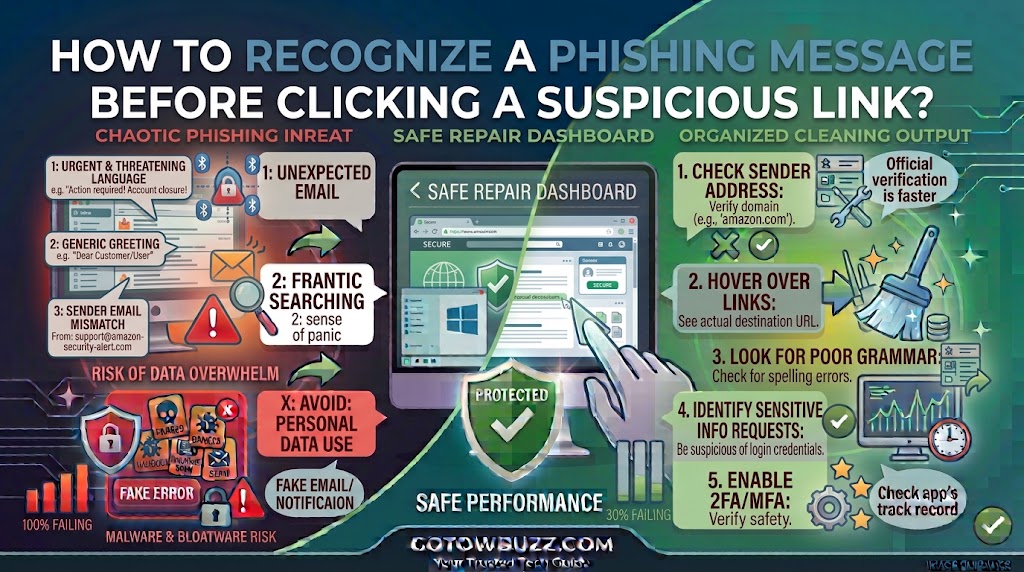
Introduction
A message can look completely normal and still be designed to steal your password, payment details, or personal information.
A phishing message might appear to come from your bank, a delivery company, an online store, your employer, a friend, or a service you already use. It may contain a link that looks harmless, but the destination could be a fake website designed to collect whatever information you enter.
The good news is that you don’t need to be a cybersecurity expert to spot many phishing attempts. A few simple checks can reveal warning signs before you click.
The most useful habit is also the simplest: slow down when a message asks you to click a link, open an attachment, provide information, or act immediately.
This guide explains what to look for in suspicious emails, text messages, and direct messages, how to inspect links safely, how to verify a request through another channel, and what to do if you already clicked something suspicious.
What Is a Phishing Message?
Phishing is a type of scam in which someone pretends to be a trusted person or organization to persuade you to provide information, open a malicious file, visit a fake website, or perform another action that benefits the attacker.
Phishing isn’t limited to email.
It can arrive through:
- Text messages
- Social media
- Messaging apps
- Workplace communication platforms
- Fake advertisements
- Pop-ups
- Direct messages
Google describes phishing as deceptive messages, ads, or websites designed to look like legitimate services or organizations. Microsoft similarly notes that phishing messages can appear through email, Teams, text messages, and other communication channels.
The message doesn’t always contain obvious spelling mistakes or strange graphics. Some modern phishing attempts can look polished and convincing.
That’s why it’s better to look at what the message is asking you to do rather than judging it only by appearance.
The First Warning Sign: An Unexpected Request
Before checking spelling or links, ask yourself one question:
Was I expecting this message?
Suppose you receive a message saying:
“Your package could not be delivered. Confirm your address now.”
You might actually be waiting for a package, which makes the message feel believable.
But did you receive a delivery notification from that company before? Does the message match an order you actually placed? Does the sender match the company you used?
An unexpected request deserves extra attention.
Microsoft recommends being particularly careful with messages from first-time or unfamiliar senders, especially when they contain requests for immediate action.
An unexpected message isn’t automatically fraudulent. It simply means you should verify it before taking action.
Watch for Urgency and Pressure
Phishing messages often try to make you act before you have time to think.
Common examples include:
“Your account will be closed today.”
“Your payment failed. Update your details within 24 hours.”
“Suspicious activity detected. Verify your identity immediately.”
“You’ve won a prize. Claim it now.”
“Your package will be returned unless you confirm your address.”
The exact wording changes, but the technique is similar.
The sender wants you to feel worried or excited enough to click without checking.
Microsoft and CISA both identify urgency and emotionally appealing language as common phishing warning signs.
A simple rule
If a message makes you think:
“I have to do this right now!”
pause.
Take a minute to verify it.
A legitimate organization may occasionally send an urgent notification, but you don’t have to use the link supplied in the message to investigate it.
Check the Sender’s Address, Not Just the Display Name
One of the easiest tricks is changing the name that appears in your inbox.
A message might display:
Your Bank
But the actual address could be something completely unrelated.
On a computer, click or hover over the sender information without opening suspicious links or attachments. Look at the actual email address.
Pay particular attention to the domain after the @ symbol.
For example, an attacker might create an address that looks similar to a legitimate domain by changing a character.
Microsoft specifically warns about subtle domain changes such as replacing a letter with a number or using visually similar characters.
[Screenshot 1: Email inbox showing a trusted-looking sender name with the actual email address displayed underneath]
Screenshot purpose: Demonstrate why users should inspect the real sender address instead of trusting the display name. Use a fictional company and fictional email address.
Screenshot caption: Check the actual sender address instead of relying only on the name shown in your inbox.
Don’t rely on the sender name alone
A familiar name doesn’t prove that the message is genuine.
Even a message that appears to come from someone you know can be suspicious if the request is unusual.
For example, a friend suddenly asking you to buy gift cards or send money should be verified through another communication method.
Google warns that scammers can impersonate people you know and may use information from social media to make messages seem more convincing.
Look for Slightly Misspelled Domains
Scammers sometimes register domains that resemble legitimate ones.
For example, a fake domain could use:
micros0ft.example
instead of a legitimate Microsoft domain.
Another technique is inserting or rearranging letters.
These differences can be easy to miss when you’re reading quickly.
Don’t only look for obvious nonsense.
Check the important part of the address carefully.
[Screenshot 2: Magnified example of a fictional suspicious domain where one character differs from the legitimate domain]
Screenshot purpose: Highlight the exact portion of a domain readers should inspect. Use fictional domains so the screenshot cannot be mistaken for an actual phishing example.
Screenshot caption: A single changed character in a domain can make a fake address look surprisingly convincing.
Check the Link Before Clicking
This is one of the most useful phishing checks you can perform on a computer.
You don’t have to click a link to see where it leads.
Move your mouse pointer over the link without clicking.
Many desktop email applications and webmail services display the destination URL somewhere on the screen.
Google specifically recommends hovering over links in Gmail on a computer and checking whether the displayed web address matches what you expect. Microsoft provides similar guidance for suspicious messages.
Step 1: Hover over the link
Place your mouse pointer over the link.
Don’t click.
Look at the URL preview that appears, often near the bottom-left corner of the browser window or email application.
Compare the address with the organization that supposedly sent the message.
[Screenshot 3: Desktop email showing a mouse pointer hovering over a suspicious link, with the destination URL visible in the browser status area]
Screenshot purpose: Clearly show that users can inspect a link destination without opening it. Use a fictional URL and avoid displaying any real malicious website.
Screenshot caption: Hover over a link without clicking to inspect its destination address.
If the message says it is from your bank but the link points to an unrelated domain, stop.
Don’t click it.
Don’t Be Fooled by Link Text
A link can say:
“Verify your account”
while pointing somewhere completely different.
The visible words aren’t necessarily the destination.
This is why checking the actual URL is more useful than simply reading the link text.
For example, a message might display:
Click here to sign in
but the underlying destination could be a completely unrelated website.
If you aren’t sure where the link goes, don’t use it.
Instead, open the service independently.
Shortened URLs Need Extra Caution
Shortened links can hide the destination address.
A service might turn a long URL into something much shorter.
Short links aren’t automatically malicious. They’re used legitimately in many situations.
The problem is that they make it harder to judge the destination before opening the link.
CISA specifically lists untrusted shortened URLs among common phishing warning signs.
If an unexpected message contains a shortened link, treat it cautiously.
If the message claims to come from an organization, go directly to that organization’s official website instead.
HTTPS Does Not Automatically Mean a Website Is Safe
A common mistake is assuming that a website is legitimate because the address begins with:
https://
HTTPS encrypts the connection between your browser and the website, but it doesn’t prove that the website itself is trustworthy.
A scammer can operate a website using HTTPS too.
So don’t think:
“It has a padlock, so it must be real.”
Instead, check the actual domain and consider why you were sent there.
If you received the link unexpectedly, don’t enter sensitive information simply because the page looks professional.
Look at What the Message Wants From You
The requested action can reveal a lot.
Be especially cautious if a message unexpectedly asks you to:
- Enter your password
- Confirm banking information
- Provide a card number
- Send money
- Upload identification
- Download software
- Open an attachment
- Share a verification code
- Reset your password
- Confirm an account
- Give remote access to your computer
Google identifies requests for personal or financial information and requests to click links or download software as common phishing characteristics.
A request isn’t automatically a scam.
The key question is whether you expected it and whether you can verify it independently.
Be Careful With Unexpected Attachments
Phishing isn’t always about links.
An attacker may attach a document, compressed file, spreadsheet, PDF, or another file.
The message might say:
“Invoice attached.”
“Your delivery receipt is attached.”
“Please review this document.”
If you weren’t expecting the attachment, don’t open it immediately.
Microsoft advises against opening unexpected attachments in suspicious messages.
Contact the supposed sender through a separate method if you need to verify the attachment.
[Screenshot 4: Example email showing an unexpected attachment with a warning label and no file opened]
Screenshot purpose: Teach readers to stop before opening an unexpected attachment. The file should be fictional and clearly labeled as a demonstration.
Screenshot caption: An unexpected attachment deserves the same caution as an unfamiliar link.
Don’t Trust a Message Just Because It Looks Professional
Older phishing emails were sometimes easy to identify because of poor grammar, strange formatting, or obvious mistakes.
Those clues can still help, but they aren’t enough by themselves.
A convincing phishing message can use:
- Professional branding
- Correct spelling
- Familiar logos
- Real company names
- Realistic formatting
- Personalized information
CISA lists poor writing as one possible warning sign but also points to other indicators such as urgency, mismatched addresses, suspicious links, and unexpected attachments.
So don’t use good grammar as proof that a message is legitimate.
Focus on the sender, request, link destination, timing, and whether you can verify the message independently.
Watch for Fake Account Alerts
Account-security messages are particularly effective because they create fear.
You might receive:
“Someone tried to sign in to your account.”
“Your password has expired.”
“Your account has been suspended.”
“Unusual activity detected.”
Some of these alerts may be genuine.
The safest approach is not to click the message’s link.
Instead, open the service’s official app or website yourself.
Look for the account’s security or notification section.
For example, if you receive an unexpected Google security message, Google recommends checking account security activity directly rather than relying on a suspicious email link.
This approach works for many other services too.
Verify Important Requests Through Another Channel
Suppose a message appears to come from someone you know.
Maybe your manager asks you to purchase something.
Maybe a family member asks you to send money.
Maybe a supplier asks you to change payment information.
Don’t verify the request by replying to the same suspicious message.
Use another communication method.
Call the person using a phone number you already know.
Send a new message through a separate conversation.
Visit the organization’s official website and use the contact information listed there.
Microsoft recommends independently contacting the supposed sender when a suspicious message might potentially be legitimate.
This breaks the attacker’s control over the conversation.
Never Use a Suspicious Message to Log In
This is an important habit.
If an email says:
“Your account needs verification. Click here to sign in.”
don’t use its sign-in link.
Open your browser yourself.
Type the organization’s known website address or use a bookmark you previously saved.
Then sign in normally.
If there really is an account problem, you should usually be able to see it after logging in through the legitimate site.
Google specifically advises users not to enter passwords after following suspicious links and instead to go directly to the website they want to use.
[Screenshot 5: Browser showing a legitimate website opened independently rather than through an email link]
Screenshot purpose: Show the safer alternative to clicking an account-verification link: open the service independently and navigate to the relevant account area.
Screenshot caption: When in doubt, open the official website yourself instead of using a link in the message.
Pay Attention to Security Warnings
Your email provider and browser may identify suspicious content automatically.
For example, Gmail can display warnings for suspicious messages, while Microsoft services can mark some senders as unverified or provide phishing warnings.
Don’t ignore these warnings simply because the message looks familiar.
At the same time, don’t assume that a message without a warning is automatically safe.
Security filters can miss new or carefully designed phishing attempts.
Think of these warnings as an additional layer of protection, not a replacement for your own judgment.
What If the Message Comes From Someone You Know?
A familiar sender doesn’t guarantee safety.
Someone’s account may have been compromised.
Alternatively, the attacker may be impersonating that person.
Be especially cautious if the message is unusual for them.
For example:
Your friend normally sends casual messages but suddenly asks for money.
Your coworker suddenly sends an unexpected executable file.
Your manager suddenly asks you to buy gift cards.
Your family member sends a strange payment request.
Contact the person through another method.
If they say they didn’t send the message, don’t click the link or open the attachment.
What to Do With a Suspicious Message
Once you’ve identified enough warning signs, don’t interact with the message unnecessarily.
Step 2: Stop interacting with the message
Don’t:
- Click the link
- Open the attachment
- Reply
- Call a phone number included in the message
- Send personal information
- Send payment
- Share a verification code
Instead, report the message using the tools provided by your email or messaging service.
Then delete it.
CISA recommends reporting phishing and deleting suspicious messages rather than interacting with them.
[Screenshot 6: Gmail or Outlook message menu showing a Report Phishing option]
Screenshot purpose: Demonstrate where a reader can report a suspicious message. The screenshot should be created using a safe demonstration account and current interface.
Screenshot caption: Use your email provider’s built-in reporting option instead of replying to a suspicious message.
How to Report a Phishing Message in Gmail
If you’re using Gmail, open the suspicious message and use the available reporting option.
The exact interface can vary between Gmail’s web and mobile versions.
Look for the message’s More menu and choose the option related to reporting phishing or spam.
Google recommends reporting suspicious messages because this helps its systems identify and handle similar messages.
If the message appears to come from a friend or contact, Google also recommends notifying that person through another communication method because their account may have been compromised.
How to Report a Phishing Message in Outlook
In Microsoft Outlook, select the suspicious message and use the reporting controls to report phishing.
Microsoft’s current instructions identify Report > Report phishing as the reporting path in supported Outlook experiences.
The exact button placement can vary between Outlook versions.
[Screenshot 7: Outlook message toolbar showing the Report menu with Report Phishing highlighted]
Screenshot purpose: Show readers where the phishing-reporting control can be found in Outlook. Use a demonstration account and current Outlook interface.
Screenshot caption: Report suspicious messages through Outlook’s built-in phishing-reporting feature.
What If You Already Clicked the Link?
Don’t panic.
Clicking a link doesn’t always mean your account has been compromised.
The important thing is what happened afterward.
If the page opened but you didn’t enter information, download anything, or grant permissions, the risk may be lower, although you should still treat the incident seriously.
Close the suspicious page.
Don’t continue interacting with it.
Run your browser’s normal security checks and make sure your operating system and browser are up to date.
If you entered a password, change that password immediately from the legitimate website.
If you reused the password elsewhere, change those accounts too.
If you entered financial information, contact your bank or card provider through an official channel.
If you downloaded and opened a suspicious file, consider disconnecting the device from the internet and seeking appropriate security assistance, particularly if you notice unusual behavior.
What If You Entered Your Password?
Act quickly.
Don’t return to the phishing page.
Instead, open the legitimate service directly.
Change the compromised password.
If you used that password on other accounts, change those passwords as well.
Enable two-factor authentication or another stronger authentication method if available.
Then review recent account activity.
For Google accounts, Google advises users who believe someone else has accessed their account to change the password and follow its security guidance.
If the compromised password belongs to your email account, prioritize it because email may be used to reset other passwords.
What If You Entered Bank or Card Information?
Contact your bank or card provider through an official phone number or website.
Don’t use the contact information contained in the suspicious message.
Tell the provider what information you entered and follow its instructions.
Monitor your account for unusual transactions.
If you provided payment information to a fake website, acting quickly can help reduce the potential damage.
A Simple Five-Question Phishing Check
When a message arrives unexpectedly, ask yourself these five questions:
1. Was I expecting this?
If not, slow down.
2. Does the sender address actually match the organization?
Check the real email address rather than the display name.
3. Where does the link really go?
Hover over it on a computer without clicking.
4. Is the message pressuring me?
Urgency is a common phishing technique.
5. Can I verify the request somewhere else?
Open the organization’s official website or contact the supposed sender through another channel.
If several answers look suspicious, don’t interact with the message.
Common Phishing Mistakes
Clicking first and checking later
Once you click, you may be taken to a fake login page or malicious website.
Check first.
Trusting logos
A scammer can copy a company’s logo and branding.
Visual appearance isn’t proof.
Trusting the display name
Always check the actual sender address.
Assuming HTTPS means safe
HTTPS protects the connection but doesn’t prove the site is legitimate.
Replying to ask whether the message is real
If the account itself has been compromised, the attacker could respond.
Verify through another channel.
Calling a number included in the message
A phishing message may provide a fake support number.
Find the organization’s contact information independently.
Ignoring shortened links
Shortened URLs can hide the destination.
Treat unexpected ones cautiously.
Assuming perfect grammar means legitimate
Modern phishing messages can be professionally written.
Look at the entire context instead.
Practical Habits That Make Phishing Easier to Avoid
You don’t need to inspect every ordinary message like a security analyst.
Instead, build a few habits.
Keep important websites bookmarked.
Use a password manager rather than clicking login links in unexpected messages.
Enable two-factor authentication on important accounts.
Keep your browser and operating system updated.
Don’t use the same password across multiple accounts.
Don’t share verification codes.
Be suspicious of unexpected urgency.
Most importantly, don’t let a message dictate how you access an account.
If an email says you need to sign in, open the website yourself.
If a text says your bank needs information, open the bank’s official app.
If a coworker sends an unexpected request, confirm it through another channel.
That small change removes one of the attacker’s biggest advantages.
Frequently Asked Questions
What is the biggest warning sign of a phishing message?
There isn’t one sign that proves a message is phishing. However, unexpected requests combined with urgency, suspicious sender addresses, mismatched links, requests for sensitive information, or unexpected attachments should make you stop and verify the message before interacting with it.
Can a phishing message come from someone I know?
Yes. A person’s account may have been compromised, or a scammer may impersonate them. If the request is unusual, contact the person through another method before clicking a link or sending information.
Is it safe to hover over a suspicious link?
On a computer, hovering over a link without clicking it can let you inspect its destination URL. Google and Microsoft both recommend checking link destinations before opening suspicious links.
Does HTTPS mean a website is legitimate?
No. HTTPS encrypts the connection between your browser and the website, but scammers can also operate HTTPS websites. You still need to check the domain and consider whether the site was reached through a trustworthy route.
What should I do if I clicked a phishing link but entered nothing?
Close the suspicious page and don’t interact with it further. Make sure your browser and operating system are updated and watch for unusual account or device activity. If you downloaded a file or granted permissions, take additional security steps appropriate to what happened.
What should I do if I entered my password on a phishing website?
Go directly to the legitimate website and change the password immediately. If you reused the same password elsewhere, change those accounts too. Enable two-factor authentication and review recent account activity.
Should I report phishing messages?
Yes. Reporting suspicious messages helps email and messaging services identify phishing attempts. Gmail and Outlook both provide reporting mechanisms for suspicious or phishing messages.
Final Thoughts
The safest way to deal with a suspicious message is to slow down before doing anything.
Check who actually sent it. Look at what the message wants from you. Hover over links instead of clicking them. Watch for strange domains, unexpected attachments, urgent demands, and requests for passwords or financial information.
If a message claims there’s a problem with an account, don’t use its link to investigate. Open the official website or app yourself.
And if a request appears to come from someone you know but feels unusual, verify it through another communication method.
Phishing works best when people feel rushed. Giving yourself a few seconds to check the message can prevent a much bigger problem later.
Sources Used for Accuracy
- CISA — Avoid Phishing Scams With Three Simple Tips: Used for current phishing warning signs including urgent language, suspicious shortened URLs, mismatched email addresses, requests for personal or financial information, and unexpected attachments.
- Microsoft Support — Protect Yourself From Phishing: Used for guidance on sender addresses, urgent requests, suspicious links, unexpected attachments, link hovering, independent verification, and reporting phishing.
- Google Gmail Help — Avoid and Report Phishing Emails: Used for guidance on suspicious links, sender verification, direct navigation to legitimate websites, phishing warnings, and account-security checks.
- Google Gmail Help — “This Message Could Be a Scam” Warning: Used for guidance on handling suspicious messages that appear to come from known contacts.
- Google Account Help — Make Your Account More Secure: Used for guidance on avoiding suspicious links and checking account activity.