
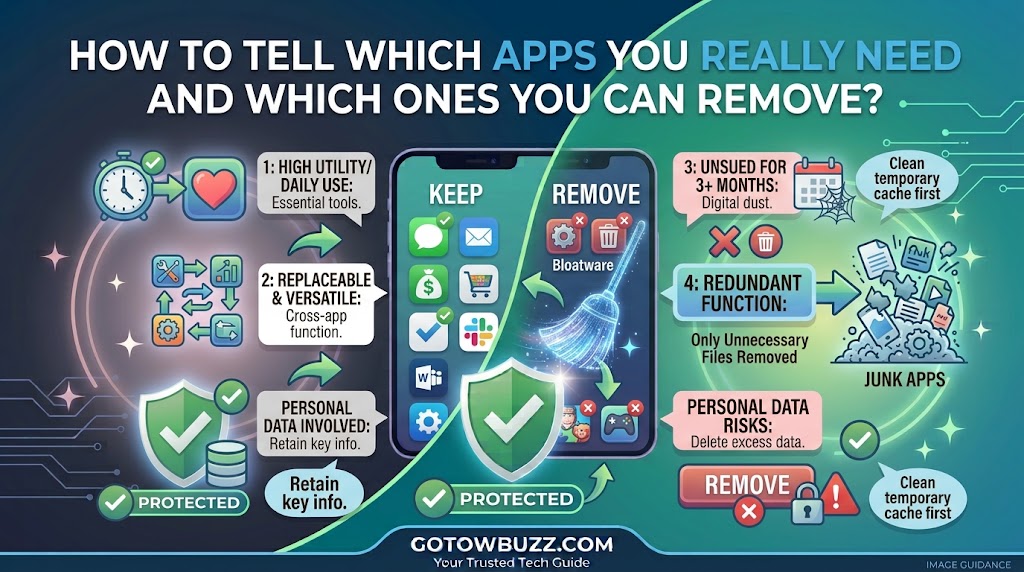
Introduction
If your Android phone has dozens of apps installed, deciding which ones you can safely remove isn’t always as simple as looking at the app icons.
Some apps are things you use every day. Others were installed months ago and forgotten. A few may have come with the phone itself and may not even offer an Uninstall button.
The risky part is guessing.
Deleting an old game you haven’t opened in a year is very different from removing an app that quietly handles backups, device connections, authentication, payments, or another Android feature.
The good news is that you don’t need to know what every technical-looking app does before cleaning up your phone. You can use a simple process: identify the app, check when and why you use it, see how much storage it consumes, determine whether it is removable, and only then decide what to do.
This guide shows you how to make those decisions without turning your phone’s app list into a guessing game.
Start With a Simple Question: Do You Actually Use the App?
The easiest apps to remove are usually the ones you knowingly installed and no longer use.
Think about apps you downloaded for a specific occasion.
Maybe you installed a flight-booking app for one trip. Perhaps you downloaded a shopping app for a single purchase, a photo editor for one project, or a game that seemed interesting but you stopped playing after a week.
Those are good candidates for review.
Don’t judge an app only by how old it is, though. An app you haven’t opened recently may still be useful.
For example, you might rarely use a document-signing app but still need it several times a year. A password manager may not be opened every day, but removing it could create a much bigger problem than leaving it installed.
The goal isn’t to have as few apps as possible.
The goal is to keep the apps that have a real purpose and remove the ones that no longer justify the space, permissions, or clutter.
Before Removing Anything, Put Your Apps Into Three Groups
A simple three-group system makes the decision much easier.
Keep
These are apps you use regularly or genuinely need.
Examples might include your browser, messaging app, maps, banking app, camera, password manager, work apps, or apps you rely on for daily tasks.
Don’t remove an app just because you haven’t opened it for a few days.
Review
These are apps you’re not sure about.
Maybe you installed them months ago and can’t remember why.
Maybe you use them occasionally.
Maybe you’re unsure whether another app depends on them.
Don’t delete these immediately. Check them first.
Remove
These are apps you recognize, no longer use, and know you can reinstall later if necessary.
Old games, duplicate utilities, abandoned shopping apps, unused photo editors, and forgotten trial apps often fall into this category.
This approach is safer than opening Settings and deleting applications randomly.
Step 1: Open Your Installed App List
Android gives you several ways to see the applications installed on the phone.
One useful method is through Google Play.
- Open the Google Play Store.
- Tap your profile picture in the top-right corner.
- Tap Manage apps & device.
- Tap Manage.
Google’s current Android instructions use this area to manage installed applications and uninstall apps.
[Screenshot 1: Google Play Store > Manage apps & device > Manage]
Screenshot purpose: Show the complete navigation path and highlight the Manage section where installed applications can be reviewed.
Screenshot caption: Use Google Play’s Manage section to review the apps installed on your Android phone.
This screen is particularly useful because you’re looking at the actual installed apps rather than only the shortcuts sitting on your Home screen.
That’s an important distinction.
An app can be installed without having an obvious icon on your Home screen.
Step 2: Look at Apps You Haven’t Used Recently
If your phone provides an unused-app section, take advantage of it.
On supported Android devices, Google provides an Unused apps area under Apps. Android can identify apps that haven’t been used for a while and may optimize them by deleting temporary files, revoking permissions, limiting background activity, and stopping notifications.
This doesn’t mean every unused app should automatically be deleted.
It gives you a useful starting point.
Ask yourself:
Why did I install this?
If you can’t remember, check the app’s name and developer before doing anything.
If you recognize it and haven’t needed it for months, it’s a stronger candidate for removal.
[Screenshot 2: Android Apps section showing Unused apps or the unused-app management area]
Screenshot purpose: Show readers where Android identifies applications that have not been used recently.
Screenshot caption: Unused-app information can help you find applications worth reviewing before you delete anything.
Step 3: Check What the App Actually Does
An unfamiliar name doesn’t automatically mean an app is unnecessary.
This is where people can get into trouble.
You may see an app with a technical name and assume it is junk. But it could be part of Android, your phone manufacturer’s software, or another feature you rely on.
Before removing an unfamiliar app, check:
- The app’s full name
- Its developer
- Its icon
- What it is used for
- Whether you recognize installing it
- Whether another feature on your phone depends on it
If you don’t recognize the application, don’t delete it simply because it looks suspicious.
Search for the exact app name in Google or check your phone manufacturer’s documentation.
For apps you installed yourself, the Google Play listing can also tell you what the application is intended to do.
Step 4: Check How Much Storage the App Uses
Storage is one of the best practical reasons to review your apps.
An application that takes up 30 MB isn’t the same storage problem as one using several gigabytes.
To inspect an individual app on many Android phones:
- Open Settings.
- Tap Apps.
- Select the application.
- Look for Storage, Storage & cache, or a similar option.
The exact menu can vary by Android version and manufacturer.
You may see separate amounts for the app itself, user data, and cache.
Don’t assume the entire number is removable simply because the app is large.
Some of the storage is the application itself. Some may be downloaded content or user-created data.
[Screenshot 3: Android App Info screen showing an app’s storage usage]
Screenshot purpose: Show readers how to determine whether a particular app is consuming meaningful storage before deciding whether to remove it.
Screenshot caption: Check an app’s storage usage before deciding whether it is worth keeping.
Step 5: Look at the App’s Permissions
Permissions can help you understand what an app is designed to access, but they shouldn’t be used as the only reason to uninstall something.
Android lets you review permissions for individual apps through Settings.
A common path is:
Settings → Apps → Select the app → Permissions
Google’s current Android documentation confirms this general route and explains that permissions can include access to the camera, microphone, location, contacts, photos and videos, files, phone functions, and other features.
[Screenshot 4: Android App Info > Permissions screen]
Screenshot purpose: Show where readers can review the permissions an app currently has.
Screenshot caption: Review an app’s permissions when you’re unsure what access it has to your phone.
Permissions can provide useful context.
For example, a navigation application asking for location access makes sense.
A flashlight application requesting access to your contacts deserves more scrutiny.
But don’t assume that one unfamiliar permission automatically means the app is malicious. Apps can have legitimate reasons for permissions, and Android versions can present permission controls differently.
If you don’t trust an app, research it before making a decision.
Step 6: Check Whether You Can Uninstall It
Now you’re ready to determine whether the app can actually be removed.
For an app you installed yourself, Google currently provides this route:
Google Play Store → Profile picture → Manage apps & device → Manage → Select app → Uninstall.
You may also be able to press and hold an app icon and choose Uninstall, depending on your phone.
[Screenshot 5: Google Play Manage apps screen with an app selected and the Uninstall option visible]
Screenshot purpose: Show a normal user-installed application with the Uninstall action available.
Screenshot caption: If an app is no longer useful and the Uninstall option is available, you can remove it from the phone.
Before confirming, pause for a few seconds.
Ask yourself whether the app contains anything you haven’t backed up.
Some apps store information locally.
Others synchronize information with an online account.
If you’re unsure, check the app’s backup or account settings first.
Step 7: Understand the Difference Between Uninstalling, Disabling, and Hiding
This distinction is especially important for apps that came with your phone.
Uninstall
Uninstalling removes the application from the device.
For ordinary apps you installed, this is generally the cleanest way to remove one you no longer need.
Google says that if you later need an uninstalled app again, you can download it again from Google Play when it is available. Paid apps can generally be reinstalled without buying them again when using the same Google account.
Disable
Some pre-installed applications cannot be uninstalled.
On supported phones, you may instead see Disable.
Google explains that some system apps cannot be deleted but may be turned off depending on the device.
Disabling an app is different from uninstalling a normal downloaded app.
Don’t disable a system application simply because you don’t recognize its name.
Hide
Some manufacturers also let you hide applications from the Home and Apps screens.
Samsung, for example, provides options to hide certain pre-installed apps that cannot be deleted.
Hiding an app doesn’t mean it has been removed.
It’s simply no longer displayed in the normal app list.
Step 8: Be Careful With Pre-Installed Apps
Pre-installed applications require more caution than apps you downloaded yourself.
Your phone may contain:
- Manufacturer services
- System components
- Phone and messaging components
- Device-management tools
- Backup services
- Connectivity services
- Account-related services
- Hardware-specific utilities
Some are essential.
Others may be optional.
Samsung’s current support documentation, for example, states that some pre-installed apps can be deleted while essential apps such as Phone, Messages, Contacts, Gallery, and My Files cannot be deleted on supported Galaxy devices.
That illustrates why there isn’t one universal list of “safe Android apps to delete.”
The answer depends partly on your phone model, Android version, manufacturer software, and the features you actually use.
[Screenshot 6: Samsung or Android App Info screen showing a pre-installed app with Disable available instead of Uninstall]
Screenshot purpose: Teach readers that a pre-installed app may offer Disable rather than Uninstall and that this does not mean the app should automatically be disabled.
Screenshot caption: Some pre-installed apps can be disabled rather than completely removed.
Apps You Can Usually Review First
There are some categories that are often worth checking during a cleanup.
Old games
If you haven’t played a game for months and don’t care about its saved data, it’s a straightforward candidate.
If your progress matters, check whether the game saves progress to an account before uninstalling it.
Shopping apps you no longer use
If you installed an app for a single purchase and now prefer using the company’s website, you may not need the app permanently.
Before deleting it, make sure you don’t have an important order, receipt, or document stored only inside the app.
Duplicate apps
Sometimes two apps do nearly the same thing.
You might have two photo editors, two PDF readers, several browsers, or multiple file managers.
You don’t necessarily need all of them.
Keep the one you actually prefer and understand before removing the others.
Old travel apps
Travel apps can be useful during a trip but unnecessary afterward.
Check for saved tickets, bookings, boarding passes, maps, or other information first.
Abandoned productivity apps
Maybe you tried three note-taking apps and now use only one.
Maybe you installed several calendar or task-management apps and settled on a favorite.
Unused alternatives are often easy candidates for removal.
Apps You Should Think Twice About Removing
Some applications deserve a slower decision.
Password managers
Don’t remove one simply because you rarely open it.
Its purpose may be storing credentials you need when signing into websites or services.
Authentication apps
An authenticator may be connected to two-factor authentication for important accounts.
Before removing it, make sure you know how your accounts will be recovered or transferred.
Backup apps
An app that appears inactive may be responsible for backing up photos, files, messages, or other information.
Check its settings before removing it.
Banking and payment apps
If you use the app occasionally, that doesn’t mean it’s unnecessary.
You may need it when making a payment, approving a transaction, or accessing account information.
Work or school apps
Some work and school applications may be used only occasionally but still be important when you need them.
Device connection apps
Apps related to printers, watches, cars, smart-home devices, Bluetooth accessories, or other hardware may appear unnecessary until you need to connect that device again.
A Simple Decision Test for Every App
If you’re looking at a long list of applications, use these five questions.
Question 1: Do I use it?
If yes, keep it.
If no, continue.
Question 2: Do I know what it does?
If you don’t, research it before removing it.
Question 3: Would I need it unexpectedly?
Think about authentication, backups, travel, work, school, payments, health devices, and hardware connections.
Question 4: Can I reinstall it later?
For normal Google Play apps, you can generally reinstall them when they’re still available and your account is appropriate. Google confirms that previously installed or purchased apps can be reinstalled through Google Play.
Question 5: Is it safe to remove from this particular phone?
If it’s a pre-installed or system-related app and you’re uncertain, don’t guess.
Keep it or research it first.
An Example: Cleaning Up a Phone With 80 Apps
Imagine you have 80 installed apps.
You notice:
- 12 games
- 5 shopping apps
- 4 browsers
- 3 photo editors
- 2 file managers
- Several travel apps
- Several apps you don’t recognize
- The apps you use every day
Don’t delete half the phone in one session.
Start with the obvious candidates.
Remove the games you haven’t played in a year.
Then review the shopping apps.
Choose the browser you actually prefer.
Keep the photo editor you use and remove the others only after checking whether they contain important projects.
Leave unfamiliar system-related apps alone until you’ve identified them.
This slower approach may take a little longer, but it dramatically reduces the chance of removing something you’ll need later.
What Happens to Your Data When You Uninstall an App?
Uninstalling an application can remove its locally stored data.
That’s why important apps deserve a backup check before removal.
Google also notes that deleting an app doesn’t mean you permanently lose the ability to install it again. If the app remains available and you’re using the relevant account, it can generally be reinstalled.
But reinstalling the app isn’t necessarily the same as restoring its previous state.
An app might restore your information from an online account, or it might not.
For this reason, don’t uninstall an app containing important local information simply because you want to free up a little storage.
A Safer Alternative: Archive Unused Apps
If your Android version supports app archiving, this can be useful when you’re unsure whether you’ll need an app again.
Google says archived apps can have the application removed while the app icon and personal data remain on the device, allowing the app to be downloaded again later when needed.
This can be a useful middle ground.
You don’t have to make a permanent-feeling decision.
If you rarely use an application but don’t want to completely remove it, check whether your phone offers an Archive option.
[Screenshot 7: Google Play or Android app management screen showing the Archive option for an unused app]
Screenshot purpose: Show readers the difference between completely uninstalling an app and using Android’s app-archiving feature when available.
Screenshot caption: Archiving can be a useful option for apps you rarely use but may want again later.
Keep in mind that availability and exact controls depend on the Android version and device.
What If an App Has No Uninstall Button?
Don’t immediately assume it is impossible to manage.
There are several possibilities.
The app may be pre-installed.
It may be a system component.
Your phone manufacturer may restrict its removal.
The app may be managed by an organization if the phone is a work or school device.
On some devices, you may see Disable instead.
Google confirms that some pre-installed system apps cannot be deleted but may be disabled depending on the phone.
If you don’t know what the app does, leave it alone until you’ve identified it.
Don’t Use Storage Size as the Only Reason to Delete an App
A large application isn’t automatically unnecessary.
A 4 GB video-editing app that you use every week may be more valuable than a 50 MB app you installed once and forgot about.
Think in terms of usefulness per storage consumed.
Ask:
How much space does this app use?
and:
How much value do I get from keeping it?
That gives you a much better answer than simply deleting the largest apps.
If Your Main Goal Is Freeing Storage, Look Beyond Apps
Apps aren’t the only thing consuming storage.
Your phone may also contain:
- Photos
- Videos
- Downloads
- Offline music
- Offline maps
- Large documents
- Cached media
- Messaging attachments
Google’s current storage guidance also recommends looking at content and unused apps when freeing space.
So if uninstalling three small apps barely changes your available storage, don’t keep deleting useful apps.
Look at the categories actually consuming the space.
Troubleshooting / Common Problems
I deleted an app and now I need it again
Open Google Play Store and go to Profile → Manage apps & device → Manage. You can use the available app-management controls to find apps that are no longer installed and reinstall them when available. Google confirms that previously purchased apps can be installed again without purchasing them again when using the appropriate account.
I can’t find the Uninstall option
The app may be pre-installed or restricted by the device.
Check the app’s information page for Disable instead.
Don’t try to force-remove system components using unofficial tools simply because the normal Uninstall button isn’t available.
I don’t recognize an app
Don’t delete it immediately.
Check its full name, developer, permissions, and what service or phone feature it belongs to.
If it is a pre-installed application, check your phone manufacturer’s support documentation.
Will uninstalling an app speed up my phone?
It can free storage and remove an app that may otherwise run background processes, but uninstalling one small app doesn’t automatically make every phone faster.
If performance is your main concern, investigate storage, background activity, updates, and other causes as well.
Can I remove every app I don’t use?
Not necessarily.
An app may be used rarely but still be important.
Authentication, backup, work, payment, travel, security, and device-connection apps are good examples.
Review the purpose before removing them.
Should I disable apps I don’t recognize?
No.
Not until you know what they do.
A technical-looking system app may be important to Android or your manufacturer’s software.
Is it better to uninstall or archive an unused app?
If you are certain you don’t need the app, uninstalling is the straightforward option.
If your Android version supports archiving and you may want the app later, archiving can preserve the app icon and personal data while removing the app itself to save space.
Practical Tips
Clean your apps in small batches
Don’t try to remove 40 apps in one sitting.
Review five or ten at a time.
That makes it easier to notice if something you rely on disappears.
Keep a mental list of important categories
Be especially careful with:
Passwords, authentication, backups, banking, work, school, health devices, travel, and hardware connections.
Rarely used doesn’t mean unimportant.
Review permissions when something looks unfamiliar
Permissions don’t tell you everything about an application, but they can provide useful context. Android lets you review and change permissions from the app’s settings.
Don’t install another cleaner just to remove apps
You can manage and uninstall Android apps through built-in controls and Google Play.
Adding another “phone cleaner” just to perform a basic task isn’t necessary.
Recheck your storage after cleanup
After removing several apps, return to your phone’s storage screen.
If you’ve recovered only a small amount of space, your photos, videos, downloads, or other files may be the bigger issue.
Review your apps every few months
You don’t need to make app cleanup a weekly chore.
A quick review every few months is enough for many people.
Frequently Asked Questions
How do I know which Android apps I don’t need?
Start with apps you recognize but haven’t used for a long time. Then check what each app does, how much storage it uses, whether you may need it unexpectedly, and whether it can be safely uninstalled.
Is it safe to uninstall apps I downloaded myself?
Usually, if you know what the app does and no longer need it. Before uninstalling apps that contain important information, check whether your data is synchronized or backed up.
Can I delete apps that came with my Android phone?
Some pre-installed apps can be removed, while others cannot. Depending on the phone, some may instead offer a Disable option. Google and Samsung both explain that pre-installed apps can have different restrictions.
What should I do with an app I rarely use but might need later?
If your phone supports app archiving, consider archiving it. Otherwise, you can keep it if it doesn’t cause a meaningful storage problem. Many Google Play apps can also be reinstalled later when available.
Will removing unused apps delete my photos?
Uninstalling an ordinary app doesn’t mean you should assume all of your phone’s photos will disappear. However, an app may have its own locally stored files or media, so check its data before uninstalling if those files matter.
Why can’t I uninstall some apps?
Some apps are pre-installed system components or are restricted by the phone manufacturer. In those cases, Android may provide Disable instead of Uninstall, or neither option may be available.
Should I remove apps that haven’t been opened in months?
Not automatically. Use the lack of recent use as a reason to review the app, not as proof that it is unnecessary. Some important apps are intentionally used only occasionally.
Final Thoughts
Cleaning up an Android phone isn’t about having the smallest possible app list.
It’s about knowing what each application is doing there.
Start with apps you recognize and no longer use. Check their storage, permissions, and purpose. Be much more cautious with unfamiliar or pre-installed apps, especially when Android doesn’t provide a normal Uninstall option.
If you’re unsure, keep the app until you’ve identified it.
And if your phone supports app archiving, use that as a middle option for applications you rarely need but don’t want to completely remove.
A good cleanup should leave you with a phone that’s easier to navigate and has more useful free storage—not a phone missing something important because an unfamiliar icon looked unnecessary.
Sources Used for Accuracy
- Google Android Help — Delete apps on your Android device. Used to verify the current Google Play uninstall path and app reinstallation guidance.
- Google Play Help — Free up storage on your Android device. Used to verify app removal, app archiving, and the distinction between clearing cache and app data.
- Google Play Help — Manage unused apps on your Android device. Used to verify Android’s unused-app management behavior.
- Google Android Help — Change app permissions on your Android phone. Used to verify current permission-management navigation and permission categories.
- Google Play Help — Disable apps that came with your Android device. Used to verify that some pre-installed system apps cannot be deleted but may be disabled on some phones.
- Samsung Support — How to delete pre-installed apps on your Samsung Galaxy device. Used to verify Samsung’s current distinction between deleting, hiding, and disabling pre-installed apps.
- Samsung Support — Free up storage space on your Samsung phone or tablet. Used to verify Samsung’s current uninstall/disable guidance and storage-management recommendations.