
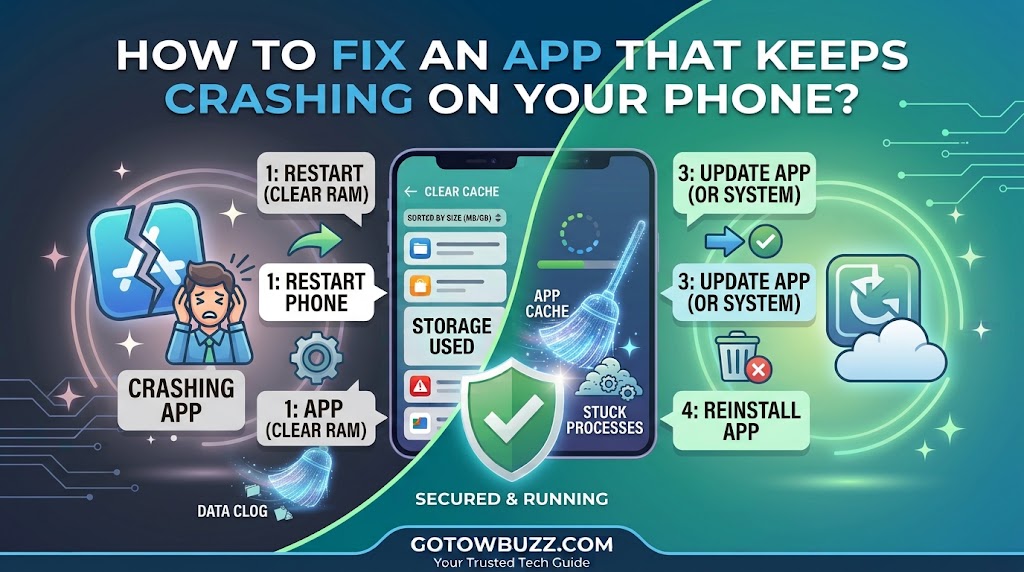
Introduction
An app that closes every time you open it can be surprisingly difficult to diagnose. Sometimes the problem is a simple outdated app. Other times the app’s temporary files have become corrupted, the phone is running low on storage, the app has a network problem, or a recent update has created a compatibility issue.
You don’t need to jump straight to uninstalling the app or resetting your phone.
Android provides several troubleshooting steps that let you work from the least disruptive fix to more advanced options. Google recommends restarting the phone, checking Android and app updates, force-stopping the affected app, clearing its cache or data, and reinstalling it when necessary. Google also recommends Safe Mode when you need to determine whether another downloaded app is causing wider problems.
This guide walks through those fixes in a sensible order. It also explains what each step actually changes, when you should avoid it, and what to do if the app continues crashing afterward.
Main Article
First, Work Out Whether One App or Several Apps Are Crashing
Before changing anything, pay attention to the pattern.
If only one app keeps closing while everything else works normally, the problem is more likely to be connected to that app, its data, its compatibility with your phone, or its connection to an online service.
If several unrelated apps are crashing, the problem may be broader. Low storage, an Android software issue, or another downloaded app can affect the phone as a whole. Google specifically recommends checking storage and using Safe Mode when troubleshooting wider crashing or freezing problems.
For example, if your banking app crashes but your browser, camera, and messaging apps work normally, start with the banking app.
If your browser, camera, social media app, and settings screens are all freezing, don’t keep reinstalling individual apps. Investigate the phone itself.
That distinction can save you a lot of unnecessary work.
Fix 1: Restart Your Phone
Restarting is the simplest place to begin.
An app can crash because of a temporary software problem or a process that didn’t shut down correctly. A restart closes running processes and gives Android a fresh session.
Google’s current troubleshooting guidance puts restarting near the beginning of its recommended steps for an app that crashes, won’t open, or won’t respond.
How to restart Android
- Press and hold the phone’s Power button.
- When the power menu appears, tap Restart.
- Wait for the phone to shut down and start again.
- Unlock the phone.
- Open the problem app again.
On some phones, you may need to press a combination of buttons to display the power menu.
If your phone is completely frozen, Google says holding the Power button for about 30 seconds can restart many Android phones.
Screenshot 1: Android Power menu showing Restart
Screenshot purpose: Show the reader exactly where the Restart option appears after opening the phone’s power menu.
Screenshot caption: Restart your phone before trying more complicated troubleshooting steps.
Check whether the fix worked
Open the app normally.
If it stays open and works correctly, you don’t need to continue changing settings.
If it crashes again, move to the next step.
Fix 2: Check for an Update for the Problem App
An app that worked yesterday can start crashing after a change to Android or one of its supporting components.
The developer may already have released an update to fix the problem.
Google’s current Android troubleshooting instructions recommend checking for app updates through Google Play.
Update the app
- Open the Google Play Store.
- Tap your profile picture in the top-right corner.
- Tap Manage apps & device.
- Look under Updates available.
- Find the problem app.
- Tap Update.
You can also update all available apps if you want to bring the rest of your installed software up to date.
Screenshot 2: Google Play Store Manage apps & device
Screenshot purpose: Show the Manage apps & device screen with an available app update and the Update button.
Screenshot caption: Check Google Play for an update before changing the app’s stored data.
Why updating can help
An update can contain bug fixes or compatibility changes.
This doesn’t mean every crash is caused by an outdated app. It simply makes updating a sensible early step because it is low risk and doesn’t normally remove your app data.
If no update is available, continue troubleshooting rather than repeatedly checking the Play Store.
Fix 3: Check for an Android System Update
The app may be current while the phone’s software is not.
Google recommends checking for Android updates when troubleshooting an app that crashes. The location varies between manufacturers, but a common path is through Settings → System → Software update or a similarly named menu.
Check for a system update
- Open Settings.
- Look for System or Software update.
- Open the software-update section.
- Check whether an update is available.
- If one is available, follow the instructions on the screen.
On Samsung Galaxy phones, the current path is generally:
Settings → Software update → Download and install
Samsung notes that menu names can vary by model and One UI version.
Screenshot 3: Android Software Update screen
Screenshot purpose: Show where the reader can check whether the phone itself has pending software updates.
Screenshot caption: An app can behave badly when the phone software is outdated, so check for Android updates as well.
If an update is waiting
Make sure the phone has enough battery and follow the manufacturer’s instructions.
Don’t interrupt a system update once it has started.
After the update finishes, restart the phone if it doesn’t restart automatically and test the app again.
Fix 4: Check How Much Free Storage Your Phone Has
Low storage can cause more than annoying “storage almost full” messages.
Google says an Android phone can start experiencing issues when less than 10% of its storage remains free. Samsung also identifies insufficient available storage as one possible cause of app and device performance problems.
Check Android storage
Open:
Settings → Storage
The exact wording may differ.
Look at the amount of available space rather than just the total capacity.
If your phone is nearly full, free some space before continuing.
Start with safe targets such as:
- Unused apps
- Old downloads
- Large videos you have already backed up
- Unnecessary offline media
- Duplicate files
- Old documents you no longer need
Don’t delete important photos or documents simply because they are large.
Screenshot 4: Android Storage screen
Screenshot purpose: Show the available storage amount and the major categories consuming space.
Screenshot caption: Check free storage before assuming the crashing app is the only problem.
Fix 5: Force Stop the App
If the app is stuck in a bad state, force stopping it can give it a clean start without uninstalling it.
Google includes force stopping among its recommended steps for an Android app that isn’t working correctly.
Force stop an app
- Open Settings.
- Tap Apps.
- Tap See all apps or the equivalent option.
- Select the app that keeps crashing.
- Tap Force stop.
- Confirm if Android asks you to do so.
- Return to the Home screen.
- Open the app again.
The exact menu may be slightly different on Samsung, Motorola, Xiaomi, OnePlus, and other Android phones.
Screenshot 5: App Info page showing Force stop
Screenshot purpose: Highlight the Force stop control on an individual app’s information screen.
Screenshot caption: Force stopping the app closes its current process so you can start it again from a clean state.
Does force stopping delete anything?
No. Force stop closes the app’s running process.
It doesn’t uninstall the application or intentionally erase its stored data.
However, the app may not perform background tasks while it remains stopped. Opening it again allows it to run normally.
Fix 6: Clear the App’s Cache
If force stopping doesn’t help, the app’s temporary files may be contributing to the problem.
Android lets you clear an app’s cache from its App Info screen on supported devices.
Google explains that clearing cached data temporarily frees storage, although cached data can build up again later.
Clear the cache
- Open Settings.
- Tap Apps.
- Select the problem app.
- Tap Storage or Storage & cache.
- Tap Clear cache.
- Wait for the cache size to update.
- Open the app again.
Screenshot 6: App Storage screen showing Clear cache
Screenshot purpose: Clearly show the Clear cache button and distinguish it from Clear data or Clear storage.
Screenshot caption: Clear the app cache first because it is less disruptive than clearing the app’s stored data.
Don’t expect a permanent performance boost
Clearing cache isn’t a magic speed-up tool.
The app may simply recreate some temporary files when you use it again.
The reason to try it here is different: if a temporary file or cached resource is causing trouble, clearing the cache gives the app a fresh set of temporary files.
Fix 7: Be Careful With Clear Data or Clear Storage
If clearing the cache doesn’t work, Android may offer another option:
Clear storage
or
Clear data
This is much more serious.
Google says clearing an app’s data permanently deletes its stored data. Samsung similarly warns that clearing app data resets the app to its default settings and removes personal settings or data stored by that app.
Before using it, think about what the app stores locally.
This could include:
- Account information
- Saved settings
- Downloaded content
- Offline files
- Game progress
- Locally stored documents
- Other app-specific data
Some apps sync everything to an online account. Others keep important information only on the device.
If you decide to clear the data
Only do it after confirming that you can recover anything important.
Then:
- Open Settings.
- Tap Apps.
- Select the problem app.
- Tap Storage or Storage & cache.
- Choose Clear storage or Clear data.
- Read the warning.
- Confirm only if you understand what will be removed.
- Open the app again.
- Sign in or restore your data if required.
Screenshot 7: Clear data warning
Screenshot purpose: Show the warning that appears before app data is erased and make it clear that this is different from clearing cache.
Screenshot caption: Clear storage or Clear data can reset the app, so check for important local information first.
Fix 8: Check Your Internet Connection
Some apps rely heavily on an internet connection.
An unstable connection can make a web-based app behave incorrectly, particularly when it needs to load information immediately after opening.
Samsung’s current troubleshooting guidance specifically recommends checking the internet connection when apps crash or freeze. Its suggested troubleshooting includes restarting the network connection and trying a different network if the problem continues.
Try a different connection
If you’re using Wi-Fi:
- Turn Wi-Fi off.
- Turn on mobile data.
- Open the app.
- Check whether it still crashes.
If you’re using mobile data:
- Connect to a reliable Wi-Fi network.
- Open the app again.
- Compare the behavior.
If the app works normally on one connection but crashes on another, the connection itself deserves further investigation.
This step is especially relevant for apps that depend on online services.
Fix 9: Check Google Play System Updates
Android phones also receive Google Play system updates.
These are separate from ordinary app updates and can affect underlying components used by apps.
Samsung currently provides the following path on supported Galaxy devices:
Settings → About phone → Software information → Google Play system update
Samsung’s support documentation specifically recommends checking this when troubleshooting apps that crash or stop working.
Screenshot 8: Google Play system update
Screenshot purpose: Show the Google Play system update entry on a compatible Samsung phone and explain that it is separate from normal app updates.
Screenshot caption: On supported phones, check the Google Play system update when ordinary app updates haven’t solved the problem.
If your phone doesn’t expose this option in the same location, use Settings search for Google Play system update.
Fix 10: Reinstall the App
If the app still crashes after updating, restarting, force stopping, and clearing its cache or data, reinstalling it is a reasonable next step.
But there is an important warning.
Google says uninstalling an app erases data saved in that app.
Before uninstalling, make sure important information is synced or backed up.
Uninstall and reinstall
- Press and hold the app icon.
- Tap Uninstall if the option appears.
- Confirm the uninstall.
- Open the Google Play Store.
- Search for the app.
- Tap Install.
- Open the newly installed app.
- Sign in if required.
- Test the feature that was previously crashing.
Screenshot 9: Reinstalling an Android app
Screenshot purpose: Show the Play Store listing after uninstalling the app, with the Install button visible.
Screenshot caption: If earlier fixes fail, reinstall the app from its trusted official store.
Don’t download the app from a random website
If the app is available through Google Play, use Google Play.
Avoid random APK download sites simply because the normal app is crashing.
A troubleshooting problem isn’t a good reason to introduce another security risk.
Fix 11: Test the Phone in Safe Mode
Safe Mode is especially useful when more than one app is crashing or the phone has started behaving badly after installing something new.
In Safe Mode, downloaded apps are temporarily disabled. Google says that if the problem disappears in Safe Mode, a downloaded app is likely responsible.
The exact method for entering Safe Mode varies by manufacturer, so there isn’t one button sequence that should be presented as universal.
What Safe Mode tells you
Suppose your phone has recently started freezing and several apps are crashing.
You restart it in Safe Mode.
If the problem disappears, that’s a useful clue.
It doesn’t identify the exact app automatically. It tells you that one of the downloaded apps is likely involved.
You can then restart the phone normally and remove recently downloaded apps one by one, checking after each removal.
Google recommends this process when identifying a downloaded app that may be causing system problems.
Screenshot 10: Android Safe Mode
Screenshot purpose: Show the visible Safe Mode label on the screen and explain that downloaded apps are temporarily disabled.
Screenshot caption: Safe Mode helps determine whether a downloaded app is causing wider problems.
Samsung Safe Mode
Samsung provides its own Safe Mode procedure and explains that downloaded apps can cause freezing, crashing, lagging, camera problems, audio issues, and network problems.
Because the procedure varies between Galaxy models, use the Safe Mode method appropriate for your specific device rather than following a button combination intended for a different Galaxy generation.
Fix 12: Check Whether the App Itself Is the Problem
Sometimes the phone is working normally and only one particular app continues to crash.
That matters.
If:
- Other apps work normally
- Android is updated
- The problem app is updated
- Storage is sufficient
- Cache clearing didn’t help
- Reinstalling didn’t help
then the problem may be specific to that app or its compatibility with your device.
At this point, check the app developer’s official support page or contact the developer through the Play Store.
Google specifically recommends contacting the app developer if the standard troubleshooting steps don’t solve the problem.
This is particularly useful when a problem begins immediately after a major app update.
What You Should Not Do First
When an app crashes repeatedly, some fixes sound attractive but are unnecessarily destructive.
Don’t start with a factory reset.
A factory reset removes all data from the phone, uninstalls apps and their associated data, and requires you to set the device up again. Google explicitly recommends backing up the phone before performing one.
Also avoid:
Downloading random “crash fixer” apps
You don’t need another unknown application to troubleshoot the original one.
Deleting system files
They may be required by Android.
Installing modified APKs
A crashing app is not a reason to bypass normal app stores.
Clearing data for every app
Only clear an app’s data when you understand what will be removed.
Factory resetting immediately
Reserve this for serious device-wide problems after safer troubleshooting has failed and your data is backed up.
Troubleshooting / Common Problems
The app crashes immediately after I open it
Start with a restart and check for an app update.
If that doesn’t work, force stop the app and clear its cache.
If it still crashes, check storage and consider reinstalling it after confirming that important app data is backed up. These steps follow Google’s current troubleshooting sequence for installed Android apps that crash or won’t open.
Only one app keeps crashing
That usually points you toward the app itself rather than immediately treating the entire phone as defective.
Update it, force stop it, clear its cache, and check whether it has an online connection requirement.
If reinstalling doesn’t help, contact the developer.
Several apps started crashing at the same time
Don’t reinstall every app individually.
Check:
- Available storage.
- Android updates.
- Google Play system updates where available.
- Whether the problem disappears in Safe Mode.
- Whether a recently installed app may be causing wider problems.
Google specifically recommends Safe Mode when determining whether downloaded apps are responsible for broader device problems.
The app crashes after I clear its data
Clearing data resets the app.
You may need to sign in again or restore information from the app’s cloud backup.
If the app continues crashing after a clean reset, reinstall it or contact its developer.
The app crashes only when I’m using mobile data
Test the same app over a reliable Wi-Fi connection.
If it works normally on Wi-Fi but fails over mobile data, investigate the mobile connection, data restrictions, or the app’s network requirements before assuming the app installation is corrupted.
My phone is almost full and apps keep crashing
Free storage before performing more complicated troubleshooting.
Google says Android phones can start experiencing problems when less than 10% of storage is free.
Remove unnecessary downloads, unused apps, or large files you’ve safely backed up.
The phone itself keeps restarting, not just the app
That’s a different problem.
If the entire phone repeatedly restarts, freezes, or shuts down, use Android’s device-level troubleshooting rather than treating it as an individual app problem. Google recommends checking updates, storage, downloaded apps, and Safe Mode for these wider issues.
Practical Tips
Notice when the crashing started
Think about what changed immediately before the problem appeared.
Did you:
- Install a new app?
- Update the problem app?
- Update Android?
- Run out of storage?
- Change networks?
- Restore data to a new phone?
The timing can help narrow the cause.
Don’t keep reopening a crashing app dozens of times
If it crashes repeatedly, stop and troubleshoot it.
Repeatedly opening the same broken process isn’t likely to fix the underlying issue.
Keep some free storage available
Low storage can contribute to wider Android problems.
You don’t need to obsess over the storage percentage, but don’t let the phone remain almost completely full for long periods.
Update apps through trusted sources
Use Google Play or the official store provided by your phone manufacturer.
Avoid unofficial APK sites when troubleshooting.
Back up important app information
Some apps keep important information locally.
Before clearing data or uninstalling an app, determine whether your information is synced to an account or backed up.
If one update caused the problem, don’t assume your phone is broken
A newly introduced software bug can affect only certain phones or configurations.
If the problem began immediately after an update and survives the normal troubleshooting steps, reporting it to the developer can be more useful than repeatedly resetting your phone.
Frequently Asked Questions
Why does an Android app keep crashing?
There isn’t one universal cause. Common possibilities include an outdated app or Android version, corrupted temporary data, insufficient storage, network problems for online apps, compatibility issues, or another downloaded app interfering with the phone. Google and Samsung both recommend checking updates, storage, app data, and other software conditions when troubleshooting repeated crashes.
Will clearing the cache stop an app from crashing?
It can help if temporary cached data is contributing to the problem, but it isn’t guaranteed. Google recommends clearing an app’s cache as one troubleshooting step after restarting and updating.
What happens if I clear an app’s data?
Clearing app data or storage resets the app and permanently removes its stored data. Depending on the app, this can include settings, downloads, login information, or other locally stored information. Samsung and Google both warn that this action removes app data.
Should I uninstall an app that keeps crashing?
If restarting, updating, force stopping, and clearing the cache don’t help, reinstalling can be a reasonable next step. Back up or sync important app information first because uninstalling can erase data stored in the app.
How do I know if another app is causing crashes?
Use Safe Mode when your phone has wider problems such as several apps crashing, freezing, or slowing down. Safe Mode temporarily disables downloaded apps. If the problem disappears, a downloaded app is likely involved.
Can low storage cause apps to crash?
Yes. Google says Android phones can start having problems when less than 10% of storage remains free. If your phone is nearly full, free some space before assuming the app itself is broken.
When should I factory reset my phone?
A factory reset should be a last resort for serious device-wide problems. It removes the phone’s data and uninstalls apps and their associated data, so back up the phone before considering it.
Final Thoughts
An app that keeps crashing doesn’t automatically mean your phone needs to be replaced or reset.
Start with the simple checks: restart the phone, update the app, check Android for updates, and make sure you have enough free storage. Then force stop the app and clear its cache.
If the problem remains, investigate the app’s stored data, internet connection, Google Play system updates, and finally reinstall the app after protecting any important information.
When several apps are crashing or the whole phone is freezing, switch from app-level troubleshooting to device-level troubleshooting and use Safe Mode to determine whether a downloaded app is involved.
Most importantly, don’t jump straight to Clear data or a factory reset. Those actions can remove information, and they should only be used when you understand what will happen.
Work through the fixes in order, test the app after each meaningful change, and stop as soon as the problem is resolved.
Sources Used for Accuracy
- Google Android Help — Fix an installed Android app that isn’t working: used to verify the current troubleshooting order covering restart, Android/app updates, force stop, clearing cache/data, uninstalling, and contacting the developer.
- Google Android Help — Fix an Android device that’s restarting or crashing: used to verify storage guidance, app troubleshooting, Safe Mode, and factory-reset warnings.
- Google Android Help — Find problem apps by rebooting to Safe Mode: used to verify how Safe Mode helps identify problematic downloaded apps.
- Samsung Support — App is crashing or not working on Samsung phone or tablet: used to verify Samsung-specific app troubleshooting, Google Play system updates, Device Care, and reinstall guidance.
- Samsung Support — How to fix apps keep crashing and freezing: used to verify Samsung’s current recommendations concerning network connectivity, cache/data, low storage, and factory-reset warnings.
- Samsung Support — Galaxy device appears slow or unresponsive: used to verify current Samsung Device Care, memory, restart, and software-update guidance.