
Introduction
If your web browser feels uncomfortable to use, you probably don’t need a different browser.
A few small settings can make websites easier to read, reduce distractions, prevent unwanted notifications, and make common tasks less frustrating. You can enlarge small text, change the default zoom, use a cleaner reading view, control what websites are allowed to access, and adjust other features to match the way you actually browse.
The exact options depend on whether you’re using Chrome, Edge, Firefox, or Safari, and some menus change between operating systems. That’s why it’s better to adjust one setting at a time and check the result rather than changing everything at once.
This guide focuses on simple changes that can make everyday browsing more comfortable without installing unnecessary extensions or complicated software.
Start With Browser Zoom
One of the easiest improvements is changing the zoom level.
If websites look too small, increasing zoom can make text, images, and other page elements easier to see. If a website feels cramped, reducing the zoom can show more content at once.
You don’t necessarily have to change the zoom for every website. Modern browsers can remember different zoom levels for individual sites.
Chrome
In Google Chrome on a computer, open the three-dot menu in the upper-right corner.
Look for Zoom and use the plus or minus controls to adjust the page.
You can also use keyboard shortcuts:
Ctrl + + to zoom in
Ctrl + – to zoom out
Ctrl + 0 to return to the default zoom
Chrome also lets you set a default page zoom and manage zoom levels for individual websites through its settings.
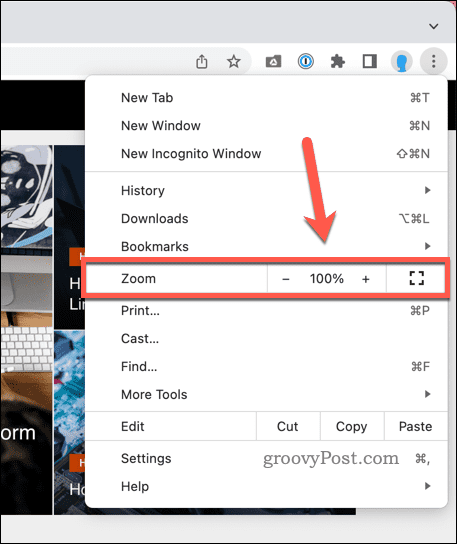
Screenshot purpose: Show beginners exactly where Chrome’s page zoom controls are located and highlight the plus, minus, and reset options.
Screenshot caption: Use Chrome’s Zoom controls when a website’s text or page elements are too small or too large.
Microsoft Edge
In Edge, open Settings and more (…) and use the Zoom controls.
On Windows, the keyboard shortcuts are also:
Ctrl + + to zoom in
Ctrl + – to zoom out
Ctrl + 0 to reset the page
Edge also provides a default page-zoom setting under its accessibility options.
Firefox
Firefox uses the same basic keyboard shortcuts for page zoom:
Ctrl + +
Ctrl + –
Ctrl + 0
Firefox also supports a default zoom level for websites.
Safari on Mac
Safari provides Page Zoom controls that can make text and images larger or smaller for a website. Apple also provides website-specific settings for Safari, allowing you to adjust the page zoom for individual sites.
Change the Default Text Size
Sometimes increasing the entire page makes everything unnecessarily large.
You may only want the words to be bigger.
This is where browser font settings can help.
Chrome
Open Chrome and select:
More (…) → Settings → Appearance
Look for Font size.
Chrome provides several font-size choices and also allows additional font customization.
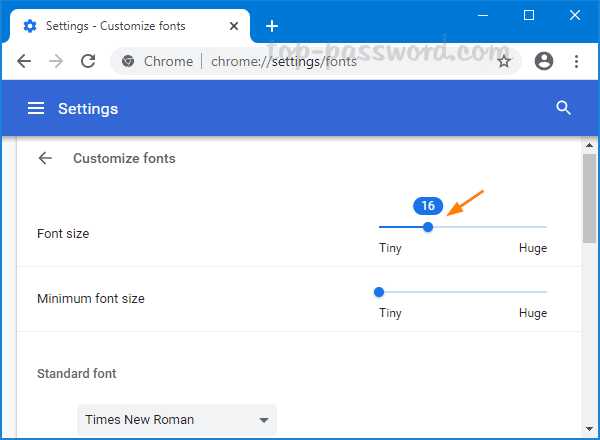
Screenshot purpose: Show readers where the browser-wide text and page-size settings are located.
Screenshot caption: Adjust Chrome’s default font size when website text is consistently difficult to read.
Microsoft Edge
Open:
Settings and more (…) → Settings → Appearance
Look for the Fonts section and choose the font size that feels comfortable.
Microsoft’s current Edge documentation places font-size controls under Appearance.
Firefox
Firefox provides more detailed controls.
You can choose fonts and sizes and can also set a Minimum Font Size. This can be useful if certain websites use extremely small text. Mozilla notes that some websites may not display correctly when minimum font sizes or text-only zoom are changed significantly.
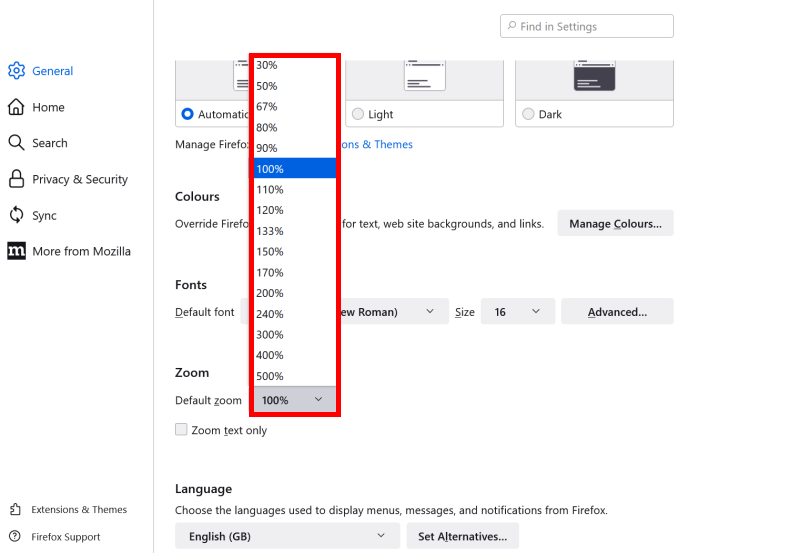
Screenshot purpose: Demonstrate where Firefox users can find font and minimum-size controls.
Screenshot caption: Firefox provides additional font controls when ordinary page zoom isn’t enough.
Use Reading Features When Pages Feel Cluttered
Some websites are difficult to read because they contain advertisements, sidebars, menus, related links, and other elements around the main content.
Instead of changing the entire browser, use a built-in reading feature when available.
Chrome Reading Mode
Chrome includes a Reading mode feature that can present supported content in a simpler reading environment. Google’s current Chrome documentation lists Reading mode among its accessibility and personalization features.
If you regularly read long articles, this can be more comfortable than repeatedly zooming in and out.
Edge Immersive Reader
Microsoft Edge offers Immersive Reader on supported web pages.
It provides a cleaner layout and includes options for text size and page themes. Microsoft notes that the feature isn’t available on every page.
[Screenshot 4: Microsoft Edge showing the Immersive Reader option on a supported article]
Screenshot purpose: Show readers how a supported page can be opened in Edge’s simplified reading view.
Screenshot caption: Use Immersive Reader on supported Edge pages when the normal website layout is distracting.
Make Websites Easier to Read Without Changing Everything
If you only have trouble with certain websites, don’t automatically increase your browser’s default zoom.
For example, suppose most websites look fine at 100%, but one older website uses unusually small text.
Increase the zoom only for that website.
This leaves your normal browsing experience unchanged.
Chrome, Edge, Firefox, and Safari all provide ways to adjust website-specific display settings, although the exact menu location varies.
This is often a better solution than making every website larger.
Turn Off Unnecessary Website Notifications
Website notifications can become annoying quickly.
You visit one website, accidentally allow notifications, and then start receiving alerts that you don’t actually need.
You don’t have to accept every permission a website requests.
In Chrome, website notification permissions can be managed through the browser’s site settings. Chrome also provides controls for permissions such as camera and microphone access.
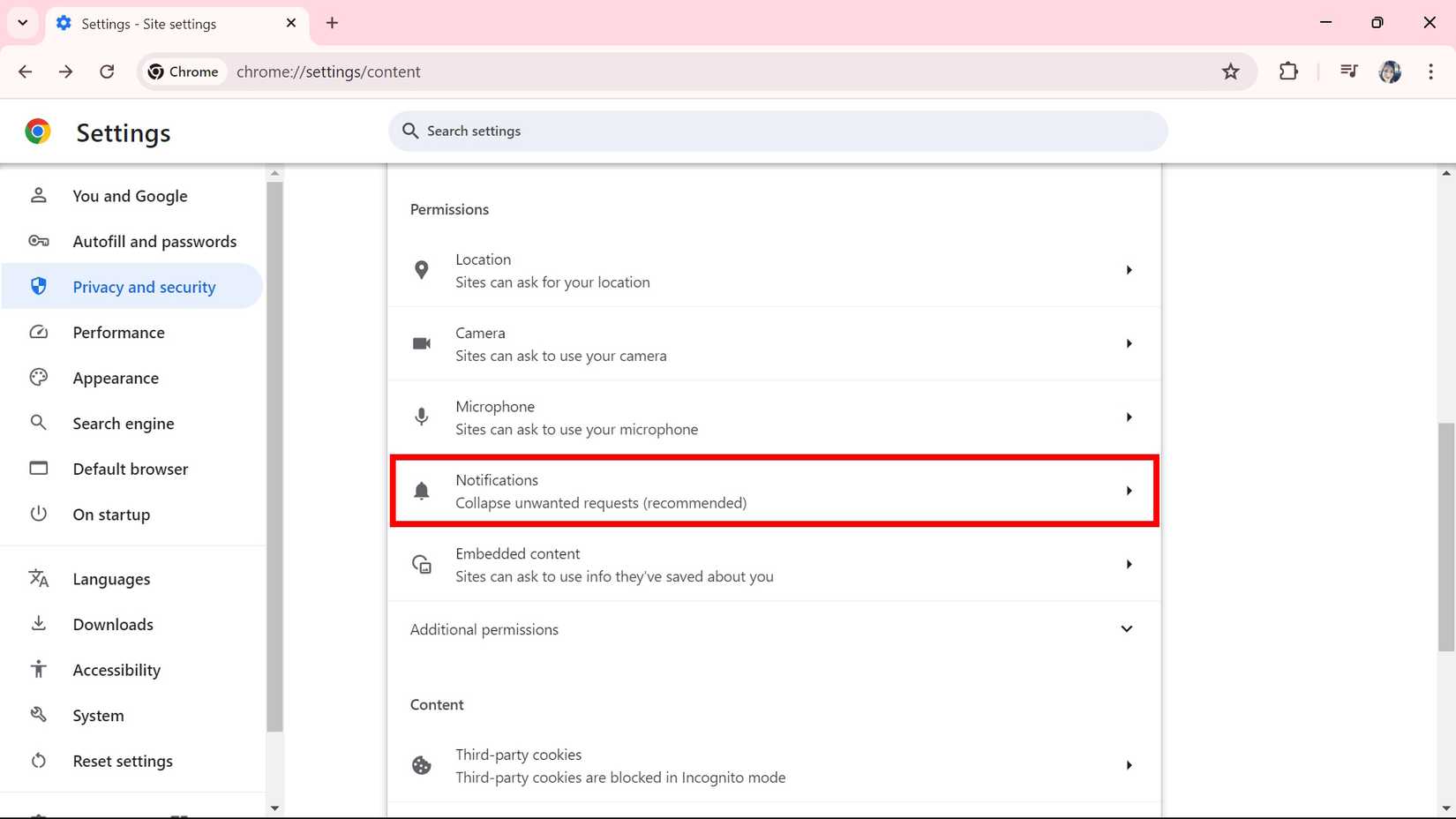
Screenshot purpose: Show users where website notification permissions can be reviewed and changed.
Screenshot caption: Review website notification permissions and remove access from sites that no longer need it.
If you don’t need a site’s notifications, blocking them can make browsing noticeably quieter.
Review Camera and Microphone Permissions
Some websites need access to your camera or microphone.
Video-conferencing services are an obvious example.
A random website asking for microphone access is a different matter.
Your browser allows you to control these permissions.
Chrome provides site-permission controls for camera and microphone access, while Safari also provides website-specific camera and microphone settings on Mac.
Before allowing access, ask yourself whether the website actually needs it.
If you previously granted permission to a website that you no longer use, review its permission and remove access if appropriate.
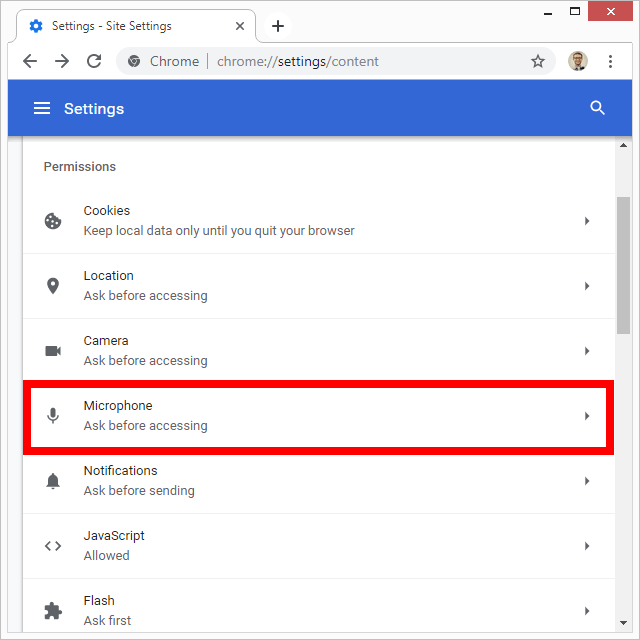
Screenshot purpose: Demonstrate the type of permission controls users should look for without exposing personal website information.
Screenshot caption: Only allow camera and microphone access when a website genuinely needs those features.
Make the Browser Easier to Navigate With the Keyboard
You don’t have to use the mouse for every browser action.
Keyboard shortcuts can make everyday browsing quicker, especially if you repeatedly open tabs, close tabs, or move between pages.
Some useful Windows shortcuts include:
Ctrl + T — Open a new tab
Ctrl + W — Close the current tab
Ctrl + Shift + T — Reopen a recently closed tab
Ctrl + L — Move the cursor to the address bar
Ctrl + F — Find text on the current page
Ctrl + R — Reload the current page
Ctrl + Tab — Move to the next tab
You don’t need to memorize all of them.
Start with two or three that solve problems you regularly encounter.
Keep Your Tabs Under Control
Having 30 or 40 tabs open isn’t necessarily dangerous, but it can make the browser difficult to navigate.
If you regularly lose track of important pages, develop a simple habit.
Keep temporary pages in the current window.
Bookmark pages you genuinely need later.
Close pages that you’ve finished using.
If your browser supports tab groups, use them for projects that contain several related pages.
For example, you could keep one group for:
Work
another for:
Shopping
and another for:
Research
The exact tab-group features vary between browsers and versions, so use the features available in your browser rather than installing an extension simply for basic tab organization.
Make the Browser More Comfortable at Night
If bright screens bother you in the evening, check your operating system’s display settings and your browser’s available appearance options.
Dark themes can reduce the amount of bright white interface elements you see, although they don’t automatically make every website dark.
Edge provides browser appearance controls including Light, Dark, and system-based themes.
Windows also includes display features such as Night light that can change the screen’s color temperature.

Screenshot purpose: Show where users can choose an available browser theme and understand that browser appearance and individual website appearance can be separate.
Screenshot caption: Choose a browser appearance that feels comfortable for the way you normally use your computer.
Turn On Read-Aloud Features When You Need Them
Sometimes the easiest way to consume a long page isn’t to stare at it.
Microsoft Edge includes a Read aloud feature for supported web content. You can access it from the browser’s menu or the page context menu when available. Microsoft also documents a keyboard shortcut for starting and stopping the feature.
Chrome also lists Listen to this page among its available features, although availability can depend on the page and browser version.
These features can be useful when your eyes are tired or when you want to listen to an article while doing another task.
Screenshot purpose: Show where a reader can start the browser’s built-in text-to-speech feature.
Screenshot caption: Use Read aloud when listening to a supported web page is more convenient than reading it yourself.
Make Important Links Easier to See
Some people have trouble identifying links when they blend into surrounding text.
Firefox provides accessibility options for website contrast, link styling, and keyboard navigation. It also supports settings that can change how fonts and colors are displayed.
Firefox also allows you to set a minimum font size, which can help on websites that use unusually small text.
If you use accessibility settings like these, make changes gradually.
A setting that helps one website can sometimes make another website look unusual.
Use Browser Translation When You Encounter Another Language
If you occasionally visit websites written in another language, check whether your browser offers built-in translation.
Chrome includes page translation and language controls among its browser settings.
Firefox also provides language and translation settings.
Built-in translation can save you from copying text into a separate translation website.
However, don’t assume every translation is perfect. For legal, financial, medical, or other important information, verify critical details with an appropriate reliable source.
Change Settings One at a Time
This is a simple habit that prevents a lot of frustration.
Don’t open the browser settings and change 15 things at once.
Instead, identify the problem.
If text is too small, change the zoom.
If only certain websites are difficult to read, use site-specific zoom.
If notifications are annoying, review notification permissions.
If pages are visually cluttered, try reading mode.
If you can’t remember where a setting was, changing one thing at a time also makes it easier to undo.
What If a Website Looks Strange After Changing Settings?
First, reset the setting you changed.
If you increased zoom, press Ctrl + 0 in browsers that support that shortcut to return the page to its normal zoom level.
If you changed a font or minimum-size setting, return it to the previous value.
Some websites are designed with fixed layouts and may not respond well to unusual font or zoom settings. Firefox specifically warns that some pages can display incorrectly when text size is changed significantly.
Don’t immediately install an extension to fix the problem.
The browser’s default settings may be enough.
Common Problems and Quick Fixes
Everything looks too large
Reset the page zoom with Ctrl + 0 on Windows in browsers that support the shortcut.
Then check whether you accidentally changed the browser’s default zoom rather than just the current website.
Only one website looks too small
Use that site’s individual zoom setting instead of increasing the zoom for every website.
The browser text is comfortable, but websites are still difficult to read
Try a browser font-size or accessibility setting rather than repeatedly increasing page zoom.
A website looks broken after changing font settings
Return the font or minimum-size setting to its previous value. Some websites aren’t designed to handle large custom text sizes well.
Too many website notifications appear
Review your browser’s notification permissions and block websites that don’t need to send alerts.
A website keeps asking for microphone access
Check its site permissions. If you don’t use the site’s voice or video features, it may not need microphone access.
I can’t find a setting mentioned in an older guide
Browser interfaces change.
Check the current Settings search function where available, and remember that Chrome, Edge, Firefox, and Safari use different menus. Microsoft also notes that Edge’s interface changes can be introduced gradually, meaning two users may not see identical screens at the same time.
Practical Tips
Start with zoom and font size because these are usually the quickest improvements.
Use website-specific zoom when only one site is difficult to read.
Try a reading mode for long articles when your browser supports it.
Block unnecessary website notifications.
Review camera and microphone permissions periodically.
Learn a few keyboard shortcuts instead of trying to memorize dozens.
Keep browser tabs organized so important pages don’t disappear in a crowded window.
Use built-in accessibility features before installing third-party extensions.
If a setting causes problems, undo that setting before making additional changes.
Keep your browser updated so you have access to current features and security fixes.
Frequently Asked Questions
What is the easiest browser setting to change for better readability?
Start with page zoom. Increasing the zoom slightly can make text and other page elements easier to see without changing your computer’s entire display.
Can I make text bigger without making images bigger?
It depends on the browser. Firefox provides a Text Zoom option that changes text without changing images, while Chrome provides separate page-zoom and font-size controls. Some websites may not respond perfectly to text-only changes.
How can I make websites less distracting?
Try a browser’s reading feature when available. Chrome provides Reading mode, while Edge offers Immersive Reader on supported pages.
Should I block all website notifications?
Not necessarily. Some notifications can be useful, such as alerts from services you actively use. The better approach is to review permissions and allow notifications only from websites whose alerts you actually want.
Can I make my browser easier to use without installing extensions?
Yes. Chrome, Edge, Firefox, and Safari all include built-in settings for things such as zoom, appearance, accessibility, permissions, or reading features.
Why does my browser look different from screenshots online?
Browsers are updated regularly, and some interface changes are introduced gradually. Different operating systems and browser versions can also place settings in different locations. Microsoft specifically notes that Edge’s visual changes may roll out gradually.
How do I reset a website’s zoom?
In Chrome, you can manage individual site zoom levels through Settings → Privacy and security → Site settings → Additional content settings → Zoom levels and remove a site’s saved zoom setting.
Final Thoughts
Making your browser easier to use doesn’t require a long list of extensions or complicated customization.
Start with the problem you actually have. Increase the zoom if text is too small. Adjust the font size if you need larger words across websites. Use reading features when pages feel cluttered, and review website permissions when notifications or access requests become annoying.
You don’t need to change every setting.
A browser that feels comfortable is usually the result of a few small adjustments that match the way you browse every day. Try one change, use the browser for a while, and keep it only if it genuinely makes things easier.
Sources Used for Accuracy
- Google Chrome Help — Change Chrome settings: Used to verify current Chrome personalization, accessibility, permissions, reading, and browser-setting options.
- Google Chrome Help — Change text, image and video sizes (zoom): Used to verify Chrome’s page zoom, font-size, keyboard shortcuts, and site-specific zoom controls.
- Microsoft Support — Accessibility features in Microsoft Edge: Used to verify Edge zoom, font-size, Immersive Reader, Read aloud, accessibility, and permission-related features.
- Microsoft Support — Visual changes to Microsoft Edge: Used to account for current Edge interface differences and gradual interface changes.
- Mozilla Firefox Help — Accessibility features in Firefox: Used to verify Firefox zoom, text-only zoom, fonts, minimum font size, colors, and keyboard-accessibility options.
- Apple Support — Customize settings for each website in Safari on Mac: Used to verify Safari’s website-specific page zoom and permission controls.