
Introduction
Not every dangerous app looks dangerous.
A suspicious app can have a polished icon, a convincing description, thousands of downloads, and a name that sounds almost identical to a popular application. On the other hand, a perfectly legitimate app may have a small number of reviews simply because it serves a narrow audience.
That’s why checking an app before installing it is more useful than judging it by one number or one warning.
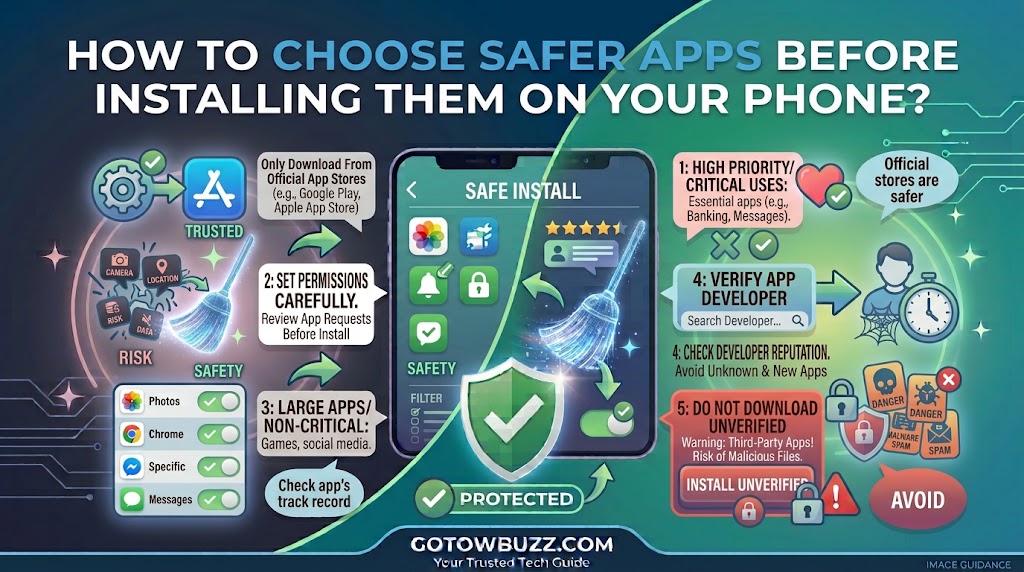
Google Play provides several pieces of information that can help you make a better decision, including the app’s developer information, Data Safety section, permissions, reviews, and other details on the store listing. Google Play Protect also checks apps for potentially harmful behavior.
None of these checks should be treated as an absolute guarantee that an app is safe. They are pieces of evidence.
The goal is to put those pieces together before you give an app access to your phone, your photos, your location, your contacts, or other personal information.
This guide shows you what to check, what warning signs deserve attention, and what to do when an app asks for access that doesn’t seem necessary for its purpose.
Main Article
Start With the App’s Purpose
Before looking at ratings or permissions, ask one simple question:
What is this app actually supposed to do?
Imagine you’re looking for a basic flashlight application.
A flashlight app that needs access to the camera may have a reasonable explanation because the phone’s camera flash is used to produce light.
But if the same simple flashlight app asks for access to your contacts, call logs, microphone, and precise location, stop and think before installing it.
The permission request doesn’t automatically prove that the app is malicious. There could be a technical explanation. But the more an app asks for, the more important it becomes to understand why those permissions are needed.
Google’s Android documentation lists permissions such as camera, contacts, location, microphone, phone, photos and videos, and files among the types of access apps can request.
A useful habit is to compare the app’s purpose with the information it wants.
A navigation app asking for location access makes sense.
A photo editor asking for access to photos makes sense.
A calculator asking for your microphone, contacts, and continuous location access deserves much closer inspection.
Step 1: Install From a Trusted App Store
For most Android users, start with the official Google Play Store rather than downloading an APK from an unfamiliar website.
This doesn’t mean every app on Google Play is automatically trustworthy. Google Play has security and policy systems, but users should still examine an app before installing it.
Google Play Protect checks apps from Google Play before installation and also checks apps from other sources. It can warn about potentially harmful applications and may prevent some harmful or unverified installations.
What to do
Open the Google Play Store.
Search for the application you want.
Before tapping Install, stop on the app’s listing page.
Don’t immediately install the first result just because its icon looks familiar.
[Screenshot 1: Google Play Store search results showing several apps with similar names, followed by the correct app’s listing page]
Screenshot purpose: Show readers why they should carefully identify the correct app before installing it, especially when several applications have similar names or icons.
Screenshot caption: Check the complete app listing before installing it instead of choosing the first similar-looking result.
This is especially useful for popular services because scammers can create applications with names or icons designed to resemble legitimate products.
Step 2: Check the Developer Name
Once you’ve opened the correct listing, look at the developer or app publisher information.
The developer name can provide an important clue.
For example, if you’re looking for an application made by a well-known company, you should expect the listing to identify that company or an appropriate official publishing entity.
Be careful, though.
A developer name that looks professional isn’t proof by itself.
Someone can create a developer account with a convincing name, and legitimate companies sometimes publish apps through subsidiaries or different corporate entities.
Treat the developer information as one part of your check.
What to look for
Ask yourself:
- Does the developer name make sense for the app?
- Does the developer have other recognizable applications?
- Does the developer’s website or support information match the company behind the app?
- Does the app description make claims that seem inconsistent with the developer’s identity?
[Screenshot 2: Google Play app listing showing the developer name directly beneath the app information]
Screenshot purpose: Highlight the developer/publisher information so readers know where to look before pressing Install.
Screenshot caption: Check who publishes the app and whether the developer identity makes sense for what the app claims to do.
Don’t treat a developer name as a security certificate.
You’re looking for consistency.
If an app claims to be the official mobile banking application of a company but the publisher appears unrelated, that’s a reason to stop and verify the app through the company’s official website before installing anything.
Step 3: Read the Data Safety Section
One of the most useful parts of a Google Play listing is the Data safety section.
Google says the Data safety section is designed to help users understand how an app handles their data before installation. It can provide information about data collection, sharing, and certain security practices.
To find it, open the app’s Google Play listing and scroll down to Data safety.
You may see a short summary first.
Tap See details for additional information.
[Screenshot 3: Google Play app listing with the Data safety section visible and the See details option highlighted]
Screenshot purpose: Show beginners exactly where to find the Data safety information before installing an app.
Screenshot caption: Open the Data safety section to see what information the developer says the app collects and shares.
Don’t simply look for a reassuring sentence such as “No data shared.”
Read the details.
Depending on the app, the section may tell you about categories of data that are collected or shared, how the information is used, whether data is encrypted in transit, and other available privacy information.
Google requires developers to provide Data safety information for apps published on Google Play, and developers are responsible for keeping those declarations accurate and up to date.
But there is an important limitation.
The Data safety section is based on information declared by the developer. Google explains that it can differ from the technical permissions shown for an app because permissions and data collection are not exactly the same thing. For example, data may be accessed and processed only on the device without being considered “collected” for the Data safety disclosure.
So use Data safety as a useful source of information, not as the only safety check.
Step 4: Look at What Data the App Wants
After opening the Data safety details, look at the categories of information involved.
You might see references to information such as:
- Personal information
- Photos and videos
- Location
- Financial information
- Messages
- Contacts
- Device or other identifiers
The important question is not simply:
“Does this app collect data?”
Many useful apps need some data to function.
The better question is:
“Does the data collection make sense for what this app does?”
For example, a food-delivery application may need your address to deliver an order.
A photo backup service may need access to photos.
A navigation application may need location information.
But if a simple calculator appears to need extensive personal information, you should investigate before continuing.
[Screenshot 4: Expanded Google Play Data safety details showing data categories and how they are used or shared]
Screenshot purpose: Help readers understand that they should read the expanded Data safety information instead of relying only on the short summary.
Screenshot caption: Look at the specific types of data an app says it collects or shares, then compare them with the app’s purpose.
Step 5: Check the App’s Permissions
Data safety information and permissions are related, but they aren’t the same thing.
Google explains that the permissions list describes the device features or information an app can access, while the Data safety section describes data practices declared by the developer. The two can therefore show different information.
On Android, you can review permissions after installation through:
Settings → Apps → [App name] → Permissions
Google’s current Android instructions use this route for checking and changing permissions on supported devices.
However, there’s an even better habit:
Think about permissions before you install the app.
Read the app’s store information and consider what access it is likely to request.
Once installed, you can use Android’s permission controls to review what the app has been allowed to access.
[Screenshot 5: Android Settings > Apps > selected app > Permissions screen showing permissions such as Camera, Location, and Microphone]
Screenshot purpose: Show readers where Android lists the permissions an installed app can use.
Screenshot caption: Review an app’s permissions and allow only the access it reasonably needs.
Android provides different choices for some permissions. For location, camera, and microphone, supported Android versions can offer choices such as Allow only while using the app, Ask every time, or Don’t allow, depending on the permission and device.
That gives you more control than simply accepting every request.
Step 6: Don’t Automatically Accept Every Permission Request
When you open a newly installed app, it may ask for several permissions.
You don’t have to treat every permission request as something you must approve immediately.
Read the request.
Ask why the app needs it.
For example, a video-calling application may reasonably need the camera and microphone when you make calls.
A mapping application may need your location.
A document-scanning application may need camera access.
But if the requested permission doesn’t seem related to the app’s main function, pause.
You can often deny a permission and see whether the application still works.
Some features may stop working when you deny a required permission. That’s normal. The important part is that you understand what you’re allowing.
Google’s Android permission controls let users change permissions for individual apps after installation.
Step 7: Read Recent Reviews Instead of Only Looking at the Star Rating
A four-star rating can look reassuring, but the average number doesn’t tell the entire story.
Open the app’s reviews and read several recent ones.
Look for patterns rather than one angry review.
For example, if many recent users report:
“App suddenly started showing suspicious pop-ups.”
“Can’t cancel subscription.”
“Requests unnecessary permissions.”
“Login screen looks different from the official service.”
those comments deserve attention.
One negative review doesn’t prove anything.
A large application can have occasional complaints simply because it has many users.
What matters more is whether multiple recent reviews describe the same problem.
[Screenshot 6: Google Play app listing showing the Ratings and reviews section with recent reviews visible]
Screenshot purpose: Show readers where to find reviews and encourage them to inspect recent feedback instead of relying only on the overall star rating.
Screenshot caption: Read several recent reviews and look for repeated complaints rather than judging an app by its star rating alone.
Also be careful with reviews that all sound strangely similar.
A large number of short, generic five-star comments isn’t necessarily strong evidence of quality.
Reviews are useful signals, not proof.
Step 8: Check How Established the App Appears to Be
Look at the app’s broader Play Store information.
Depending on the listing, you may find details such as the number of downloads, reviews, developer information, app description, update information, and other store details.
A large number of downloads can be reassuring in some contexts, but it doesn’t prove that an app is right for you.
Likewise, a new app isn’t automatically dangerous.
A newly released application may come from a legitimate developer.
Instead of asking:
“Does this app have enough downloads?”
ask:
“Does the entire listing make sense?”
An established developer, clear description, sensible permissions, consistent branding, useful support information, and normal-looking reviews together provide a stronger picture than any single number.
Step 9: Check the App’s Privacy Policy When Privacy Matters
If an application handles sensitive information, take another step and read its privacy policy.
This is particularly useful for applications involving:
- Banking or payments
- Health information
- Personal documents
- Photos
- Contacts
- Location
- Passwords
- Business information
Google’s Play Console guidance says apps that request sensitive permissions or data are required to provide privacy-policy information on the Play Store and within the app.
A privacy policy can help answer questions that the short store listing doesn’t.
For example:
What information does the company collect?
Why is it collected?
Who might receive it?
How long is it retained?
How can you request deletion?
You don’t need to become a legal expert.
You’re simply looking for a clear explanation that matches what the application actually does.
If a privacy policy is difficult to find or the explanation doesn’t make sense, consider whether the app is worth the risk.
Step 10: Check for Suspicious Behavior Before Installing
Some warning signs are more serious than a low rating.
Be especially cautious when an app:
Tries to rush you
A message such as “Install now or your account will be deleted” is a classic pressure tactic.
Stop and verify the claim independently.
Comes from an unexpected message or link
If someone sends you a message telling you to install an unfamiliar app to solve a delivery, banking, account, or security problem, don’t simply follow the link.
Google’s Android safety guidance specifically warns about scams where users are contacted unexpectedly and then encouraged to install harmful apps or change device settings.
Tells you to weaken phone security
Be cautious if an unfamiliar app tells you to disable important security protections or enable unusual access just to make the app work.
Requests unusually powerful access
Some Android settings are deliberately restricted because they can expose sensitive device capabilities.
Google warns that harmful apps may try to convince users to change settings that put their device or data at risk.
Don’t enable a restricted setting simply because an app insists that you must.
First find out why it needs that access.
Step 11: Be Extra Careful With Apps Installed Outside Google Play
Android supports installing apps from sources other than Google Play, but that doesn’t mean you should treat every APK download as trustworthy.
Google Play Protect checks apps from outside Google Play too, but the fact that an app can be scanned doesn’t make an unknown download automatically safe. Google says Play Protect can warn about potentially harmful apps and can sometimes prevent harmful installations.
If you need an app that isn’t on Google Play, verify that the download comes directly from the legitimate developer or organization.
Avoid websites offering:
“Premium unlocked”
“Paid version free”
“Cracked APK”
“Unlimited coins”
“Mod APK”
These downloads can introduce risks that aren’t worth taking simply to avoid paying for an app.
For ordinary users, staying with the official Play Store is usually the simpler approach.
Step 12: Make Sure Play Protect Is Active
Google Play Protect is built into Android’s Google Play ecosystem and checks apps for potentially harmful behavior.
To check its status:
- Open Google Play Store.
- Tap your profile picture.
- Tap Play Protect.
- Open the Play Protect settings if you need to review its options.
Google’s current instructions use this path to access Play Protect.
[Screenshot 7: Google Play Store profile menu with Play Protect visible, followed by the Play Protect screen]
Screenshot purpose: Show readers where to find Play Protect before installing unfamiliar applications.
Screenshot caption: Open Play Protect to check Android’s built-in app safety scanning.
Play Protect can scan applications before installation and periodically check apps already installed on your device.
Don’t interpret the absence of a warning as a guarantee that an app is perfect.
Play Protect is an additional security layer.
Your own checks still matter.
Step 13: Treat Security Warnings Seriously
If Play Protect warns you about an application, don’t casually dismiss the message just because you want to try the app.
Read the warning.
Google says Play Protect can warn about potentially harmful apps, deactivate or remove harmful applications in some situations, and can block certain unverified installations that use sensitive permissions commonly targeted by scammers for financial fraud.
If you believe the warning is a mistake, investigate the application through an official source rather than immediately bypassing the protection.
Don’t disable security features just because an installation guide tells you to.
A Simple Five-Minute App Safety Check
You don’t have to spend half an hour researching every simple application.
For an ordinary app, use this quick sequence.
First: Check the identity
Confirm that the app name, icon, developer, and description make sense.
Second: Check Data Safety
Read what the developer says about collecting and sharing data.
Third: Think about permissions
Ask whether the access requested makes sense for the app’s purpose.
Fourth: Read recent reviews
Look for repeated complaints or suspicious patterns.
Fifth: Check Play Protect
Make sure Android isn’t warning you about the installation.
If all five checks look reasonable, you have much more information than you would have by simply tapping Install immediately.
Example: Choosing Between Two Similar Apps
Suppose you’re looking for a free document scanner.
You find two apps with similar names.
App A has a clear developer identity, a detailed description, sensible reviews, a Data Safety section that explains its data practices, and permissions that fit its main purpose.
App B has a confusing developer name, hundreds of reviews complaining about aggressive pop-ups, unclear privacy information, and permissions that don’t seem necessary for scanning documents.
Even if App B has a slightly higher star rating, App A gives you a better reason to trust the installation.
The point isn’t to prove that App B is malicious.
You don’t need that level of certainty.
If an alternative app provides similar functionality with fewer unexplained concerns, choosing the clearer option is reasonable.
What to Do When an App Asks for a Permission You Don’t Understand
Don’t automatically tap Allow.
First, read the permission request carefully.
If Android gives you a choice such as While using the app, Ask every time, or Don’t allow, choose the least access that still lets you use the feature you need when that option is appropriate. The exact choices depend on the permission and Android version.
If the application refuses to work without an unrelated permission, investigate further.
Search the developer’s official support information.
Read the app’s privacy documentation.
Check whether other users have reported the same behavior.
You can also review the permission later through:
Settings → Apps → [App] → Permissions
Android lets you change individual app permissions after installation.
What If You Already Installed an App You Don’t Trust?
Don’t panic.
If you’re concerned about an app you’ve already installed, start by reviewing its permissions.
Open:
Settings → Apps → [App] → Permissions
Look at what access has been granted.
If the app doesn’t need a permission, you can change it where Android provides that control.
You can also run a Play Protect check through Google Play.
If you decide you don’t want the application, uninstall it.
For an app that has handled sensitive information, also consider changing relevant passwords or contacting the service provider if you suspect your account information may have been exposed.
Don’t enter sensitive information into an app simply because it claims to be an official service.
Verify the service through an official website or another trusted channel first.
Troubleshooting / Common Problems
The app has millions of downloads. Does that mean it is safe?
No.
A large install count is useful context, but it isn’t a guarantee of safety or privacy.
Consider the developer, permissions, Data Safety information, recent reviews, and Play Protect status together.
The app has a four- or five-star rating. Can I trust it?
A high rating is only one signal.
Read recent reviews and look for repeated complaints. Also check the developer and the permissions.
Why do the permissions and Data Safety section sometimes look different?
Google explains that permissions and Data Safety describe different things. Permissions describe access to device features or information, while Data Safety describes data practices declared by the developer. Some information accessed only on the device may not be treated as collected data in the Data Safety section.
Is every app outside Google Play dangerous?
No.
There are legitimate reasons to install software outside Google Play, and Android and Play Protect provide protections for apps from other sources.
However, an unfamiliar APK carries more uncertainty, so verify that it comes directly from a legitimate developer and avoid modified or cracked applications.
Should I allow every permission an app requests?
No.
Read the permission request and consider whether it relates to the app’s function. Android lets you change many permissions individually after installation.
What should I do if an app tells me to disable security settings?
Stop and investigate before continuing.
Google warns that harmful apps can attempt to convince users to change device settings that put their data or device at risk.
Does Play Protect guarantee that an app is safe?
No security tool should be treated as an absolute guarantee.
Play Protect provides an important additional layer by checking apps for potentially harmful behavior and warning users when it detects problems. You should still examine the app’s developer, permissions, privacy information, and reviews.
Practical Tips
Don’t install an app while you’re under pressure
If a message says you must install an application immediately to avoid losing an account, receiving a package, or fixing a security problem, stop.
Open the company’s official website yourself and verify the situation.
Check the developer before the download
The developer name takes only a few seconds to check and can reveal obvious mismatches.
Read the Data Safety details, not just the heading
The short summary can hide useful information. Open See details when privacy matters.
Think about permissions in context
A permission isn’t automatically bad.
The question is whether the permission makes sense for what the application does.
Keep Play Protect enabled
It provides another layer of protection against potentially harmful applications.
Don’t use cracked apps to save money
An unofficial modified version may introduce risks that aren’t present in the legitimate application.
Review installed apps occasionally
You don’t need dozens of applications you no longer use.
Removing unused apps reduces the number of applications with access to your phone and personal information.
Be careful with sensitive apps
For banking, payments, passwords, health information, and important documents, use extra caution.
Verify the developer and download source through the organization’s official website whenever possible.
Frequently Asked Questions
What should I check before installing an Android app?
Start with the app’s developer, Data Safety information, permissions, recent reviews, and Play Protect status. Also make sure you’re installing the genuine application rather than a similarly named copy.
Are apps on Google Play always safe?
No. Google Play provides security and policy protections, including Play Protect, but you should still evaluate an app before installing it. Google Play’s own documentation describes Data Safety information as a tool for making more informed choices rather than a guarantee.
How can I tell if an app is collecting too much information?
Compare the information it requests with its purpose. A navigation app needing location access is understandable. An unrelated app asking for several sensitive permissions deserves closer inspection.
Should I trust an app with lots of downloads?
Downloads are useful context but aren’t proof that an app is safe or privacy-friendly. Check several signals together, especially the developer, permissions, Data Safety information, and recent reviews.
Is the Google Play Data Safety section reliable?
It is useful information that developers are required to provide, and developers are responsible for its accuracy. However, Google explains that Data Safety and technical permissions can differ because they describe different aspects of an app’s behavior.
What should I do if I accidentally install a suspicious app?
Review its permissions, run Play Protect, and uninstall the application if you don’t trust it. If you entered sensitive information into the app, consider changing the affected password or contacting the relevant service.
Can an app be safe but still collect a lot of data?
Yes.
Safety and privacy aren’t exactly the same thing. An app may be legitimate and secure while collecting information for its stated business or functionality. That’s why you should consider both security and privacy before installing it.
Final Thoughts
Choosing a safer app doesn’t require advanced technical knowledge.
Before tapping Install, slow down for a few minutes.
Check who publishes the app. Read its Data Safety information. Think about whether its permissions match its purpose. Look through recent reviews for repeated problems, and make sure Play Protect isn’t warning you about the installation.
Most importantly, don’t let urgency make the decision for you.
If an unfamiliar app arrives through an unexpected message, asks for unusual access, or tells you to weaken Android’s security settings, step back and verify the request through an official source.
A few minutes of checking before installation can help you avoid giving an unnecessary application access to information that belongs on your phone and nowhere else.
Sources Used for Accuracy
- Google Play Help — Understand app privacy and security practices with Google Play’s Data safety section. Used to verify the current Data Safety section, the distinction between Data Safety information and app permissions, and how users can review an app before installation.
- Google Play Help — Change app permissions on your Android phone. Used to verify current Android permission controls and the Settings → Apps → app → Permissions path.
- Google Account Help — Use Google Play Protect to help keep your apps safe & your data private. Used to verify Play Protect’s current scanning, warning, and harmful-app protection behavior.
- Google Android Help — Learn about restricted settings. Used to verify current warnings about suspicious apps, unexpected contact, and apps attempting to persuade users to change protected device settings.
- Google Play Console Help — Provide information for Google Play’s Data safety section. Used to verify developer responsibilities for Data Safety disclosures and privacy/security information.