
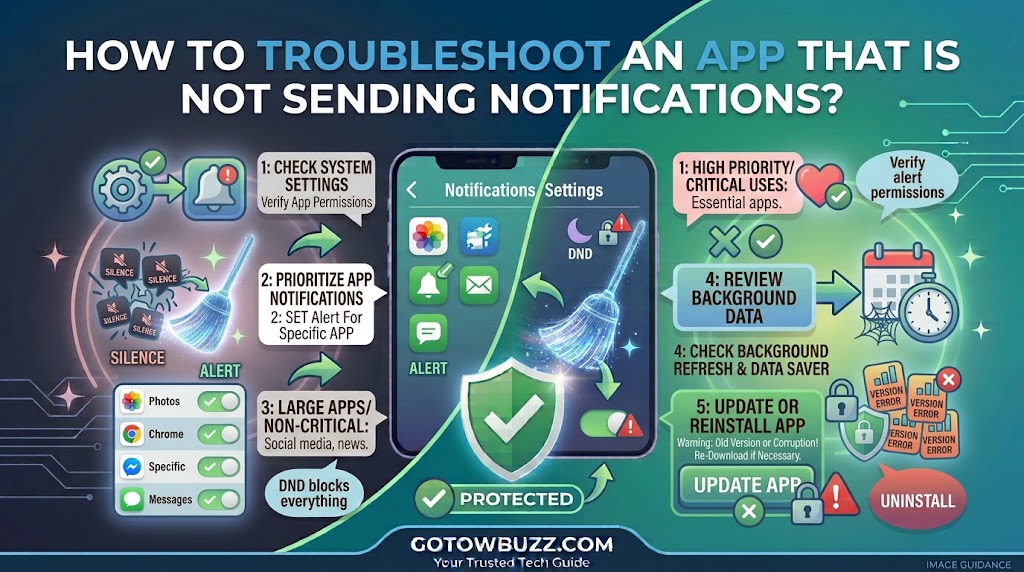
Introduction
An app that stops sending notifications can be surprisingly frustrating. You may open the app and discover new messages, emails, comments, or alerts that should have appeared on your phone hours ago.
The problem isn’t always the app itself.
Android can prevent notifications at several different levels. The app’s notification permission may be disabled, a particular notification category may be set to silent, Do Not Disturb may be filtering the alert, or a battery-saving feature may delay background activity. On Samsung Galaxy phones, an app can also be affected by Deep sleeping settings. Google specifically identifies notification permissions, Do Not Disturb, and battery-saving features as things worth checking when alerts don’t arrive.
The useful part is that you don’t need to change everything at once.
Start by finding out whether the notification is being blocked completely, arriving silently, appearing late, or only failing when the phone has been sitting unused. That tells you which setting to investigate next.
This guide walks through that process from the simplest checks to the more advanced ones, while pointing out where Android and Samsung Galaxy menus can differ.
Main Article
First, Work Out What “No Notification” Actually Means
Before changing settings, test the problem.
Send yourself a test message, email, or other alert from another device if possible. Then watch what happens.
There are several different situations:
Nothing appears at all.
The app may not have notification permission, or Android may be restricting its background activity.
The notification appears only after you open the app.
This can point toward background activity or battery-management restrictions.
The notification appears, but there is no sound.
The notification may be set to Silent, the notification volume may be low, or the phone may be muted.
The notification appears in the notification shade but not as a pop-up.
The notification may be configured as silent or its pop-up behavior may be disabled.
Notifications arrive hours late.
Battery-saving, background-data, network, or app-specific settings may be involved.
This distinction matters because repeatedly clearing an app’s cache, reinstalling it, or restarting the phone won’t necessarily fix a notification that has simply been turned off in Android’s notification settings.
Step 1: Check Whether Notifications Are Allowed for the App
This is the first setting to check because Android lets you control notifications separately for individual applications.
On current Android versions, a common path is:
Settings → Notifications → App notifications → All apps → select the app
The exact names can vary between phones and Android versions. Google’s current Android documentation confirms that you can open Settings → Notifications → App notifications, select an application, and turn its notifications on or off. You can also manage individual notification categories when the app provides them.
What to do
- Open Settings.
- Tap Notifications.
- Tap App notifications.
- Find the application that isn’t sending alerts.
- Open it.
- Make sure Allow notifications is enabled.
If the setting was disabled, turn it on.
Then send yourself a test notification.
[Screenshot 1: Android Settings > Notifications > App notifications showing the affected app’s notification settings]
Screenshot purpose: Show the reader exactly where the app-level notification permission is located and highlight the main Allow notifications switch.
Screenshot caption: Make sure Android is allowed to send notifications from the app.
If you don’t see App notifications, don’t assume something is wrong with your phone. Android’s menu names vary by device and software version. Google explicitly warns that notification settings can differ between phones.
Step 2: Check Individual Notification Categories
Turning on the main notification switch doesn’t always solve the problem.
Many apps divide notifications into separate categories.
A messaging app might have categories for:
- Direct messages
- Group messages
- Calls
- Mentions
- Promotions
- Other alerts
You may have accidentally disabled one category while leaving the app’s main notification permission turned on.
On Android phones that expose notification categories, open:
Settings → Notifications → App notifications → select the app
Then look for the individual notification categories.
Make sure the category related to the alert you’re expecting is enabled.
Google confirms that Android can provide separate notification categories for an app and that these categories can be turned on or off individually.
[Screenshot 2: Android app notification settings showing several notification categories with one category highlighted]
Screenshot purpose: Demonstrate that an app can have notifications enabled generally while a specific type of alert remains disabled.
Screenshot caption: Check individual notification categories if only certain alerts are missing.
This is particularly useful when you receive some notifications from an app but not others.
For example, if your email app announces new messages but doesn’t alert you about calendar-related events, the problem may be a specific category rather than the whole app.
Step 3: Check Whether the Notification Is Set to Silent
Sometimes the notification isn’t actually missing.
It’s just quiet.
Android can distinguish between Alerting and Silent notifications. With an alerting notification, the phone can make a sound, vibrate, show the alert on the lock screen, and display the app icon. A silent notification can still appear when you pull down the notification shade but won’t normally make a sound or vibrate.
This is easy to overlook.
If you’ve previously changed a notification by swiping it or pressing and holding it, you may have changed how that notification behaves.
Check from an existing notification
If you can find an older notification from the app:
- Swipe down from the top of the screen.
- Find the app’s notification.
- Touch and hold it.
- Tap the notification settings option.
- Check whether it is configured as Alerting or Silent.
Google documents this notification-level control and allows users to switch notification behavior when the feature is available on their device.
[Screenshot 3: Android notification shade with an app notification pressed and the notification settings controls visible]
Screenshot purpose: Show readers how to reach notification controls directly from an existing alert.
Screenshot caption: Use an existing notification to quickly check whether the alert has been made silent.
If the notification is set to Silent and you want an audible alert, change it to the available alerting option.
Step 4: Check Do Not Disturb and Other Modes
Do Not Disturb is another common reason notifications appear to stop.
Android’s current Modes system can control which people and apps are allowed to interrupt you. Do Not Disturb can be turned on manually or scheduled to activate at particular times.
Start with a quick check.
Swipe down from the top of your screen to open Quick Settings.
Look for Do Not Disturb.
If it’s active, tap it to turn it off temporarily.
Then test the app again.
[Screenshot 4: Android Quick Settings panel with Do Not Disturb enabled and the control highlighted]
Screenshot purpose: Help readers quickly identify whether Do Not Disturb is currently active without searching through several Settings menus.
Screenshot caption: Turn off Do Not Disturb temporarily to see whether it is blocking the missing notification.
If the notification works after turning Do Not Disturb off, don’t stop there.
You may want to keep Do Not Disturb for meetings, sleeping, driving, or other situations. Instead, adjust its notification filters so the important app can notify you when appropriate.
Google’s current Android instructions allow notification filters to control which apps can send notifications during a mode.
Step 5: Check Whether a Scheduled Mode Is Silencing the App
If notifications work during the day but disappear every night, or stop during particular hours, a scheduled mode may be responsible.
Android can automatically activate modes such as Bedtime or Driving mode, depending on the device and configuration.
Open:
Settings → Modes
Then review any active or scheduled modes.
The exact path may be different on your phone. Older Android versions may use Sound & vibration → Do Not Disturb instead.
Look for a schedule that overlaps with the time when notifications stop.
For example, if your app notifications disappear from 11 PM until 7 AM every day, a scheduled Bedtime or Do Not Disturb configuration is worth checking.
Don’t disable every scheduled mode simply because one app isn’t notifying you. Adjust the notification filters if the mode is useful for everything else.
Step 6: Check Battery Restrictions
This step becomes especially important if notifications appear only after you open the app.
Android uses battery-management features to reduce background activity. Google notes that battery-saving settings can stop or delay some alerts, and Pixel guidance specifically points to Battery Saver and Adaptive Battery as possible causes when alerts don’t arrive.
The exact controls vary by manufacturer.
On some Android phones, you may find app battery settings under:
Settings → Apps → [App] → App battery usage
or a similarly named battery section.
Look for options such as:
- Allow background usage
- Unrestricted
- Optimized
- Restricted
Don’t automatically choose the most permissive option for every app.
If notifications from one important app are consistently delayed, however, checking whether the app has been heavily restricted can be worthwhile.
[Screenshot 5: Android App Info/Battery screen showing the affected app’s battery usage or background activity controls]
Screenshot purpose: Show readers where app-specific battery controls can be found and which setting should be investigated when notifications arrive late.
Screenshot caption: Check whether battery management is restricting the app’s background activity.
The exact choices differ considerably between manufacturers, so the screenshot should be captured from the specific Android version used by GoToBuzz rather than presented as a universal Android screen.
Step 7: Check Samsung Galaxy’s Sleeping Apps Settings
If you’re using a Samsung Galaxy phone, there’s another setting worth checking.
Samsung’s current support guidance says that an app in Deep sleeping status may not show notifications. Samsung recommends checking the app’s status through the notification settings when troubleshooting missing alerts.
On supported Galaxy devices, start with:
Settings → Notifications → App notifications
Find the affected application and check whether Samsung identifies it as being in a sleeping state.
You may also find related sleeping-app controls under the phone’s battery/device-care settings, depending on the One UI version.
[Screenshot 6: Samsung Galaxy App notifications list showing an app marked as Deep sleeping]
Screenshot purpose: Show Galaxy users that Samsung’s sleeping-app system can affect notification delivery.
Screenshot caption: On Galaxy phones, check whether the affected app has been placed into Deep sleeping.
Don’t change unrelated battery settings just because you see them.
If only one app has a notification problem, focus on that application first.
Samsung also notes that menu names and screen layouts can vary by device model, software version, and One UI version.
Step 8: Check the App’s Own Notification Settings
Android isn’t the only place that can control notifications.
Many apps have their own notification preferences.
For example, an app may allow you to separately turn off:
- New message alerts
- Marketing notifications
- Mentions
- Calls
- Comments
- Security alerts
- Email notifications
Open the affected app and look for:
Settings, Notifications, Alerts, or a similar section.
Make sure the type of notification you’re expecting is enabled.
This is particularly important when Android says notifications are allowed but the app still sends nothing.
[Screenshot 7: Example app notification settings screen showing individual notification types]
Screenshot purpose: Show that notification controls can exist inside the application itself and may override what the user expects from the Android system settings.
Screenshot caption: Check the app’s own notification settings when Android notifications are already enabled.
Don’t assume every app uses the same menu name.
Some applications put notification settings under Account, Privacy, Preferences, or another section.
Step 9: Check Your Internet Connection
Notifications from internet-based apps generally require some form of network connection.
If messages arrive only after you open the app, test the connection.
Turn Wi-Fi off temporarily and try mobile data.
Then reverse the test.
If notifications work over one connection but not the other, you may have a network-specific problem rather than a notification permission problem.
Also check whether Airplane mode is enabled.
If the phone has a weak or unstable connection, notifications may arrive late even though the app’s settings are correct.
This is particularly noticeable with messaging, email, social-media, and other cloud-based applications.
Step 10: Check Notification History
If your Android version supports Notification history, it can help answer an important question:
Did the notification arrive and get dismissed, or did it never arrive at all?
Google says Notification history can show recently dismissed notifications, snoozed notifications, and notifications from the current day on supported devices.
To check:
- Open Settings.
- Tap Notifications.
- Look for Notification history.
- Open it.
- Check whether the affected app appears in the history.
[Screenshot 8: Android Notification History screen showing recently dismissed notifications]
Screenshot purpose: Show readers how to determine whether an alert was delivered previously but dismissed or whether the app isn’t producing notifications at all.
Screenshot caption: Notification history can help determine whether a missing alert was previously delivered.
If the app appears in Notification history, Android may have received the notification even though you didn’t notice it.
That points you toward display, sound, lock-screen, or notification behavior settings rather than immediately blaming the app’s internet connection.
If there is no record, continue troubleshooting.
Step 11: Restart the Phone
A restart is simple, but it is worth trying after checking the settings.
Don’t restart first and assume the problem is solved permanently.
Instead, use it as a controlled troubleshooting step.
Restart the phone, wait for it to reconnect to Wi-Fi or mobile data, and then send yourself another test notification.
If notifications return immediately but stop again later, pay attention to what happens before the problem returns.
For example, does it happen after the screen has been off for several hours?
Does it happen after Battery Saver activates?
Does it happen only when you’re away from Wi-Fi?
Those details can point toward the next step.
Step 12: Update the App
If the notification problem started after an app update, or the app hasn’t been updated for a long time, check Google Play for a newer version.
Open:
Google Play Store → Profile picture → Manage apps & device → Manage
Then check whether an update is available for the affected application.
Don’t install random APK files from websites simply because the Play Store doesn’t show an update.
For notification problems, using the official app distribution channel is the safer approach unless the app’s developer specifically provides another trusted installation method.
Step 13: Clear the App Cache
If all the notification settings look correct, clearing the app’s cache can be worth trying for some apps.
The cache contains temporary files.
Clearing it does not mean you should clear the app’s storage or data.
The exact Android menu varies, but a common path is:
Settings → Apps → [App] → Storage & cache → Clear cache
Only select Clear cache.
Be careful not to tap Clear storage, Clear data, or similarly named options unless you understand what they will do.
Clearing app data can sign you out or remove locally stored information.
[Screenshot 9: Android App Info > Storage & cache screen showing Clear cache and Clear storage as separate options]
Screenshot purpose: Make the distinction between clearing temporary cache files and clearing the application’s stored data obvious.
Screenshot caption: Use Clear cache carefully; don’t select Clear storage unless you understand the consequences.
After clearing the cache, reopen the app and test notifications again.
Step 14: Check for Data Restrictions
Some Android phones allow apps to use mobile data in the background while others can restrict it.
If notifications stop when you’re away from Wi-Fi, investigate the app’s mobile-data settings.
A common path on some devices is:
Settings → Apps → [App] → Mobile data & Wi-Fi
Look for settings related to:
- Background data
- Mobile data
- Unrestricted data usage
The exact wording depends on the phone.
If you’re using Data Saver, also check whether the affected app needs permission to use background data.
Don’t automatically give every app unrestricted data access. If only one application has the problem, change the setting only if you have a reason to believe background data is involved.
Step 15: Check the Phone’s Sound Settings if Notifications Arrive Without Sound
If the notification appears but you don’t hear anything, stop troubleshooting notification delivery.
The notification is arriving.
The problem is probably sound behavior.
First, check the notification volume.
On Samsung Galaxy devices, Samsung’s current troubleshooting instructions use:
Settings → Sounds and vibration → Volume
Then check the Notifications volume. Samsung also recommends checking whether Mute all sounds is enabled under Accessibility when notification sounds aren’t playing.
[Screenshot 10: Samsung Galaxy volume screen showing notification volume controls]
Screenshot purpose: Show the difference between notification delivery and notification sound problems.
Screenshot caption: If alerts appear but make no sound, check notification volume and sound settings.
On other Android phones, the exact volume controls may be arranged differently.
Also check whether the phone is in Silent or Vibrate mode.
How to Tell Which Fix You Actually Need
After going through the settings, you can narrow the problem down using the result of your test.
Notifications never appear
Start with:
App notification permission → Notification categories → Do Not Disturb → Battery/background restrictions
Notifications appear only after opening the app
Focus on:
Battery restrictions → Background activity → Data restrictions → Network connection
Notifications appear but are silent
Check:
Alerting vs Silent → Notification volume → Silent/Vibrate mode → App notification sound
Notifications stop only at certain times
Check:
Do Not Disturb → Bedtime mode → Driving mode → Other scheduled modes
Notifications work on Wi-Fi but not mobile data
Check:
Mobile-data permissions → Data Saver → Background data
Only one type of notification is missing
Check:
The app’s notification categories and the app’s own notification settings
This diagnosis is much more useful than applying every possible fix at once.
Troubleshooting / Common Problems
The app sends notifications only when I open it
Start by checking battery restrictions and background activity for that app.
If the app is restricted from running in the background, it may not be able to maintain normal background activity. Google’s Pixel guidance specifically identifies battery-saving features as a possible reason for delayed or missing alerts.
Samsung users should also check whether the app is in Deep sleeping status.
I receive notifications, but they are silent
Check whether the notification category is set to Silent.
Then check the phone’s notification volume and sound mode.
On Samsung phones, also check whether Mute all sounds is enabled.
I get notifications only after turning off Do Not Disturb
Your Do Not Disturb or another Mode is probably filtering the app.
Instead of leaving Do Not Disturb permanently disabled, review its notification filters and allow the app if you need its alerts during that mode. Android supports app-level notification filters within Modes.
The app is allowed to send notifications, but nothing arrives
Check notification categories and the app’s own notification settings.
Then check battery restrictions, background data, and the network connection.
If the issue started recently, also check whether the app or Android system has an available update.
Notifications stopped after I enabled a battery-saving feature
Check the app’s battery settings and whether it has been restricted.
Battery-saving features can delay or prevent some background activity, depending on the phone and configuration.
I accidentally disabled a notification category
Return to:
Settings → Notifications → App notifications → [App]
and look for the disabled notification category.
Turn it back on and test the app.
Notification history doesn’t show anything from the app
If Notification history is supported and there is no record of the expected alert, Android may not have received it.
Continue checking the app’s notification permission, background restrictions, data connection, and the app’s own notification settings.
Practical Tips
Don’t change five settings at once
If you change notification permissions, battery settings, Data Saver, Do Not Disturb, and the app itself simultaneously, you won’t know which change solved the problem.
Change one major setting, test, and continue only if necessary.
Test with a real notification
Opening an app and seeing new information isn’t the same as receiving a notification.
Use a real message, email, or another event that should trigger an alert.
Check the notification history before clearing anything
If your phone supports Notification history, use it to determine whether the alert was delivered and dismissed. That can save you from changing settings unnecessarily.
Keep important apps updated
If an app has a known notification bug, installing its current update may resolve it.
Use Google Play or the app’s official distribution channel rather than downloading unknown APK files.
Be cautious with battery optimization
Battery optimization exists for a reason.
Don’t remove battery restrictions from every app simply because one application isn’t notifying you. Start with the affected application and make the smallest necessary change.
Check your phone after major Android updates
An Android or manufacturer software update can sometimes reorganize settings.
If notifications suddenly behave differently after an update, review the affected app’s notification settings rather than assuming the app itself is broken.
Frequently Asked Questions
Why is an app not sending notifications on Android?
The most common things to check are the app’s notification permission, individual notification categories, Do Not Disturb or other Modes, battery restrictions, background-data settings, and the app’s own notification controls. Android and phone manufacturers can arrange these settings differently.
Why do I only get notifications when I open the app?
This can happen when background activity is restricted by battery-saving or app-management settings. On Pixel phones, Google specifically identifies Battery Saver and Adaptive Battery as settings that can stop or delay some alerts. Samsung also identifies Deep sleeping as a possible cause on Galaxy phones.
Why do notifications appear but make no sound?
The notification may be configured as Silent, the notification volume may be low, or the phone may be in a silent mode. Android distinguishes between alerting and silent notification behavior.
Can Do Not Disturb block notifications from one specific app?
Yes. Android’s current Modes and Do Not Disturb controls can include app-based notification filters, allowing you to decide which apps can interrupt you during a mode.
Should I reinstall the app if notifications aren’t working?
Not as the first step.
Check notification permissions, notification categories, Do Not Disturb, battery restrictions, background data, and the app’s own notification settings first. Reinstalling may also require you to sign in again or restore local app data, so it isn’t always the best initial troubleshooting step.
Does clearing an app’s cache fix notification problems?
It can sometimes help with temporary app problems, but it isn’t a universal notification fix. If you try it, use Clear cache rather than Clear storage or Clear data unless you understand what those options will remove.
What should I do if none of these fixes work?
Check whether other apps are also missing notifications. If several apps have the same problem, the issue may be related to Android’s notification system, battery management, network connectivity, or a recent system change rather than one application.
If only one app is affected after all of these checks, contact the app developer through its official support channel. If the phone itself has broader notification problems, contact the device manufacturer’s support service.
Final Thoughts
When an Android app stops sending notifications, don’t start by reinstalling it.
First find out what kind of failure you’re dealing with.
Check whether Android allows the app to send notifications. Then look at individual notification categories, silent alerts, Do Not Disturb, scheduled Modes, battery restrictions, and background data. Samsung Galaxy users should also check Deep sleeping status.
If notifications appear but don’t make a sound, switch your attention to notification volume and sound settings. If they arrive only after opening the app, focus more heavily on background activity and battery restrictions.
The goal is to change only the setting that’s actually causing the problem. That keeps your phone’s other notification, battery, and privacy controls working normally while getting the missing alerts back.
Sources Used for Accuracy
- Google Android Help — Control notifications on Android — Used to verify app notification controls, notification categories, Alerting/Silent behavior, and Notification History.
- Google Android Help — Limit interruptions with Modes & Do Not Disturb — Used to verify current Do Not Disturb, Modes, notification filters, and scheduling behavior.
- Google Pixel Help — Why notifications may not arrive — Used to verify Google’s guidance concerning Do Not Disturb, Battery Saver, and Adaptive Battery as possible causes of missing alerts.
- Samsung Pakistan Support — What to do if notifications are not showing or there is no sound on your Samsung Galaxy device — Used to verify Samsung’s current notification-category, Deep sleeping, Do Not Disturb, notification-volume, and Mute all sounds troubleshooting steps.
- Google Android Help — Get the most life from your Android device’s battery — Used for battery-saving and background activity context.