
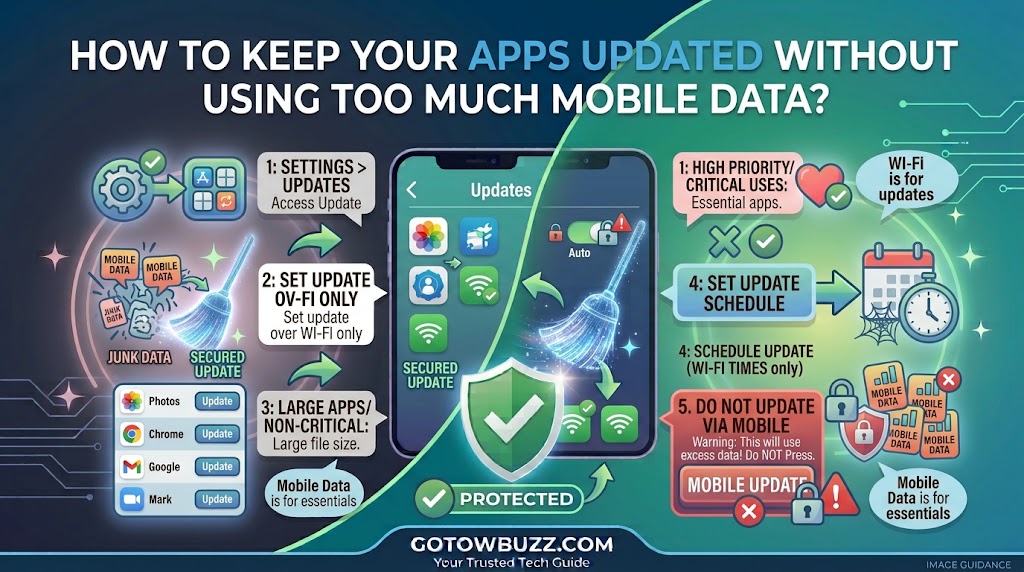
Introduction
If your mobile data disappears faster than expected, automatic app updates may be one of the things worth checking.
You might have a limited monthly data package and notice that several hundred megabytes—or sometimes much more—have been used even though you haven’t downloaded any large files yourself. App updates can contribute to that usage when Google Play is allowed to update applications over mobile data.
The good news is that you don’t have to stop updating your apps to avoid this problem.
Android gives you several ways to control how Google Play handles updates. The simplest choice for many people is to allow automatic updates over Wi-Fi only. You can also update individual apps manually when you’re connected to Wi-Fi, or, where the option is available, let Google Play use a limited amount of mobile data for updates.
This guide explains how to set those options correctly, how to check whether an app is still using mobile data, and what to do if your phone continues downloading updates when you thought mobile data was restricted.
Main Article
Why App Updates Can Use Your Mobile Data
An app update is a download, even if you’re only updating an application you already have.
The amount of data varies from one update to another. A small update may use relatively little data, while an application with a larger package or significant changes can require considerably more.
The problem becomes easier to notice when several apps need updating at the same time.
For example, imagine your phone has 15 apps waiting for updates. You connect to mobile data while away from home, open Google Play, and leave the phone alone. If automatic updates are allowed over mobile data, Google Play may begin processing those updates.
You may not see a dramatic warning before every download.
That’s why the most useful solution is to control the network on which automatic updates are allowed rather than trying to remember to cancel every update individually.
Google Play currently provides an Update over Wi-Fi only option specifically for this type of control.
The Best Basic Setting: Update Apps Over Wi-Fi Only
For most people with a limited mobile-data package, this is the easiest setting to use.
With Wi-Fi-only updates enabled, Google Play is configured to update apps automatically when you’re connected to Wi-Fi rather than using your cellular connection for normal automatic app updates. Google and Samsung both document this option in their current help instructions.
Step 1: Open Google Play Store
Open the Google Play Store on your Android phone.
Tap your profile picture in the top-right corner.
You should see a menu containing options related to your Google account, apps, payments, notifications, and Play Store settings.
[Screenshot 1: Google Play Store home screen with the profile picture in the top-right corner highlighted]
Screenshot purpose: Show beginners exactly where to tap to open the Play Store account menu.
Screenshot caption: Tap your profile picture to open Google Play Store settings and app-management options.
The appearance can differ slightly depending on your Play Store version, but the profile icon is normally located at the top-right.
Step 2: Open Play Store Settings
After tapping your profile picture:
- Tap Settings.
- Look for Network preferences.
- Tap Network preferences.
- Tap Auto-update apps.
Google’s current navigation is Play Store → Profile picture → Settings → Network preferences → Auto-update apps.
[Screenshot 2: Google Play Store Settings screen showing Network preferences]
Screenshot purpose: Show the Network preferences menu and clearly indicate where the reader should tap.
Screenshot caption: Open Network preferences to control how Google Play handles app updates.
Don’t worry if your phone’s screen looks slightly different from the example. Samsung specifically notes that Play Store menus can vary according to the Play Store version, phone model, and software version.
Step 3: Select “Update Over Wi-Fi Only”
Inside Auto-update apps, you’ll see the available update choices.
Select:
Update over Wi-Fi only
This tells Google Play not to use ordinary mobile data for automatic app updates.
Google currently lists this alongside other choices, including updating over Wi-Fi or mobile data, updating with a limited amount of mobile data where available, and turning automatic updates off.
[Screenshot 3: Google Play Auto-update apps menu with “Update over Wi-Fi only” highlighted]
Screenshot purpose: Show the exact setting the reader should choose to prevent normal automatic app updates from using mobile data.
Screenshot caption: Choose “Update over Wi-Fi only” to keep automatic app updates off your mobile-data connection.
Once this setting is selected, you don’t need to manually change it every time you leave home.
When you reconnect to Wi-Fi, Google Play can handle eligible app updates according to its normal update behavior.
What If Your Phone Shows “Update With Limited Amount of Mobile Data”?
Some users may see an option called:
Update with limited amount of mobile data
Google says this option is available only to a limited group of users. When enabled, Google Play uses a limited portion of your monthly mobile-data allowance for automatic app updates and determines a budget based on factors such as your previous mobile-data update behavior. Google also says it tries to update over Wi-Fi first.
This is different from Wi-Fi only.
If your priority is to avoid using mobile data for automatic updates, don’t choose the limited-data option simply because it sounds economical.
Choose Wi-Fi only instead.
The limited-data option can be useful for someone who wants some automatic updating even when Wi-Fi isn’t available, but it doesn’t mean that mobile data usage is completely eliminated.
[Screenshot 4: Google Play Auto-update apps menu showing “Update with limited amount of mobile data” and “Update over Wi-Fi only” as separate choices]
Screenshot purpose: Help readers understand that these are two different settings and that Wi-Fi only is the more appropriate choice when the goal is to avoid cellular data usage from automatic app updates.
Screenshot caption: “Limited mobile data” still permits some cellular data use, while “Wi-Fi only” keeps automatic updates on Wi-Fi.
How to Update Apps Manually When You’re Connected to Wi-Fi
You don’t have to wait for automatic updates.
Manual updating is useful when you want more control over which applications are updated.
For example, you may be at a café, office, school, or home where Wi-Fi is available and want to update your apps before leaving.
Step 1: Open Your App Update List
Open Google Play Store.
Tap your profile picture.
Tap Manage apps & device.
Under the updates section, tap See details if that option appears.
Google’s current instructions use Manage apps & device → See details to view available app updates.
[Screenshot 5: Google Play Manage apps & device screen showing available app updates and the See details option]
Screenshot purpose: Show readers where Google Play lists applications that have updates available.
Screenshot caption: Open Manage apps & device to see which installed apps have updates waiting.
Step 2: Update Only the Apps You Want
After opening the list, you’ll see applications that have available updates.
You can tap Update beside an individual application.
If you’re connected to Wi-Fi and want to update everything, Google Play also provides Update all.
Updating individual apps can be useful when you don’t want to download every available update at once.
For example, you may want to update your messaging app, browser, or another frequently used application while leaving games and less important apps for later.
That gives you more control over when larger downloads happen.
[Screenshot 6: Google Play available updates list with individual Update buttons and Update all visible]
Screenshot purpose: Show the difference between updating one selected application and updating all applications.
Screenshot caption: Update individual apps when you want more control over when downloads take place.
Why You Shouldn’t Simply Turn Off All App Updates
If mobile data is expensive, it can be tempting to choose Don’t auto-update apps and forget about updates completely.
That solves the automatic-download problem, but it creates another one: you may forget to update important applications.
Google notes that keeping Android apps updated provides access to newer features and improves app security and stability.
A better compromise for many users is:
Automatic updates over Wi-Fi only.
That way, you’re not relying on memory to update every application, but you’re also not allowing normal automatic app updates to consume your mobile-data allowance.
You can still manually update a particular app when you need the latest version immediately.
How to Update One Important App Automatically
There may be applications you want updated automatically even if you’re managing the rest of your apps differently.
Google Play lets you manage automatic updates for individual applications.
Open:
Google Play Store → Profile picture → Manage apps & device → Manage
Find the app you want to manage.
Tap the app to open its details page.
Tap the three-dot More menu and look for Enable auto update.
Google documents this individual-app control separately from the general automatic-update setting.
[Screenshot 7: Google Play individual app details screen with the three-dot menu and Enable auto update option]
Screenshot purpose: Show readers where individual-app automatic updating can be controlled.
Screenshot caption: Google Play also provides an individual auto-update control for supported apps.
However, don’t assume this setting gives you a way to bypass the network restrictions you have selected globally. The exact behavior can depend on the Play Store’s current settings and the device.
If your main objective is saving mobile data, keep the overall network preference in mind rather than changing individual apps without checking the broader setting.
Check Your Phone’s Mobile Data Usage
Changing Play Store settings is a good first step, but you can also check whether Google Play is actually using a noticeable amount of mobile data.
Android’s Settings app usually has a section for mobile-data usage, although the exact wording varies between manufacturers.
A common route on many Android phones is:
Settings → Network & internet → Internet or Mobile network → App data usage
On Samsung Galaxy phones, the wording and menu arrangement can differ.
Look for the section showing data usage by application.
You can then look for Google Play Store or another app that appears unusually high.
The exact menu depends on the Android version and manufacturer, so don’t assume that every phone will have the same path.
[Screenshot 8: Android mobile-data usage screen showing apps ranked by cellular-data usage]
Screenshot purpose: Show readers how to identify applications that are consuming mobile data after changing their update settings.
Screenshot caption: Use your phone’s mobile-data usage screen to see which apps are consuming cellular data.
This is particularly useful if you changed the Play Store setting but your data allowance still seems to be disappearing quickly.
The Play Store may not be the main cause.
Video streaming, social-media apps, cloud backups, automatic photo uploads, and other background activity can consume much more data than app updates in some situations.
What About Android’s Data Saver?
Android also provides a Data Saver feature on supported versions.
Data Saver is designed to reduce background mobile-data use by apps. Google explains that when Data Saver is active and Wi-Fi isn’t available, Google Play may be affected. Android also provides an Unrestricted data access area where you can allow selected apps or services to continue using background data.
This is useful to understand because Data Saver and Play Store’s Auto-update apps setting do different jobs.
Think of them as two separate controls.
The Play Store setting determines how app updates are handled.
Data Saver controls broader background-data behavior.
Don’t automatically give Google Play unrestricted data access just because an update isn’t happening.
If your goal is to save mobile data, you generally want to avoid unnecessary exceptions.
[Screenshot 9: Android Settings Data Saver screen with the Data Saver control visible]
Screenshot purpose: Explain where Data Saver can be found and show that it is a broader mobile-data control rather than simply an app-update switch.
Screenshot caption: Data Saver can reduce background mobile-data activity, but it is separate from the Play Store’s update preference.
What If Apps Still Update When You’re Using Mobile Data?
If you’ve selected Update over Wi-Fi only but still see mobile-data activity, don’t immediately assume the Play Store ignored your setting.
Check a few things first.
Check whether the app came from Google Play
Not every Android application is necessarily managed through the Google Play Store.
Some phones have another app store installed by the manufacturer.
Samsung Galaxy devices, for example, can use the Galaxy Store in addition to Google Play.
If you installed an application through another store, check that store’s own automatic-update settings.
This is one reason why changing Google Play’s settings doesn’t necessarily control every application on the phone.
Check the app’s own update system
Some applications use their own update mechanisms or download content independently of Google Play.
A desktop-style example isn’t relevant here, but Android apps can also have services that download files, media, or other content in the background.
If the data usage screen shows a specific application consuming mobile data, investigate that app instead of assuming every download is an app update.
Check your cloud backup settings
Photos and videos can consume significant mobile data if cloud backup is allowed to use cellular data.
If your mobile-data usage is still high after restricting Play Store updates, inspect your backup and synchronization settings.
The Play Store is only one source of network traffic.
What If Google Play Won’t Update Apps Over Wi-Fi?
If your apps remain outdated even when you’re connected to Wi-Fi, check the basics.
First, confirm that the phone actually has a working Wi-Fi connection.
Then open Google Play and look at Manage apps & device.
If an update is available, try updating one application manually.
Google also notes that an account sign-in error can prevent automatic updates. Some updates may also require a device restart.
If manual updating works but automatic updating doesn’t, return to:
Play Store → Profile picture → Settings → Network preferences → Auto-update apps
and check the selected option.
What If You Have a Very Small Mobile-Data Allowance?
If your mobile-data package is limited, a practical routine is better than constantly checking your remaining data.
Set Google Play to:
Update over Wi-Fi only
Then make a habit of updating apps when you’re connected to a trusted Wi-Fi network.
If an important app needs an update while you’re away from Wi-Fi, you can decide whether the update is urgent enough to use mobile data manually.
For example, if your banking application has a required update before it will let you sign in, the situation is different from a game offering a new feature that you don’t need immediately.
The point is to make the network decision before downloading rather than discovering afterward that your mobile-data balance has dropped.
A Simple Setup That Works for Most People
If you want a straightforward configuration without constantly managing individual applications, use this approach:
Google Play automatic updates: Update over Wi-Fi only.
Manual updates: Perform them while connected to Wi-Fi.
Mobile-data usage: Check occasionally to identify other apps using cellular data.
Data Saver: Consider using it when you need broader control over background mobile-data usage.
Important apps: Keep them updated rather than disabling updates entirely.
This gives you a reasonable balance between keeping applications current and protecting a limited mobile-data allowance.
Troubleshooting / Common Problems
The “Update over Wi-Fi only” option is missing
The wording and available options can vary by Play Store version, Android version, device model, and region. Samsung’s current documentation specifically notes that Play Store menu paths can vary by software and device.
Open Play Store → Profile picture → Settings → Network preferences → Auto-update apps and check the options available on your phone.
My apps are not updating even though I’m on Wi-Fi
Open Manage apps & device and check for pending updates.
If one is available, try updating it manually.
Also make sure the Wi-Fi connection actually provides internet access. If your Google account has a sign-in problem, automatic updates may also be affected.
Google Play is still showing mobile-data usage
Remember that Google Play itself can use data for more than app updates.
Also check other applications, cloud backup, media syncing, and downloads.
Use your phone’s mobile-data usage screen to identify which app is actually responsible.
Should I choose “Don’t auto-update apps”?
Only if you deliberately want to manage updates yourself.
For most people, Update over Wi-Fi only is a better balance because apps can still update automatically when Wi-Fi is available. Google recommends keeping apps updated for newer features, security, and stability.
Does Data Saver completely stop app updates?
No. Data Saver is a broader background-data control, not simply an app-update switch. Google explains that Google Play can be affected by Data Saver when Wi-Fi isn’t available, and specific services can be allowed unrestricted background data.
Can I update an app manually using mobile data?
Yes, Android can allow manual app updates over mobile data depending on your connection and settings. But if your goal is to minimize cellular-data use, check the update size and make sure you actually want to spend that data before tapping Update.
Practical Tips
Use Wi-Fi for large batches of updates
If several applications are waiting, updating them while connected to Wi-Fi is the simplest way to avoid consuming your mobile-data allowance.
Don’t turn off updates just to save data
You can keep automatic updates enabled and restrict them to Wi-Fi.
That avoids the common problem of forgetting to update apps for months.
Check app updates before travelling
If you’re going somewhere with limited connectivity, update important applications while you still have reliable Wi-Fi.
This can be especially useful for apps you expect to depend on while travelling.
Review your mobile-data usage if your allowance keeps disappearing
If you have already restricted Play Store updates and your data usage remains high, look at the complete list of apps using cellular data.
The cause may have nothing to do with app updates.
Be careful with public Wi-Fi
Saving mobile data doesn’t mean every Wi-Fi network is equally trustworthy.
For sensitive activities such as banking, use a Wi-Fi connection you trust or your own mobile connection when appropriate.
Keep system and security updates separate in your mind
App updates and Android system updates aren’t exactly the same thing.
Don’t assume that restricting Play Store app updates means your phone’s entire operating system has stopped receiving security or system updates.
Frequently Asked Questions
How can I stop Android apps from using mobile data for automatic updates?
Open Google Play Store, tap your profile picture, go to Settings → Network preferences → Auto-update apps, and select Update over Wi-Fi only. Google currently lists this as an available automatic-update option.
Will my apps still update automatically if I choose Wi-Fi only?
Yes. The setting is designed to allow automatic updates when you’re connected to Wi-Fi rather than allowing normal automatic app updates over mobile data.
Is “Update with limited amount of mobile data” the same as Wi-Fi only?
No. Google says the limited-mobile-data option allows Google Play to use a limited portion of your monthly mobile data for automatic updates, while Wi-Fi only restricts automatic updates to Wi-Fi. The limited-data option is currently available only to some users.
Why are my apps using mobile data even after I changed the Play Store setting?
The Play Store may not be the source of all mobile-data activity. Check your phone’s mobile-data usage list and look for other applications, backups, synchronization, streaming, or downloads.
Should I manually update apps instead of using automatic updates?
You can, but you don’t have to. For many users, automatic updates over Wi-Fi only provide a better balance because apps can stay updated without normally consuming mobile data for automatic updates.
Does updating apps over Wi-Fi use my mobile data at all?
The app update itself should use the Wi-Fi connection when the Play Store is set to update over Wi-Fi only. However, other apps or services on your phone can still use mobile data at the same time.
Can I choose which individual apps update automatically?
Google Play provides controls for individual apps through Manage apps & device → Manage, where you can open an app’s details and access its individual auto-update control.
Final Thoughts
You don’t need to choose between keeping your Android apps updated and protecting a limited mobile-data package.
For most people, the simplest solution is to open Google Play Store, go to Settings → Network preferences → Auto-update apps, and choose Update over Wi-Fi only.
After that, use the mobile-data usage screen occasionally if your data allowance still seems to be disappearing faster than expected. If Google Play isn’t responsible, you’ll be able to identify the apps that are actually consuming the connection.
And if you need an important update while away from Wi-Fi, check what you’re updating before downloading it over cellular data.
A few sensible settings can make app updates almost automatic without letting them quietly consume the data you intended to use for everything else.
Sources Used for Accuracy
- Google Play Help — How to update apps on Android. Used to verify the current automatic-update options, Wi-Fi-only setting, limited-mobile-data option, manual update path, and individual-app update controls.
- Google Play Help — Turn on background data. Used to verify how Data Saver and Google Play background-data access interact.
- Google Play Help — Keep your device & apps working with Google Play services. Used to distinguish Google Play services from the Play Store and verify its role in Android app functionality.
- Samsung Support — How to manage app updates and apps on your Samsung Galaxy device, updated August 26, 2026. Used to verify the current Galaxy/Play Store navigation and Samsung’s warning that menu paths can vary by device and software version.