
Introduction
If your Android phone has started taking longer to open apps, freezing occasionally, or complaining that there isn’t enough storage, don’t ignore the warning.
A phone doesn’t need to be completely full before storage starts becoming a problem. Google says Android devices can begin experiencing issues when less than 10% of storage remains free. That doesn’t mean every phone will suddenly become slow at exactly that point, but it is a useful warning that very little working room is left.
The good news is that you don’t need to delete your important photos, family videos, documents, or apps just to make your phone usable again.
The better approach is to find out what is consuming the space, remove things you genuinely don’t need, reduce unnecessary app data, move files you want to keep somewhere else, and leave a reasonable amount of free storage available.
This guide explains how to do that step by step, including what to check first, which files are usually safe to remove, what you should never delete without checking, how to handle large apps, and what Samsung Galaxy users can do differently.
Why a Nearly Full Phone Can Start Feeling Slow
Your phone uses storage for much more than photos and videos.
Apps, downloaded files, temporary data, system files, offline content, camera files, messages, and other information all occupy internal storage.
When there is plenty of free space, adding another photo or downloading an app usually isn’t something you think about. But when the remaining space becomes very small, ordinary tasks can become harder because the system and apps have less room to work with.
Google specifically recommends checking storage when an Android device becomes slow or unstable and notes that problems can occur when less than 10% of storage is free.
That means the first step shouldn’t be deleting random files.
Find out how much space you actually have left.
Step 1: Check How Much Storage Is Free
The exact menu can vary between Android manufacturers, but on many phones you can start with:
Settings → Storage
You should see an overview showing how much storage is used and how much remains.
You may also see categories such as:
- Apps
- Images
- Videos
- Audio
- Documents
- Downloads
- System
- Other
Google’s current Android guidance uses Settings → Storage to view storage usage and select individual categories.
What you are looking for
Don’t worry about the percentage alone.
Look at the actual amount of free space.
For example, a 128 GB phone with only 6 GB free is in a much tighter position than the same phone with 25 GB free.
You don’t need to chase a particular number just because someone online says your phone must have exactly a certain amount free. Instead, treat very low free storage as a reason to clean up before it starts interfering with normal use.
[Screenshot 1: Android Settings > Storage screen showing total storage, used storage, available space, and major storage categories]
Screenshot purpose: Show readers exactly where they can see how much storage remains and which categories are consuming the most space.
Screenshot caption: Start with the Storage screen so you know exactly how much free space is left.
Screenshot source guidance: Use a current screenshot from the target phone model. Android menu layouts differ by manufacturer, so do not label a Pixel screenshot as a Samsung screenshot or vice versa.
Step 2: Find the Category Using the Most Space
Once you’ve opened Storage, don’t immediately start deleting files.
Look at the categories first.
If Videos is using 35 GB, deleting small documents won’t make much difference.
If Apps is using 60 GB, you should investigate installed apps instead.
If Images is taking up most of the space, review your photo and video backup strategy.
If Downloads is unusually large, you may have old installers, documents, ZIP files, videos, or other files that were downloaded months ago and forgotten.
This simple check prevents a common mistake: spending 20 minutes deleting tiny files while leaving the biggest storage problem untouched.
Step 3: Review Large Apps Before Deleting Anything
Apps can quietly become some of the biggest storage users on a phone.
Games are an obvious example, but streaming, social media, editing, navigation, messaging, and music apps can also accumulate downloaded content and other data.
Open:
Settings → Apps
Then select an app you suspect is taking a lot of space.
Depending on your phone, look for:
Storage
or
Storage & cache
You may see separate amounts for the application itself, user data, and cached data.
Android’s settings can vary between devices, so don’t be concerned if your phone uses slightly different wording.
[Screenshot 2: Android App info page showing the Storage or Storage & cache section for a large app]
Screenshot purpose: Show readers where to inspect the storage consumed by an individual application.
Screenshot caption: Open a large app’s storage information before deciding whether to remove anything.
Don’t assume the largest app needs to be deleted
Suppose a game uses 12 GB.
If you play it every day, removing it just to save storage may not make sense.
Instead, check whether the game has downloadable content that you no longer need.
The same applies to music and video apps. Offline downloads can consume substantial space even though the original app itself may not be unusually large.
Step 4: Remove Offline Downloads From Inside the App
This is one of the safest ways to recover storage without losing something important.
Open apps that allow offline content and check their own download sections.
Look for:
Downloaded videos
Offline music
Downloaded podcasts
Offline maps
Saved shows
Downloaded documents
Cached media
If you find content you no longer need, remove it from the app itself.
This is preferable to clearing all of the app’s data because you can choose exactly what goes.
For example, if a music app contains 8 GB of downloaded albums but you only listen to a few of them, deleting the old offline albums may recover several gigabytes without removing the app or your account.
Step 5: Clean the Downloads Folder
The Downloads folder is another place where storage can disappear without you noticing.
Open your phone’s file manager.
On many Android phones, this is called Files, My Files, or Files by Google.
Open:
Downloads
Then sort through the files.
Look for things such as:
- Old PDFs
- Duplicate documents
- Installation files
- ZIP archives
- Videos you no longer need
- Images downloaded from websites
- Old attachments
- Documents you already saved somewhere else
Google recommends deleting downloaded files you no longer need or copying files to a computer before removing them from the phone.
[Screenshot 3: Android file manager showing the Downloads folder with file names and file sizes visible]
Screenshot purpose: Demonstrate how to inspect downloaded files before deleting them.
Screenshot caption: Check the Downloads folder carefully; old files can take up more space than you realize.
Don’t delete a file just because you don’t recognize the name
If you’re unsure what a file is, open it first.
This is particularly important for documents, work files, exported photos, backups, and files that may have been created by another app.
Storage cleanup should be selective, not a race to delete everything.
Step 6: Deal With Photos and Videos Carefully
Photos and videos are often responsible for a large percentage of storage usage.
But they are also among the files people most regret deleting.
Before removing anything, make sure important photos and videos are backed up somewhere you can access later.
If you use Google Photos, check that the content you want to keep has been backed up before using any option that removes local copies.
You can also transfer important files to a computer or another trusted storage location.
Google’s Android guidance specifically suggests copying files to a computer before deleting them from the phone when you want to keep those files but don’t need them stored locally.
[Screenshot 4: Google Photos or Android backup screen showing backup status before local photos are removed]
Screenshot purpose: Show readers that they should verify backup status before removing local copies of important photos or videos.
Screenshot caption: Confirm that important photos and videos are safely backed up before removing local copies.
A useful rule
Never use the amount of free storage as the only reason to delete irreplaceable files.
If a photo exists only on your phone and you would be upset if it disappeared, back it up first.
Step 7: Clear App Cache When It Makes Sense
Android apps sometimes store temporary data called cache.
Cached files can help apps load certain content faster, but they can also grow over time.
Android allows you to clear an app’s cache through Settings, although the exact location varies by device. Google explains that clearing cached data temporarily frees space, but cached data can build up again later.
A common route is:
Settings → Apps → [Choose app] → Storage & cache → Clear cache
Some phones simply show:
Storage → Clear cache
What happens when you clear cache?
Usually, the app remains installed and your main account information is not intentionally erased.
However, the next time you open the app, some content may take longer to load because temporary files need to be created again.

Screenshot caption: Clear cache removes temporary files; be much more careful with Clear storage or Clear data.
Do not confuse Clear cache with Clear storage
This distinction matters.
Google says Clear cache deletes temporary data, while Clear storage permanently deletes all app data.
That means you should not tap Clear storage simply because you are trying to make room.
It can remove locally stored information, settings, downloaded content, or other app data depending on the application.
If you don’t know exactly what an app stores locally, don’t clear its storage without checking first.
Step 8: Remove Apps You Don’t Use
Unused apps are an easy source of storage savings.
Think about apps you installed for a single purpose and haven’t opened since.
Maybe it was a shopping app for one purchase, a game you stopped playing, a travel app from an old trip, or an editing tool you replaced with another application.
If you don’t need it, uninstalling it can recover its app storage.
Google’s current Android instructions allow installed apps to be removed through the Play Store’s app-management area.
A typical route is:
Google Play Store → Profile picture → Manage apps & device → Manage
Select the app you no longer need and choose Uninstall.
You can also uninstall many apps directly from their app information page.
[Screenshot 6: Google Play Store > Manage apps & device > Manage screen showing installed apps and the Uninstall option]
Screenshot purpose: Show the safest place for beginners to review and remove unused downloaded apps.
Screenshot caption: Remove apps you no longer use instead of deleting files you may need later.
Step 9: Consider App Archiving Instead of Uninstalling
If you have Android 15 or a supported device, app archiving can be useful when you want to reduce storage use without completely forgetting about an app.
When an app is archived, Android removes the app’s software, permissions, temporary files, and stops its notifications while retaining its icon and app data. You can restore the app later if it is still available from the app store.
To manually archive a supported app:
- Open Settings.
- Tap Apps.
- Select the app.
- Tap Archive if the option is available.
The feature is not available on every device, so don’t worry if you don’t see it.
[Screenshot 7: Android App Info screen on a supported Android 15 device showing the Archive option]
Screenshot purpose: Show readers what the Archive option looks like and distinguish it from Uninstall.
Screenshot caption: On supported Android 15 devices, archiving can free space while keeping the app available for later restoration.
Android also supports automatic app archiving through the Play Store on compatible devices.
Step 10: Let Android Manage Unused Apps
Android has another feature that can help with apps you rarely use.
On supported devices, Android can optimize unused apps by deleting temporary files, revoking permissions, stopping them from running in the background, and stopping their notifications.
You can review this area through:
Settings → Apps → Unused apps
The exact location can differ.
This can be useful if you’ve accumulated dozens of apps over several years but don’t want to manually inspect every one.
Before excluding an app from unused-app management, consider whether it performs an important background function.
Step 11: Restart Your Phone After Cleaning Up
After freeing storage, restart the phone.
This isn’t a magical speed boost, and restarting won’t create permanent storage space.
It can, however, refresh running processes and give you a clean starting point after you’ve removed files, uninstalled apps, or installed updates.
Samsung specifically recommends restarting as part of troubleshooting slow Galaxy devices because it can close background processes and refresh the system.
After restarting, use the phone normally for a while.
Open the apps you regularly use.
Take a photo.
Browse the web.
Switch between apps.
You’re checking whether the original problem has actually improved.
Step 12: Install Pending Android and App Updates
Low storage can sometimes make updates difficult, but once you’ve created enough free space, check for pending updates.
For Android system updates, the path varies by manufacturer.
On many phones, look under:
Settings → System → Software update
On Samsung Galaxy phones, the current route is generally:
Settings → Software update → Download and install
Samsung’s current support documentation notes that software-update menu names vary by One UI version.
For apps:
Google Play Store → Profile picture → Manage apps & device → Updates available
Google recommends checking for app updates when troubleshooting Android performance problems.
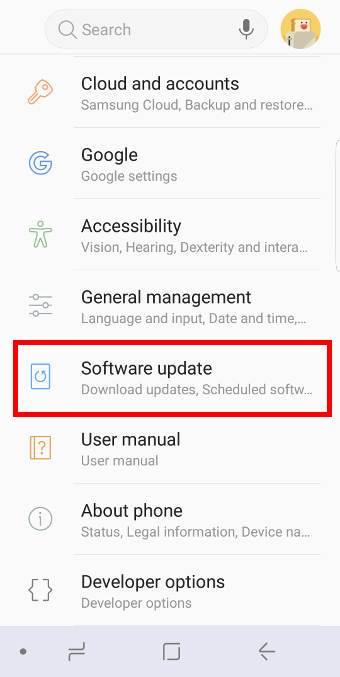
Screenshot caption: After freeing enough space, check for Android and app updates to keep the phone stable.
Samsung Galaxy Users: Use Device Care
Samsung Galaxy phones have a useful built-in tool called Device Care.
The current Samsung documentation says Device Care provides an overview of battery, storage, memory, security, and device health. It also includes Optimize now, storage management, and memory tools.
Open:
Settings → Device care
Then choose Storage to inspect storage usage.
You can also choose Optimize now to let Device Care check the phone and perform supported optimization tasks.
[Screenshot 9: Samsung Galaxy Settings > Device care screen showing Optimize now, Storage, Battery, and Memory]
Screenshot purpose: Give Galaxy users a clear visual starting point for managing storage and performance from one place.
Screenshot caption: Samsung Device Care brings storage, memory, battery, and optimization tools together.
Samsung says available screens can vary by device model, software version, and carrier, so a Galaxy phone may not look exactly like another Galaxy model.
Clean Galaxy storage carefully
On supported Galaxy phones:
Settings → Device care → Storage
Choose a category such as Images, Videos, Audio files, or Documents.
Select only the files you are certain you no longer need, then choose Delete and confirm the move to Trash where shown.
Don’t use Device Care as an excuse to delete everything it finds.
Read the file names and categories before confirming.
What You Should Never Delete Just to Free Space
Storage cleanup becomes dangerous when people start deleting files they don’t understand.
Avoid randomly removing:
System files
These are required by Android and should not be manually deleted.
Unknown app folders
A folder with an unfamiliar name may contain important application data.
Messaging backups
If you need old conversations or attachments, confirm where the backup is stored before removing local copies.
Unbacked photos and videos
These are often impossible to replace.
Work or school documents
Move them somewhere safe before deleting them.
App data
Don’t clear app storage unless you understand what the app stores there.
The general rule is simple:
If you don’t know what a file does, don’t delete it just because it looks large.
What If Your Phone Is Still Slow After Freeing Storage?
If you’ve freed a reasonable amount of space and the phone remains slow, storage may not be the only problem.
Check these areas next.
Look for a Problem App
A poorly behaving app can cause freezes, crashes, or unusual background activity.
Google recommends checking for app updates and, when troubleshooting, identifying apps that may be causing the problem. Safe Mode can also temporarily disable downloaded apps so you can determine whether one of them is responsible.
If the phone becomes noticeably better in Safe Mode, a recently installed or updated third-party app becomes a stronger suspect.
Check for System Updates
An outdated system can cause compatibility and stability problems.
Install available updates once you’ve made enough room.
Restart the Phone
A restart is simple and safe for most routine troubleshooting.
Check Battery Health and Usage
If the phone is also losing battery unusually quickly, check:
Settings → Battery → Battery usage
A badly behaving app may explain both poor performance and fast battery drain.
Consider Hardware Age
Storage isn’t the only component that affects performance.
An older phone may have slower hardware, an aging battery, or limited memory.
If you’ve cleaned storage and ruled out problematic apps and software issues, the phone’s age may simply be part of the explanation.
A Simple Storage Routine That Prevents the Problem
You don’t need to clean your phone every day.
A small routine is enough.
Once every few weeks, check:
Storage: See how much free space remains.
Downloads: Remove files you no longer need.
Videos: Review large recordings and duplicate clips.
Apps: Uninstall or archive apps you no longer use.
Offline content: Remove old downloads from streaming and navigation apps.
Photos: Confirm backups before deleting local copies.
Updates: Install pending Android and app updates when enough storage is available.
This takes much less time than trying to rescue a phone that has reached the point where almost every task is affected by low storage.
Troubleshooting / Common Problems
My phone is still slow even after deleting several gigabytes
Check the Storage screen again.
If you deleted files but the available space barely changed, the deleted items may still be in a Trash or Recycle Bin.
Some apps also maintain their own deleted-item folders.
Check your file manager and photo app for recently deleted content.
Also remember that Android’s reported storage may not immediately match the amount you expected to recover.
I have less than 10% free storage. What should I remove first?
Start with the largest categories.
Check large videos, unused apps, downloads, and offline media before touching personal documents or photos.
Google specifically identifies less than 10% free storage as a point where Android devices can begin having issues.
Will clearing cache make my phone permanently faster?
Not necessarily.
Clearing cache can temporarily free storage, but Android notes that cached data can build up again.
Use it when an app has an unusually large cache or is behaving strangely, not as a routine promise of permanent speed improvement.
Is it safe to use a phone cleaner app?
You generally don’t need to install one simply to manage ordinary storage.
Android already provides storage controls, while Samsung Galaxy phones provide Device Care. Start with the tools built into the phone before giving a third-party cleaner access to your files or other device information.
Why does my storage fill up again after I clean it?
Some types of content naturally grow again.
Photos and videos accumulate. Streaming apps download content. Messaging apps receive attachments. App caches are rebuilt.
If the same category keeps growing, address the source rather than repeatedly deleting random files.
For example, if a video app repeatedly downloads offline content, manage its downloads instead of clearing unrelated folders.
Practical Tips
Keep a little breathing room
Don’t wait until the phone says storage is completely full.
Google’s guidance says Android devices can start experiencing problems below 10% free storage, so treat that range as a warning rather than something to ignore.
Delete large files before hundreds of tiny files
One 4 GB video can matter more than hundreds of small screenshots.
Always look at file sizes when deciding where to start.
Back up before deleting personal files
Especially photos, videos, documents, recordings, and messages.
A few minutes of backup checking can prevent a very painful mistake.
Use app archiving when available
If you rarely use an app but might need it again, archiving can be more convenient than permanently uninstalling it on supported Android 15 devices.
Don’t repeatedly clear every app’s cache
Cache is temporary data. Some of it will return as apps are used again.
Focus on genuinely large storage users instead.
Keep your apps updated
Updates can fix bugs and compatibility problems. Google recommends checking app updates when troubleshooting Android performance issues.
Frequently Asked Questions
How much free storage should I keep on an Android phone?
There isn’t one universal number that works for every Android phone. However, Google says Android devices can start experiencing issues when less than 10% of storage is free. If you’re approaching that point, it’s sensible to start cleaning up before the phone becomes difficult to use.
Does a full phone make Android slower?
Very low available storage can contribute to performance and stability problems. Google specifically recommends checking storage when an Android device becomes slow or unstable and identifies less than 10% free storage as a possible trouble point.
What should I delete first when Android storage is full?
Start with things that are easy to identify and replace: unused apps, old downloads, unnecessary offline videos or music, duplicate files, and large files you’ve already backed up.
Don’t start by deleting personal photos or unknown system files.
Is clearing cache safe on Android?
Clearing an app’s cache removes temporary data. It generally doesn’t remove the app itself, but some apps may take longer to open or reload certain content afterward. Google describes cache clearing as a temporary way to free space.
What is the difference between Clear cache and Clear storage?
Clear cache removes temporary files.
Clear storage permanently removes the app’s stored data.
Because clearing storage can remove important local information, don’t use it simply because an app is taking up a lot of space.
Can I free up storage without deleting my photos?
Yes. Start by checking unused apps, downloads, offline media, large files, and app cache. You can also back up photos and videos to another trusted location before removing local copies.
Does restarting an Android phone free up storage?
A restart doesn’t permanently create storage space. It can refresh running processes and help with temporary performance problems, but actual storage recovery requires removing or moving data.
Final Thoughts
A phone doesn’t need to be completely full before you start paying attention to storage.
If your Android device is getting close to its limit, begin with the Storage screen and find the categories consuming the most space. Then work from the safest options: remove old downloads, delete unnecessary offline content, uninstall apps you no longer use, archive supported apps, and clear cache only when appropriate.
Be much more careful with photos, videos, documents, backups, and app data.
The most useful habit is not a monthly “deep clean.” It’s keeping an eye on storage before it becomes a problem. When you notice the free space getting low, a few small changes can prevent the phone from reaching the point where everyday tasks become frustrating.
Sources Used for Accuracy
- Google Android Help — Speed up a slow Android device: used to verify the 10% free-storage warning, storage checks, updates, and Android performance troubleshooting.
- Google Android Help — Free up storage on your Android device: used to verify storage management, cache/data behavior, downloaded files, app archiving, and moving files to a computer.
- Google Android Help — Archive unused apps on Android: used to verify Android 15 app archiving behavior and manual archiving steps.
- Google Android Help — Manage unused apps: used to verify Android’s handling of unused applications.
- Samsung Support — Check and optimize your Galaxy device with Device Care: used to verify current Galaxy Device Care, storage, memory, battery, and optimization features.
- Samsung Support — What to do when your Galaxy device appears slow or unresponsive: used to verify current Galaxy troubleshooting, updates, memory cleanup, and restart guidance.