
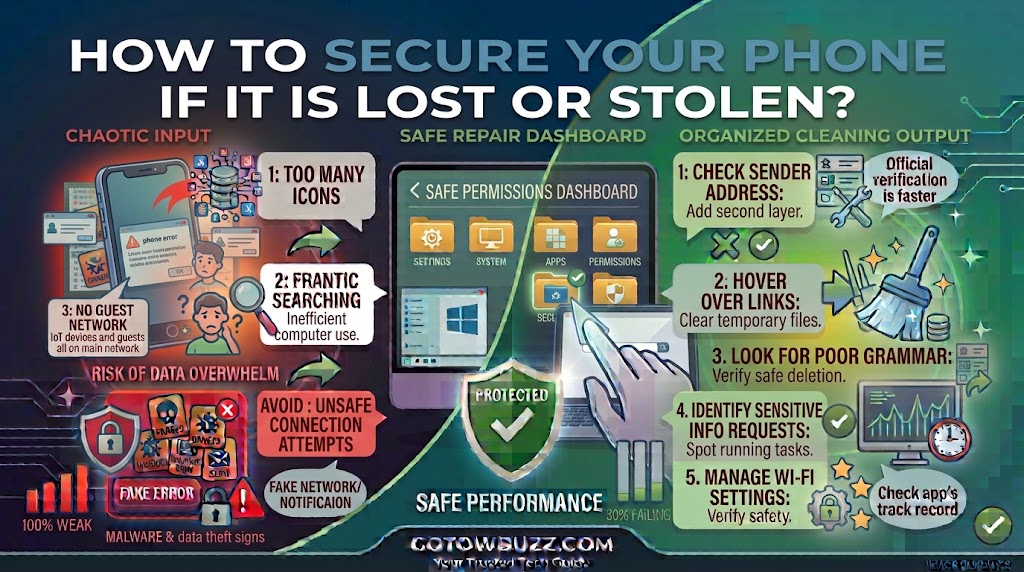
Introduction
Losing your phone is stressful, but the biggest problem isn’t always the cost of replacing the device.
Your phone may contain email accounts, photos, saved passwords, private messages, banking apps, contacts, documents, and access to other online accounts. If someone gets hold of an unlocked phone, or finds a way into it, your personal information could be at risk.
The good news is that modern Android phones and iPhones have built-in tools that can help you locate, lock, or erase a missing device remotely.
The most important thing is to act quickly.
If your phone has just disappeared, don’t spend an hour trying random solutions. First try to locate it. If you believe someone has stolen it, remotely lock it and protect your important accounts. If recovery looks unlikely, remote erasure may be appropriate.
This guide explains what to do in the right order, what changes depending on whether you use Android or iPhone, and what you should prepare before a phone ever goes missing.
First: Decide Whether the Phone Is Lost or Stolen
The first response depends on what happened.
If you simply left your phone at home, in a car, at work, or in a restaurant, tracking it may be enough.
If you believe someone deliberately took it, treat the situation more seriously.
Don’t confront someone you suspect of stealing your phone just because a tracking service shows the device at a particular location.
Your safety matters more than recovering the device.
If the location shown by the tracking service is unfamiliar or potentially dangerous, contact the appropriate authorities rather than attempting to retrieve the phone yourself.
If Your Phone Is Missing Right Now
If you are reading this because your phone has just disappeared, start here.
Step 1: Try calling the phone
Use another phone to call your number.
If the phone is nearby, you may hear it ringing.
Someone who finds it may also answer.
If the phone is on silent, a remote-finding service may still be able to make it play a sound.
Step 2: Try the official device-finding service
For Android devices, Google’s Find Hub can help locate and secure supported devices.
For iPhone, Apple’s Find My service can help locate and protect a missing device.
Use the official service associated with your phone.
Don’t enter your account password into a random “find my phone” website appearing in search results.
[Screenshot 1: Official device-finding service interface showing a phone selected on a map, with the device name and security options visible]
Screenshot purpose: Demonstrate what a legitimate device-finding dashboard can look like while avoiding exposure of real account information, addresses, or device identifiers.
Screenshot caption: Use the official device-finding service to locate and secure a missing phone.
How to Secure a Lost Android Phone
Android’s device-finding tools can provide several actions, depending on the device and its current state.
Google’s current Find Hub documentation explains that supported devices can be located and secured remotely. Availability of individual features can depend on the device, account, connectivity, and other conditions. (support.google.com)
Step 3: Open Find Hub
From another device, use Google’s official Find Hub service or the Find Hub app where available.
Sign in with the Google Account associated with the missing phone.
Select the missing device.
You may see its current or recent location if the required conditions are met.
If the phone cannot currently provide a location, don’t immediately assume it has been destroyed or stolen. The device may simply be offline, switched off, out of battery, or unable to communicate with the service.
[Screenshot 2: Fictional Android Find Hub screen showing a selected phone, approximate location area, battery information, and available security actions]
Screenshot purpose: Show readers where they can select their missing Android device and find the available security actions.
Screenshot caption: Select the missing Android phone and review its available location and security options.
Step 4: Play a sound if the phone may be nearby
If you think the phone is somewhere nearby, use the option to make it play a sound when available.
This can help you find a phone that slipped between furniture, was left in another room, or is otherwise difficult to see.
Before using the sound option, make sure you’re not putting yourself in danger by approaching an unknown location.
Lock the Android Phone Remotely
If you can’t immediately recover the phone, securing it should become the priority.
Find Hub provides options for securing a supported device remotely.
Depending on the device and Google’s current service behavior, you may be able to lock the screen and display contact information or a message that can help a legitimate finder return the phone.
Step 5: Secure the device
Select the missing phone in Find Hub.
Look for the available option to mark or secure the device.
Follow the on-screen instructions.
If the service allows you to add a message or phone number, consider providing an alternative contact method rather than information that reveals your home address.
For example, a message asking the finder to call a secondary number can be more useful than displaying your full address.
[Screenshot 3: Fictional Android Find Hub security screen showing a device-lock action and optional contact message field]
Screenshot purpose: Show the remote-lock process without exposing a real person’s phone number, location, or account information.
Screenshot caption: Secure the missing Android phone and add safe contact information for a potential finder.
How to Secure a Lost iPhone
Apple’s Find My service provides tools for locating and protecting a missing iPhone.
Step 6: Open Find My
Use another Apple device with the Find My app or use Apple’s official Find Devices service through iCloud.
Sign in with the Apple Account associated with the missing iPhone.
Select your iPhone.
If the device can report its location, you’ll see its location or last known information according to Apple’s available Find My features.
Apple notes that Find My can help locate devices and includes Lost Mode for missing iPhones. (support.apple.com)
[Screenshot 4: Fictional Find My interface showing a selected iPhone and Lost Mode option]
Screenshot purpose: Show readers where the missing iPhone is selected and where Lost Mode can be activated.
Screenshot caption: Select your missing iPhone in Find My and activate Lost Mode if you can’t recover it quickly.
Turn On Lost Mode
For an iPhone, Lost Mode is one of the most important actions to understand.
Lost Mode locks the device and can display contact information or a message for someone who finds it.
Apple explains that Lost Mode can lock a missing device and suspend certain Apple Pay functionality. (support.apple.com)
Step 7: Activate Lost Mode
In Find My, select your missing iPhone.
Choose the option to mark the device as lost or activate Lost Mode.
Follow the prompts.
You may be asked to provide a phone number or message that can appear on the device.
Choose information that allows a legitimate finder to contact you without revealing unnecessary personal details.
[Screenshot 5: Fictional Find My Lost Mode setup screen showing an optional contact number and short message]
Screenshot purpose: Demonstrate the information users may be asked to provide when enabling Lost Mode.
Screenshot caption: Add a safe contact number or message so a legitimate finder can contact you.
Don’t Remove the Device From Find My Too Quickly
If your iPhone has been stolen, don’t remove it from your Apple Account or Find My simply because someone tells you that you need to do so to recover it.
This is especially important because removing a device from your account can affect the protections associated with Apple’s Find My and Activation Lock features.
Apple specifically warns users not to remove a stolen iPhone from Find My because doing so can make it easier for someone else to unlock or resell the device. (support.apple.com)
If someone sends you a message claiming they found your phone and asks you to remove it from your account, be suspicious.
Beware of “We Found Your Phone” Scams
This is one of the most important things to understand after losing a phone.
Someone may contact you claiming:
“We found your iPhone.”
“Click here to see its location.”
“Sign in to confirm ownership.”
The message may look convincing.
The goal could be to trick you into giving away your Apple Account or Google Account password.
Never enter your password into a link received unexpectedly through SMS, email, or messaging apps.
Instead, open the official Apple or Google service yourself.
[Screenshot 6: Fictional phishing message claiming that a lost phone has been found, with a suspicious link highlighted]
Screenshot purpose: Teach readers how criminals may use a lost-phone situation to create urgency and steal account credentials.
Screenshot caption: Be suspicious of unexpected messages asking you to sign in to recover a lost phone.
Don’t Share Verification Codes
A scammer may already know your phone number or other details.
They might then attempt to sign into your account and contact you pretending to be Apple, Google, your mobile provider, or someone who found the device.
They may ask for a verification code.
Don’t give the code to them.
A verification code can sometimes help an attacker complete an account-login process.
If you receive an unexpected security code, open the relevant account’s official security page yourself and check for unusual activity.
Contact Your Mobile Carrier
If the phone was stolen, contact your mobile carrier as soon as practical.
The carrier may be able to suspend your cellular service or take other account-level steps.
The exact process varies between carriers and countries.
Ask what options are available for a lost or stolen device.
You may need information such as your account details, phone number, or device information.
If your carrier provides an official app or website, use that rather than responding to an unexpected message claiming to be from the carrier.
Report the Theft if Appropriate
If you believe your phone was stolen, consider reporting it to the police or relevant local authorities.
Provide the information they request.
Useful information may include:
- Make and model
- Phone number
- Approximate time and location of the theft
- Device serial number
- IMEI number, if available
- Tracking information
Don’t put yourself at risk by trying to recover a stolen phone personally.
A tracking map is useful information, but it isn’t a reason to confront someone.
Find Your IMEI or Serial Number Before You Need It
An IMEI is a unique identifier associated with a mobile device.
Your carrier or authorities may ask for it when dealing with a lost or stolen phone.
Don’t wait until the phone disappears to discover that you don’t have the information.
You may find the IMEI or serial number:
- On the original packaging
- On your purchase records
- In your carrier account
- In your device account information
- In the phone’s settings while you still have access to it
Store this information somewhere secure.
Don’t publish your IMEI or serial number publicly.
Change Important Passwords
If your missing phone was unlocked when it disappeared, or if you believe someone may know your screen passcode, protect your important accounts.
Start with the accounts that could give access to other services.
A sensible order is:
Email account
Primary Apple or Google account
Password manager
Banking and financial accounts
Social-media accounts
Shopping accounts
Work or school accounts
Changing the password for your primary email account can be particularly important because email is often used to reset passwords for other services.
Use a trusted device to make these changes.
Review Active Sessions
Changing a password is useful, but don’t stop there if you suspect someone accessed your account.
Many services provide a security page showing devices or sessions that are currently signed in.
Look for devices you don’t recognize.
Sign them out where the service provides that option.
The exact process varies by provider.
For your Google Account, Apple Account, Microsoft account, email service, and other important accounts, use their official account-security pages.
Protect Your Email Account First
Your email account deserves special attention because it can be connected to password resets for other accounts.
If your phone was unlocked and you believe someone may have accessed your email, change the password from another trusted device.
Then review:
- Recent sign-ins
- Recovery information
- Two-factor authentication methods
- Trusted devices
- Forwarding rules
- Security alerts
If anything has changed without your permission, correct it and investigate further.
Check Your Banking and Payment Accounts
If your phone contains banking apps or payment applications, review them promptly.
Don’t wait for a suspicious transaction before taking action.
Check recent account activity.
If you believe someone could access a banking or payment account, contact the financial institution through its official phone number or website.
Don’t use a phone number sent to you in an unexpected message.
Your bank can tell you which protective steps are appropriate for your particular account.
What About Mobile Payment Cards?
If you lose an iPhone, activating Lost Mode can suspend payment cards associated with Apple Pay on the device. Apple provides specific guidance about using Lost Mode to protect a missing iPhone. (support.apple.com)
Other mobile payment systems have their own security controls.
If you’re concerned, check the official documentation for your payment provider or bank.
You don’t need to delete every financial account simply because the phone is missing.
The appropriate response depends on whether the phone was locked, whether the account can be remotely secured, and whether you see signs of unauthorized activity.
When Should You Erase the Phone Remotely?
Remote erasure is a serious step.
If you believe the phone cannot realistically be recovered and it contains sensitive information, remotely erasing it may be appropriate.
However, don’t rush into erasure if you still need location information to help recover the device and your platform warns that certain tracking capabilities may change after erasure.
Before choosing this option, read the confirmation screen carefully.
Android
Google’s Find Hub provides remote actions for supported devices, including the ability to erase a device in appropriate circumstances. Availability can depend on the device and its connection status. (support.google.com)
iPhone
Apple’s Find My service allows users to erase a missing iPhone remotely.
Apple warns that users should not remove a stolen device from Find My after erasing it because doing so can remove Activation Lock protections. (support.apple.com)
[Screenshot 7: Fictional remote-erase confirmation screen showing a prominent warning that the action cannot easily be undone]
Screenshot purpose: Show readers that remote erasure is a major action and should not be selected casually.
Screenshot caption: Read the warning carefully before remotely erasing a lost or stolen phone.
What If the Phone Is Offline?
Don’t assume that an offline phone is permanently lost.
It could be:
- Switched off
- Out of battery
- In an area without connectivity
- In airplane mode
- Unable to communicate temporarily
Modern device-finding systems can have different capabilities for offline devices depending on the device model, operating-system version, settings, and network features.
Leave the official finding service enabled and check again later if appropriate.
What If Someone Knows Your Screen Passcode?
This is more serious than simply losing a locked phone.
If you believe another person knows your passcode, use another trusted device to secure important accounts immediately.
Change your Apple Account or Google Account password.
Review active sessions.
Check financial accounts.
Contact your carrier.
Consider remotely erasing the device if recovery is unlikely and sensitive information is at risk.
For future protection, use a strong screen lock that isn’t easily guessed.
Avoid simple patterns or codes based on birthdays, addresses, or other information people close to you might know.
How to Prepare Your Phone Before It Is Lost
The best time to configure phone security is before anything goes wrong.
Enable a strong screen lock
Use a strong PIN, password, or biometric protection supported by your phone.
Don’t rely on an easy-to-guess code.
Turn on device-finding features
For Android, make sure the relevant Find Hub features are configured.
For iPhone, enable Find My.
Apple recommends enabling Find My before an iPhone is lost because you can’t turn it on remotely after the device disappears. (support.apple.com)
Keep the operating system updated
Install security updates through your phone’s normal update system.
Back up important information
A backup won’t recover the physical phone, but it can save your photos, contacts, documents, and other information from being permanently lost.
Enable two-factor authentication
Use two-factor authentication on important accounts where available.
Make sure you have a recovery method that doesn’t depend entirely on the missing phone.
Record important device information
Keep your IMEI, serial number, and purchase information somewhere secure.
[Screenshot 8: Fictional phone settings screen showing Find My or device-finding functionality enabled, with personal information hidden]
Screenshot purpose: Remind readers to configure device-finding features before losing the phone.
Screenshot caption: Set up your phone’s finding and security features before you need them.
Don’t Depend Only on Your Phone for Account Recovery
This is an easy mistake to make.
Imagine your phone is lost and your email account requires a verification code that is sent only to that same phone.
You may then have difficulty accessing the account needed to secure the phone.
Set up alternative recovery options where the service supports them.
These may include:
- Recovery codes
- A trusted secondary device
- An authenticator app
- A security key
- A verified recovery email
Store recovery codes somewhere safe and accessible when your primary phone isn’t available.
Common Mistakes After Losing a Phone
Waiting too long to lock it
If you can’t find the phone quickly, secure it remotely rather than hoping it will turn up.
Clicking a “phone found” link
Scammers know that people are worried after losing a device.
Open the official Apple or Google service yourself.
Sharing a verification code
Never give unexpected login codes to someone claiming to have your phone.
Removing a stolen iPhone from Find My
Don’t do this simply because someone claims it is required to recover the phone. Apple specifically warns against removing a stolen iPhone from Find My because it can remove important protections. (support.apple.com)
Trying to recover a stolen phone yourself
A tracking location isn’t worth putting yourself in danger.
Forgetting your email account
Your email may be the key to resetting many other passwords.
Secure it early.
Erasing the phone without reading the warning
Remote erasure can be difficult or impossible to undo.
Understand what will happen before confirming it.
Practical Tips for Protecting Your Phone
Set up Find My or Find Hub before your phone disappears.
Use a strong screen lock.
Keep your phone’s software updated.
Back up important data regularly.
Enable two-factor authentication on important accounts.
Keep recovery codes somewhere safe.
Record your device’s IMEI and serial number.
Don’t store sensitive information in easily accessible notes.
Avoid displaying your home address on a lost-phone message.
Use an alternative contact method if you display a message for someone who finds the phone.
Treat unexpected “we found your phone” messages as potential phishing attempts.
Never give anyone your password or verification code to help recover a missing phone.
If you believe the phone was stolen, prioritize your personal safety over recovering the device.
Frequently Asked Questions
Can I track my phone after it is turned off?
Sometimes limited finding capabilities may still be available, depending on the phone model, operating-system features, settings, and how the device-finding network works. If the phone is unavailable, continue checking the official Apple or Google finding service rather than assuming the device is permanently unreachable.
Should I erase my phone if it is stolen?
Not always immediately. First consider whether the phone can still be located and whether erasing it could affect the finding options available to you. If recovery appears unlikely and the phone contains sensitive information, remote erasure may be appropriate. Read the platform’s warning before confirming.
Can someone use my phone if it is locked?
A strong screen lock provides an important barrier, but no security measure should be treated as perfect. If your phone is lost or stolen, use the platform’s remote security tools and protect important accounts rather than relying only on the screen lock.
What should I do if someone sends me a message saying they found my phone?
Be very careful. Don’t click an unexpected link or provide your Apple Account or Google Account password. Don’t share verification codes. Open Apple’s Find My or Google’s Find Hub yourself using an official app or website and manage the missing device there.
Should I contact my mobile carrier after my phone is stolen?
Yes. Contact your carrier through its official support channel and explain that the device has been lost or stolen. Ask what options are available for suspending service or protecting your mobile account.
Can I get my photos back if my phone is lost?
If your photos were backed up to a cloud service or another backup location, you may be able to restore them on a replacement device. A lost phone is a good reminder to keep automatic backups enabled for important information.
What information should I keep about my phone?
Keep the make, model, serial number, IMEI when applicable, purchase information, and carrier details somewhere secure. Having this information available can make reporting and replacing a lost or stolen device easier.
Final Thoughts
Losing a phone is upsetting, but you don’t have to handle the situation blindly.
Start by trying to locate the device through the official Apple or Google service. If you can’t recover it quickly, lock or mark it as lost. Then protect your important accounts, contact your carrier if necessary, and consider remote erasure if recovery is unlikely and sensitive information is at risk.
Be especially careful about messages claiming that your phone has been found. A lost phone can create the perfect opportunity for a scammer to make you panic and hand over the very account credentials they need.
The best protection starts before the phone disappears. Turn on device-finding features, use a strong screen lock, keep your software updated, maintain backups, and prepare alternative account-recovery methods.
That preparation takes only a little time, but it can make a stressful situation much easier to manage.
Sources Used for Accuracy
- Google Android Help — Find, secure, or erase a lost Android device: Used for current Find Hub capabilities, locating devices, securing devices, and remote erasure. (https://support.google.com/android/answer/6160491)
- Apple Support — If your iPhone or iPad was stolen: Used for Lost Mode, Find My, remote erasure, Activation Lock, and precautions after theft. (https://support.apple.com/en-us/104978)
- Apple Support — Mark a device as lost in Find My: Used for current Lost Mode behavior and protecting a missing Apple device. (https://support.apple.com/guide/icloud/mark-a-device-as-lost-mmfc0f0165/icloud)
- Google Account Help — Secure a hacked or compromised Google Account: Used for account-security actions after possible unauthorized access. (https://support.google.com/accounts/)
- Apple Support — If you think your Apple Account has been compromised: Used for account-protection and password-changing guidance after a device or credentials may have been compromised. (https://support.apple.com/en-us/102560)